Our apps
PlayOwl on your computer, phone and tablet
PlayOwl works in any modern web browser today. Our apps for Windows PCs and for Android and Apple phones and tablets are on their way to the app stores. Each child's stars and progress follow them from one device to the next.
PlayOwl for Windows
For Windows laptops, desktops and touch-screen PCs
A full-screen PlayOwl for the family or classroom computer: the learning games, Academy courses and the Play zone (PlayTime, 3D Adventures, Quick Play and quizzes), with a grown-ups' area behind a sign-in.
- Windows 10 (version 1809) or later, or Windows 11, on 64-bit (x64) PCs.
- Works with touch, pen, mouse and keyboard; press F11 for full screen.
- Games run from the app itself. If the internet drops, children keep practising: their work is saved on the PC and sent to their account when the connection is back.
- Grown-ups get the Family hub, reports, PlayTime & access, and Sign-in & devices.
- Nothing is sold inside the app.
PlayOwl for phones & tablets
For Android, iPhone and iPad
The same games, Academy courses and Play zone, laid out for small and large screens. Children have Home, Learn, Play, Create and Me tabs; things they make in the creative studios on the website or a computer show up under Create.
- Android 7.0 or later, on phones and tablets.
- iPhone and iPad with iOS 15.1 or later.
- Tablets from 7 to 13 inches, in portrait or landscape, and in split screen.
- Practice keeps working when the connection drops and is sent to the child's account later.
- Nothing is sold inside the app. Locked levels say "Ask a grown-up about more levels".
No app needed: PlayOwl in any browser
Everything works on this website in Chrome, Edge, Safari or Firefox, on computers, Chromebooks and tablets. You can even set up a browser just for your children: sign in, open the account menu at the top and choose Set up this browser for my kids. From then on, every visit starts with Who's playing?, children pick their own name, and you can remove the browser any time from Devices.
Step by step
For parents: set up the app for your family
About ten minutes, once. After that, children open the app and tap their own picture.
-
Create your free grown-up account
Make an account at Create your free account, or choose New here? Create a grown-up account in the Windows app. You need your name, an email address and a password, and you must be 18 or older. Children never need an email address.
-
Install the app
Get PlayOwl from the Microsoft Store on a Windows PC, Google Play on Android, or the App Store on iPhone and iPad. The apps are coming soon; until then, everything works on this website.
-
Sign in as a grown-up
Open the app and choose Grown-ups: sign in. Use the same email and password as on the website. The grown-ups' area always asks for a full sign-in, so children can't wander into it.
-
Add your children
In the Family hub, choose Add a child. Each child needs only a first name or nickname, a grade and an avatar: no email address and no birth date. You decide whether their results appear in your reports and whether their creations are saved.
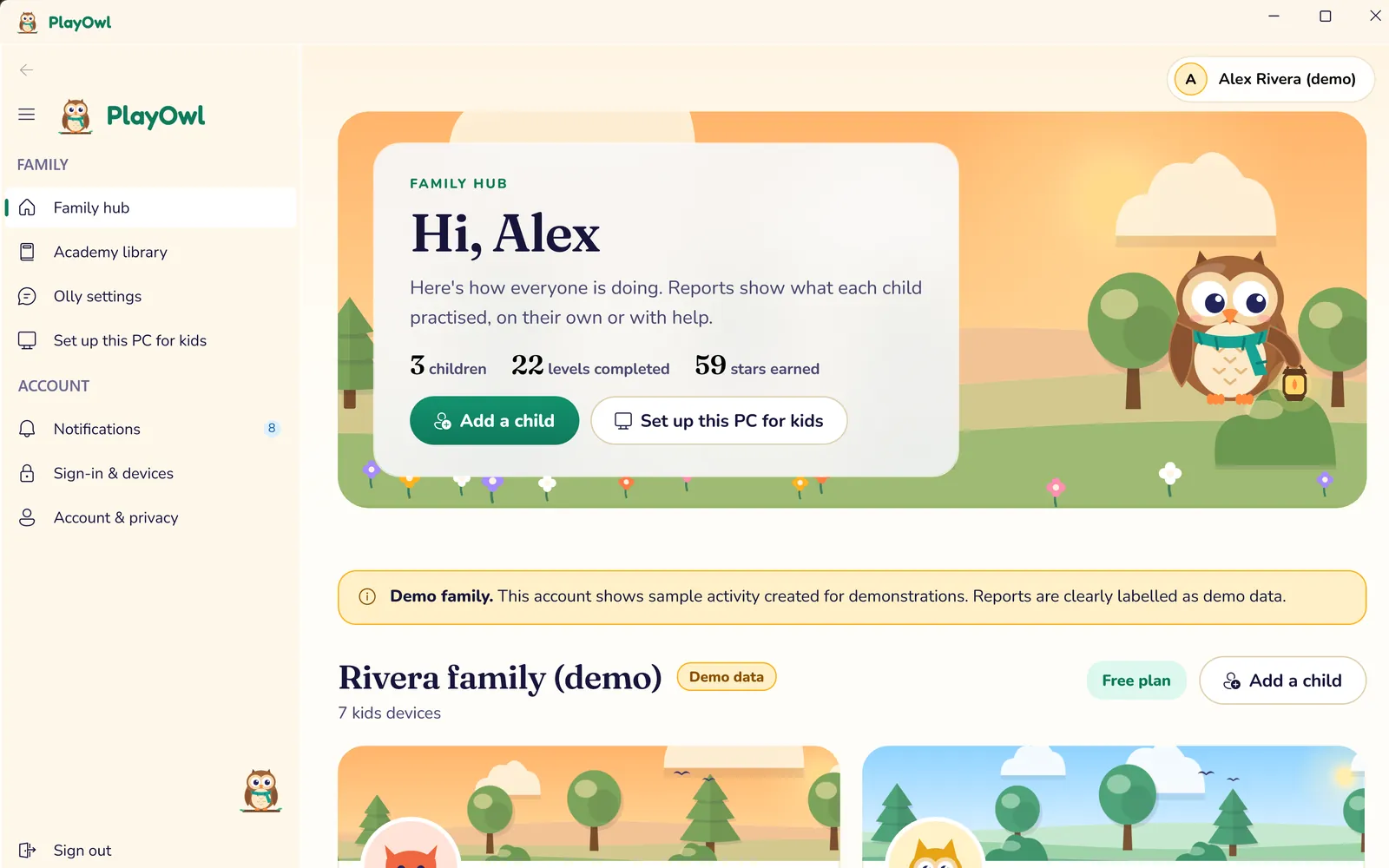
The Family hub on Windows 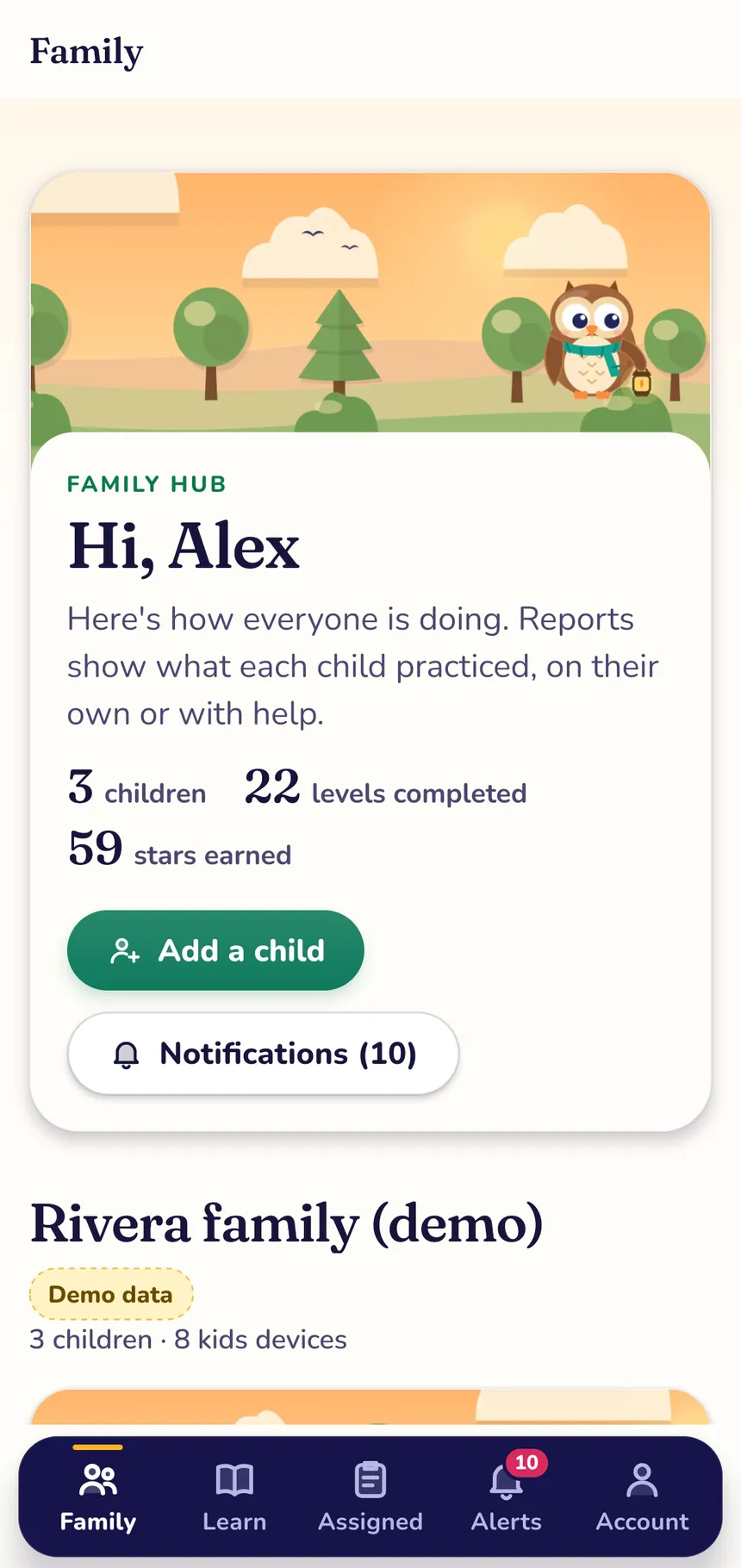
The Family hub on a phone -
Set up this device for your kids
On Windows, choose Set up this PC for kids in the Family hub, give the PC a name and press Set up for kids. On a phone or tablet, tap Hand this device to my child, name the device and tap Set up and hand to kids.
You're signed out, and the device opens on Who's playing? with your children's pictures. It stays set up for your family until you remove it, and grown-ups sign in again whenever they need the grown-ups' area.
-
Turn on the picture sequence for siblings (optional)
If brothers and sisters share a device, give each child three pictures to tap in order. Choose them on the child's Settings page in the Picture sequence card and press Save pictures. Then switch it on for the device: Ask children to tap their three pictures when you set up a PC, Ask for picture sequences on this device on a phone or tablet, or Turn on next to the device on the Devices page.
The picture sequence stops siblings switching profiles by accident. It isn't a password.
-
Choose PlayTime and what they can open
Under PlayTime & access, set daily minutes for school days and weekends, the hours when play is allowed, PlayTime earned by learning, and games that need your OK. Rules can cover one child or the whole family, and play is never cut off in the middle of a game: a calm banner appears for the last two minutes.
-
Manage or remove devices
Every browser, PC, phone and tablet set up for your children is listed on Devices set up for your children, with when it was set up and last used. Press Remove for one device or Remove all devices for all of them: removed devices stop showing your children's names, and anyone playing on them is signed out. Progress is never lost. In the apps, the same list is under Sign-in & devices.
-
Pick a plan when you're ready
Free levels and free courses are open to everyone. Family Premium unlocks every level of every game and every Academy course. You choose a plan on the website after signing in, under Plans & billing; the apps never sell anything. Compare plans.
Step by step
For kids: how to play
Read this together the first time. After that, you'll know the way!
-
Find your picture
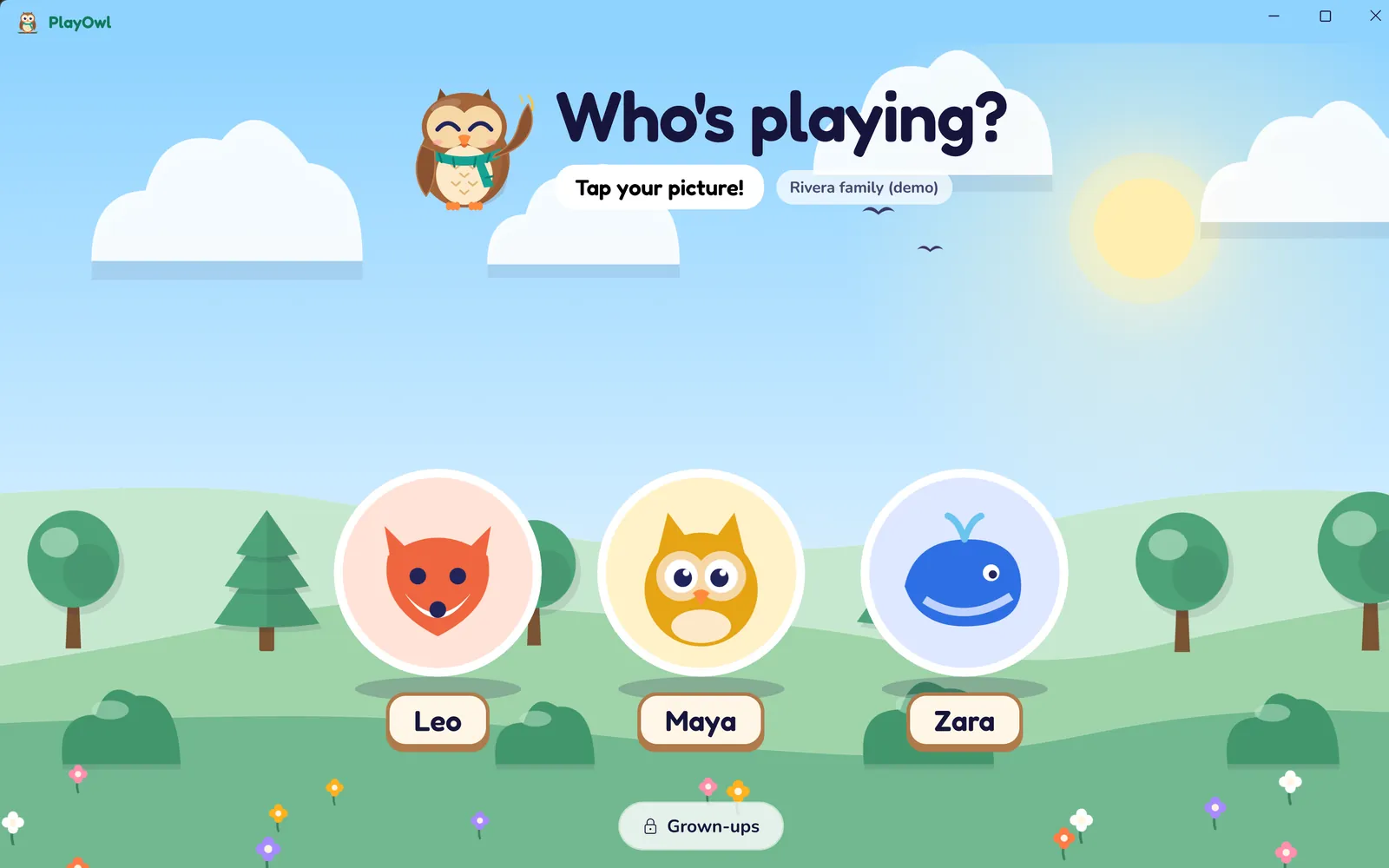
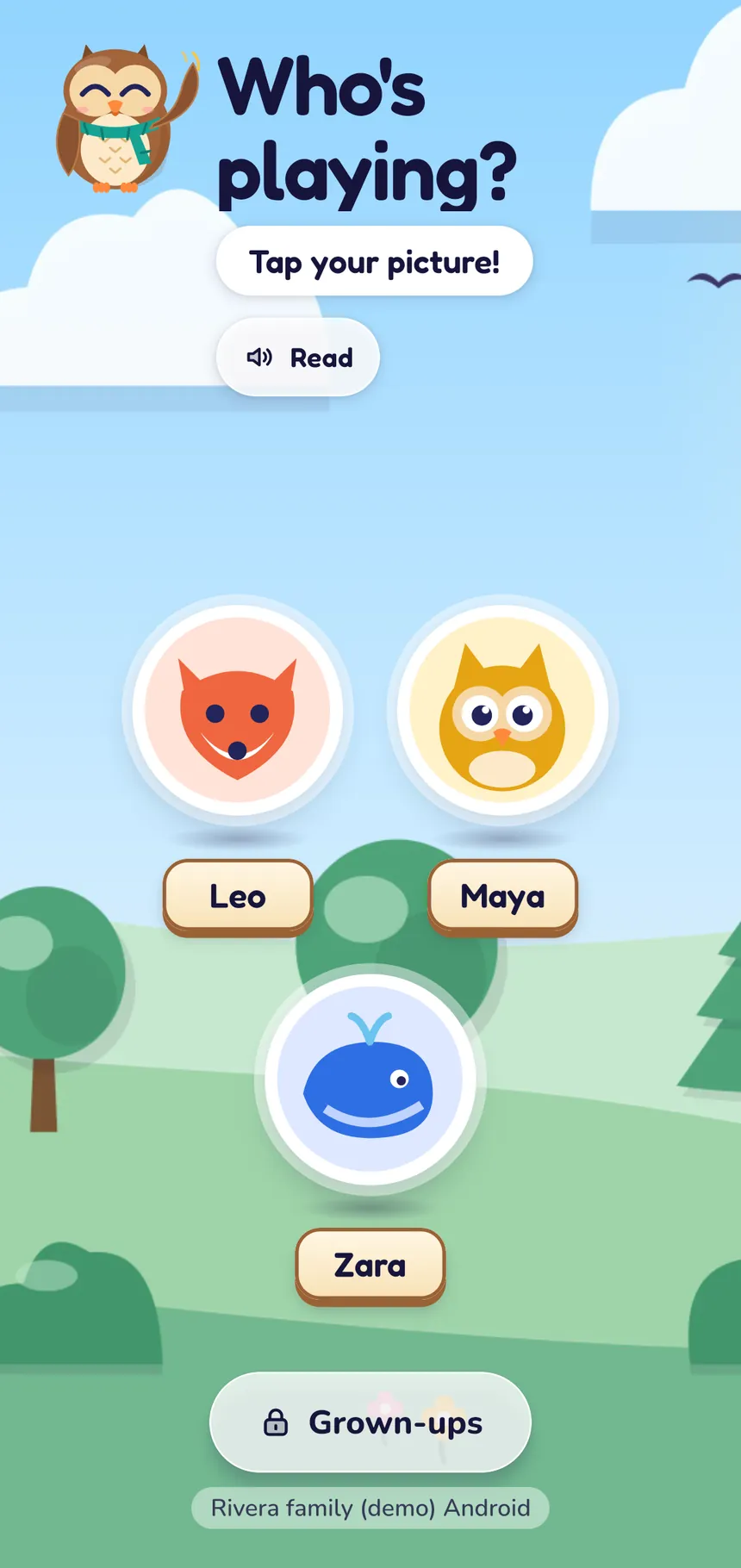
When the app opens, it asks Who's playing? Tap your own picture and name. Not you? Don't worry, just tap the right one.
Who's playing? on Windows
Who's playing? on a phone -
Tap your three pictures, if Olly asks
Some families use a picture sequence. If you see Tap your three pictures, tap your secret pictures in the right order. Got it wrong? Try again, or ask a grown-up to help.
-
Choose what to do
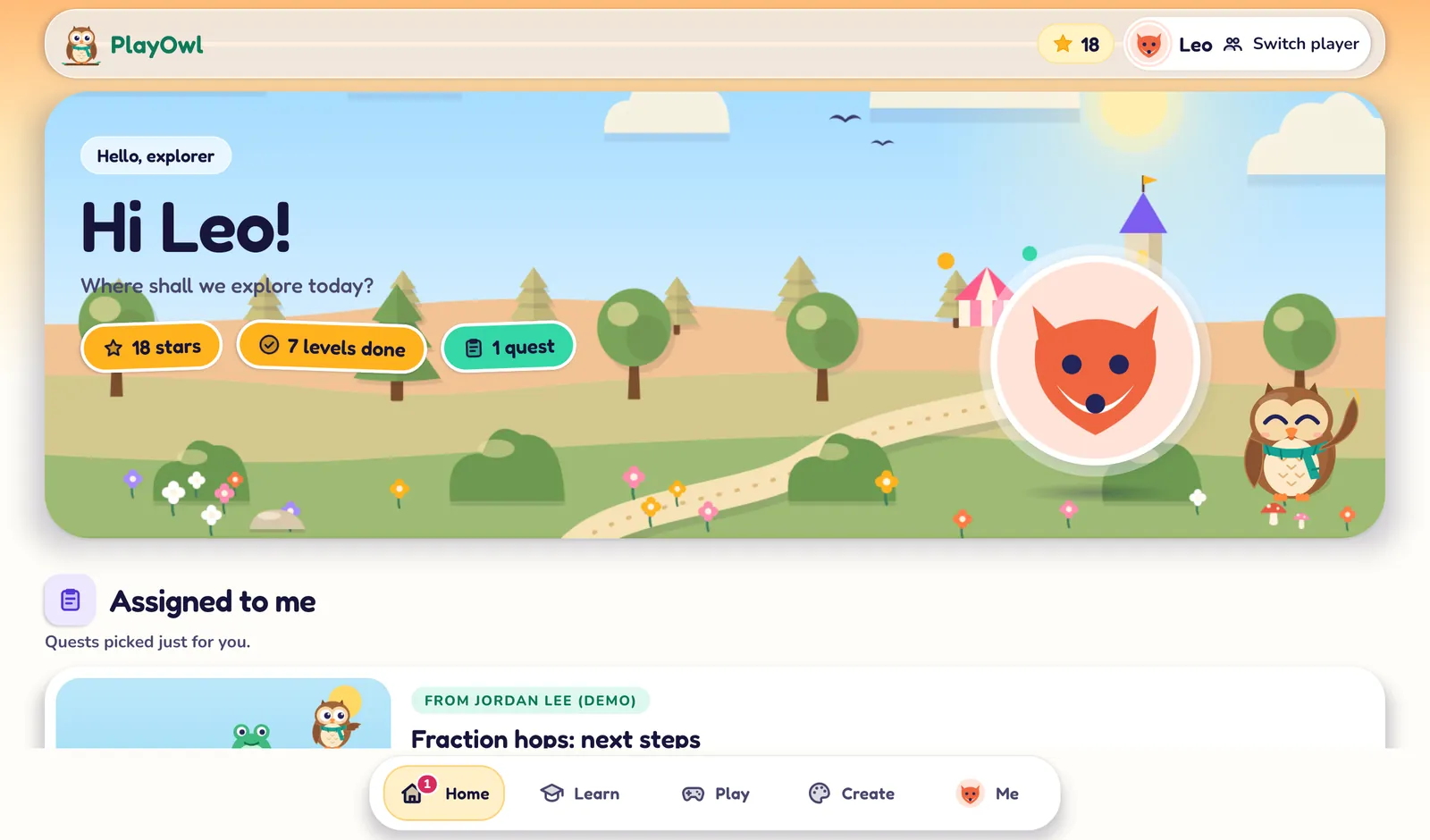
Your home screen shows your stars and the levels you've done. Look for work your teacher gave you, what Olly suggests, Academy courses to learn something new, and games to play. Some parts, like PlayTime, appear when a grown-up turns them on.
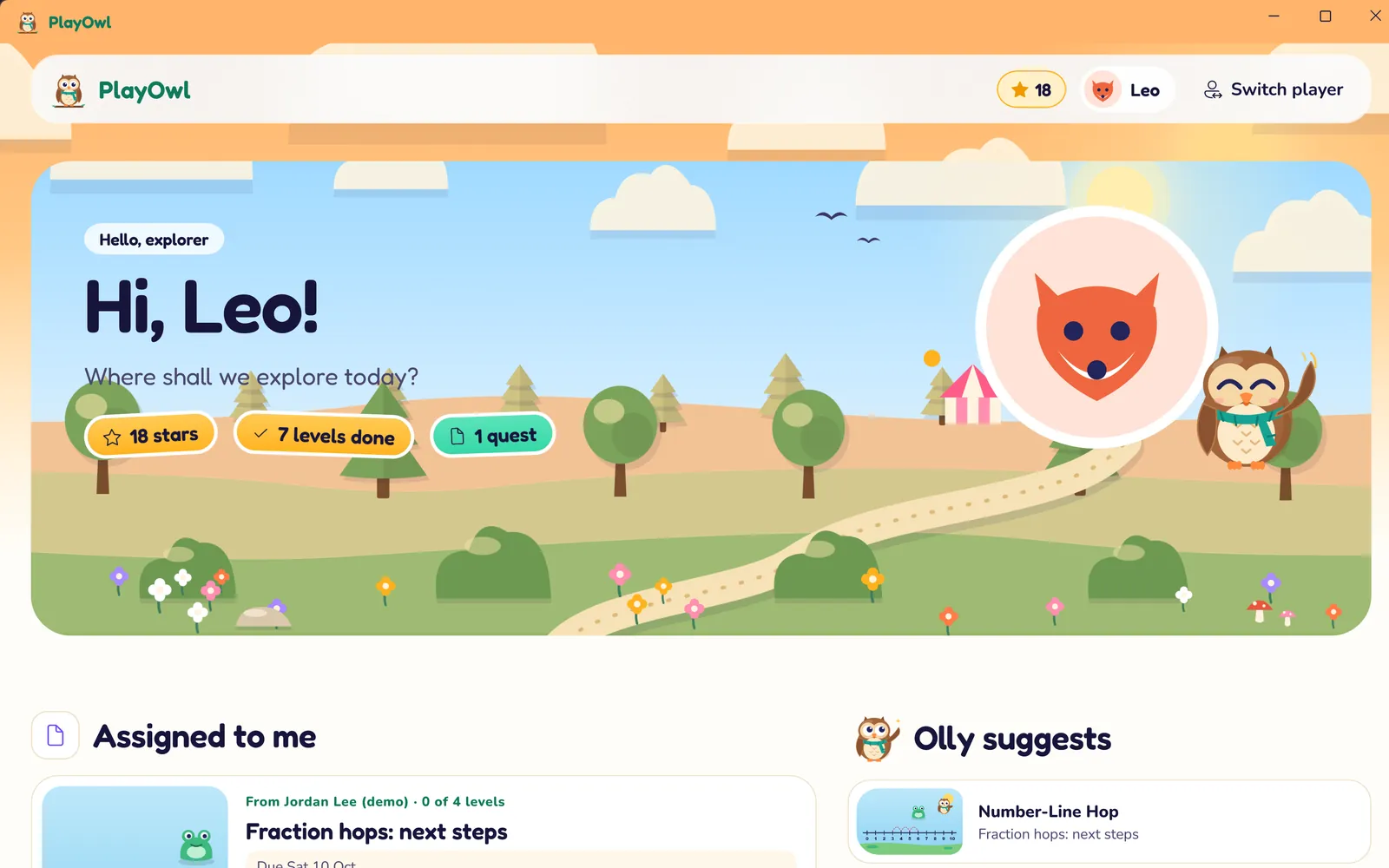
Your home screen on Windows 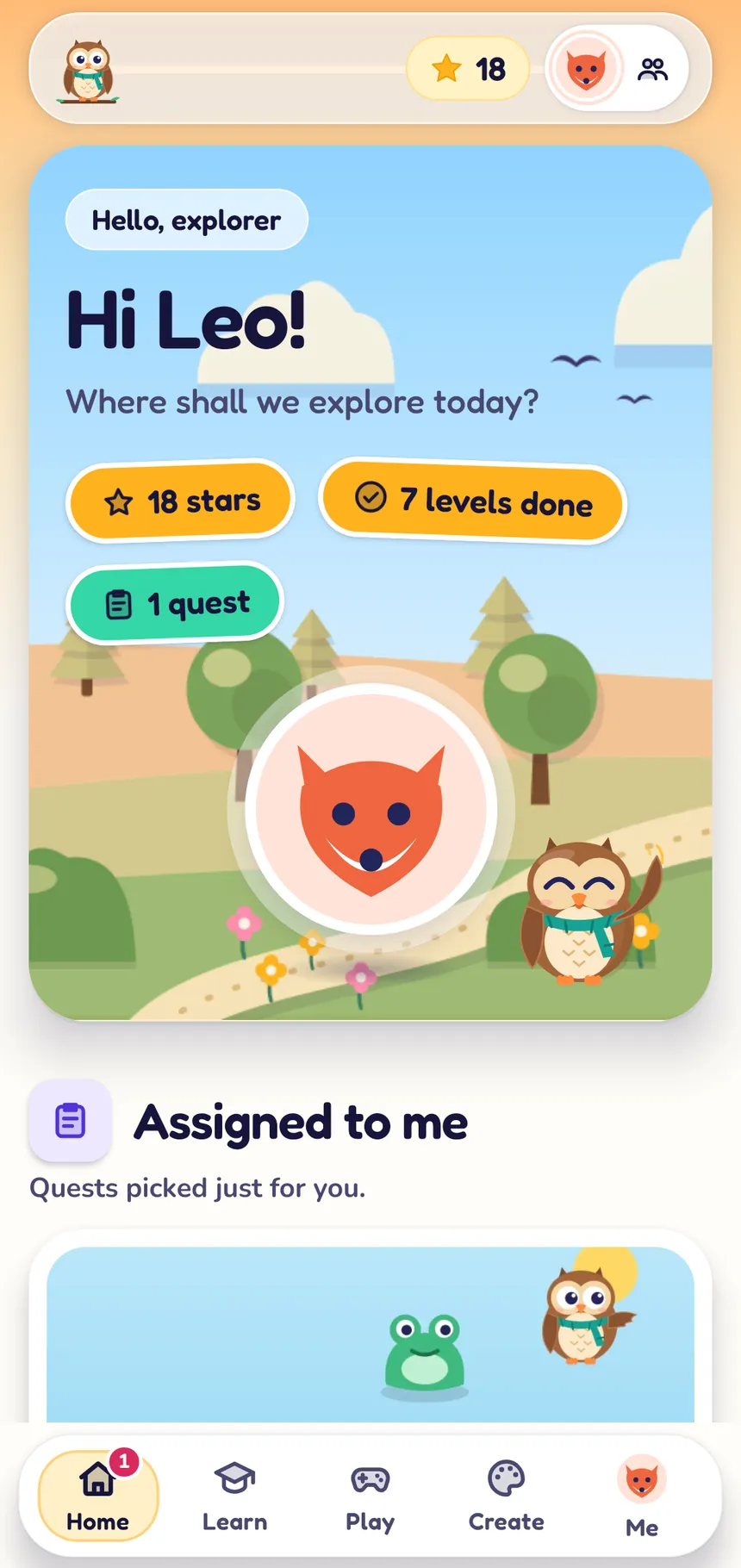
Your home screen on a phone -
Play, learn and earn stars
Each game has levels. Finish a level to earn up to three stars. Press Read to hear the question, or Ask Olly for a hint. If the internet stops, keep going: your work is saved and sent to your account later.
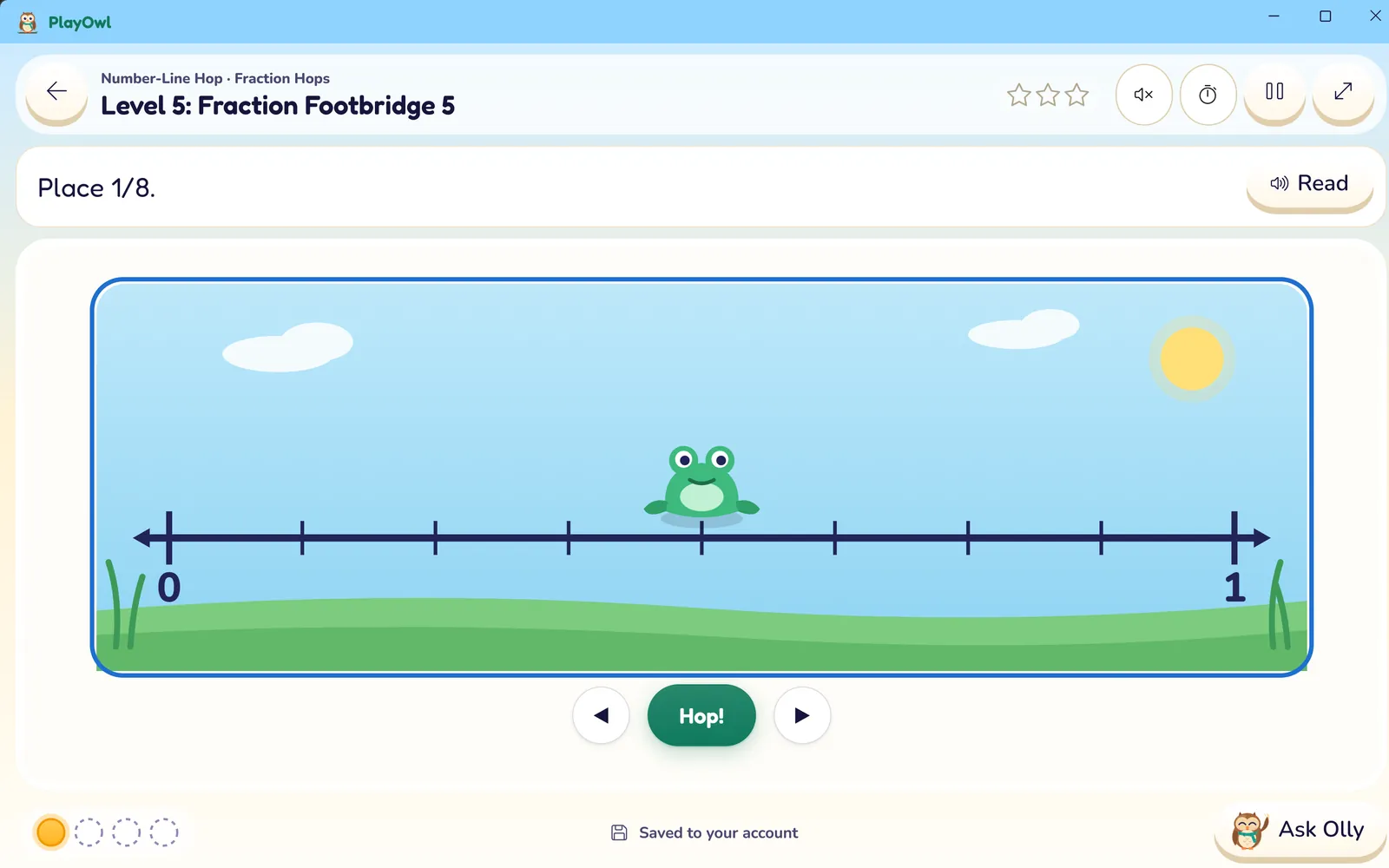
A game on Windows 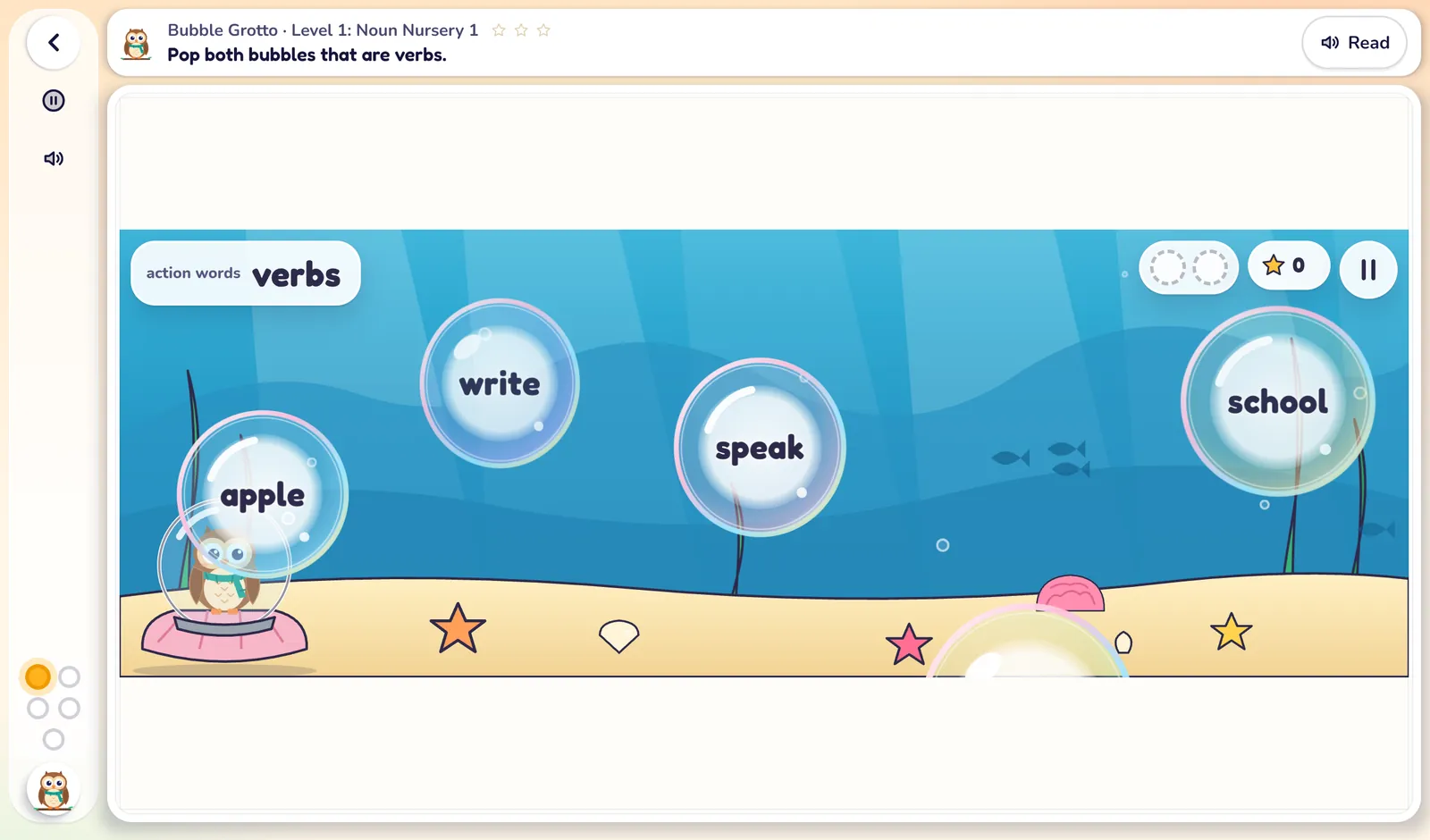
A game on a tablet 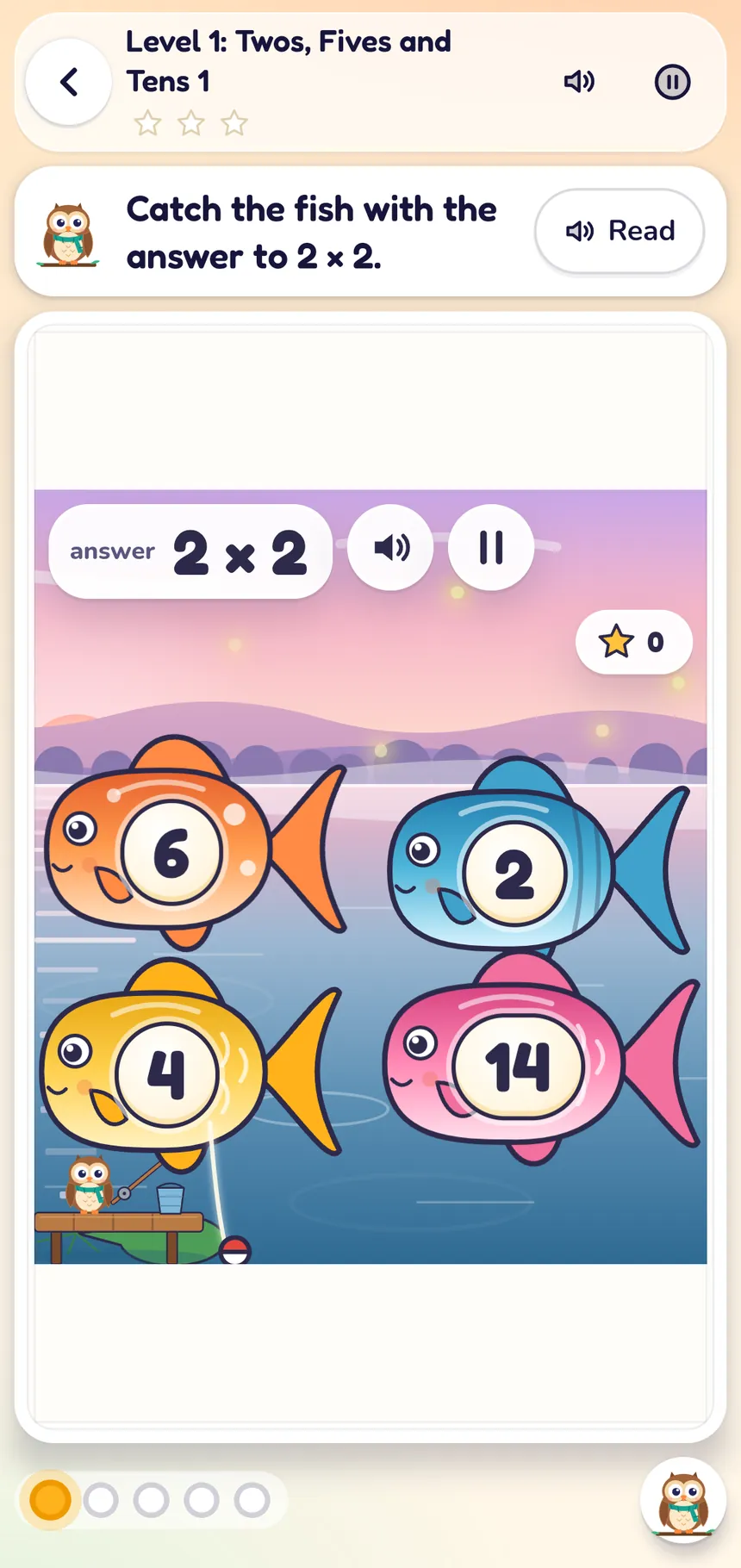
A game on a phone -
Finished? Switch player
When it's someone else's turn, press Switch player. You go back to Who's playing? and your stars stay safe. The Grown-ups button is just for grown-ups: it asks for their password.
Step by step
For teachers & schools: classes and classroom devices
Classes are created on the website; the apps are where children play. Children sign in with a class badge, so shared classroom devices never need a grown-up's account.
-
Sign in and create a class
Sign in on the website and open My classes. Choose New class, give it a name and the grades it covers, and press Create class. Your classes also appear in the apps under Classes & schools, with each class code.
-
Print sign-in badges
On the class page, add learners and choose Print sign-in badges. Each badge card has the class code, the child's own badge code and a QR code. Press New badge to replace a lost one, or Turn off badge to stop one working.
-
Assign practice
From the class page, use Assign games, Assign a check or Choose a path. Choose the levels, tries allowed, a due date, stars needed and how much help is allowed. Assigned work shows up first on each child's home screen, and Live class shows who's playing and who's asking for help.
-
Set class rules
Use PlayTime & access on the class page to choose what children may open and when. School admins can set the same rules for the whole school.
-
Schools: seats, staff and rosters
Set up your school or organization on the website, then see Licenses and seats on its dashboard. Plans are priced per student, with at least 20 students for a school and 50 for an organization. Invite staff with a role (teacher, school admin, curriculum manager, billing manager or organization admin) and use Import a roster to add learners from a CSV file: only a first name, a grade and your school's own ID are stored. More for schools.
-
Set up a classroom tablet or PC
Install the app on the shared device; no grown-up sign-in is needed. Each child chooses Use my class badge on a phone or tablet, or At school? Class badge on Windows, types the Class code and Badge code from their badge, and presses Let's play! Their session ends at the end of the school day, or when you end it.
In a browser, children go to the badge sign-in page, where they can hold the badge's QR code up to the camera or type the two codes.
Need a hand setting up?
Tell us which device you're using and what you see, and we'll help. We reply within about 2 business days.