Skip to content
PlayOwl

For schools & districts

Every class, one plan. Room for every learner.

Add staff and students, set school-wide rules once, and see seats in use on one dashboard. School records stay separate from family accounts.

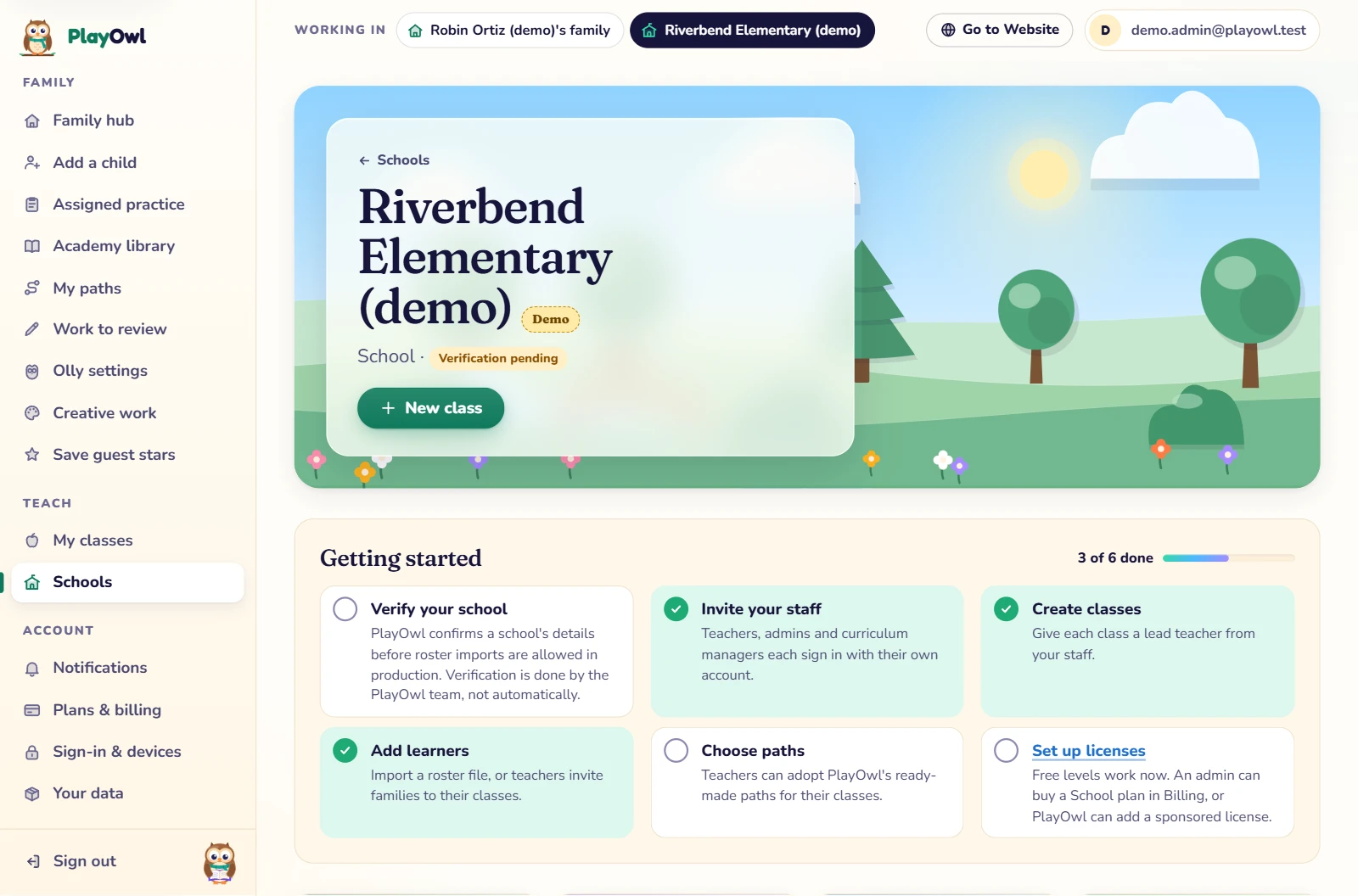
The Riverbend Elementary (demo) school dashboard on the web: a New class button and a Getting started checklist, 3 of 6 done (staff invited, classes created, learners added), with verifying the school, choosing paths and setting up licenses still to do.
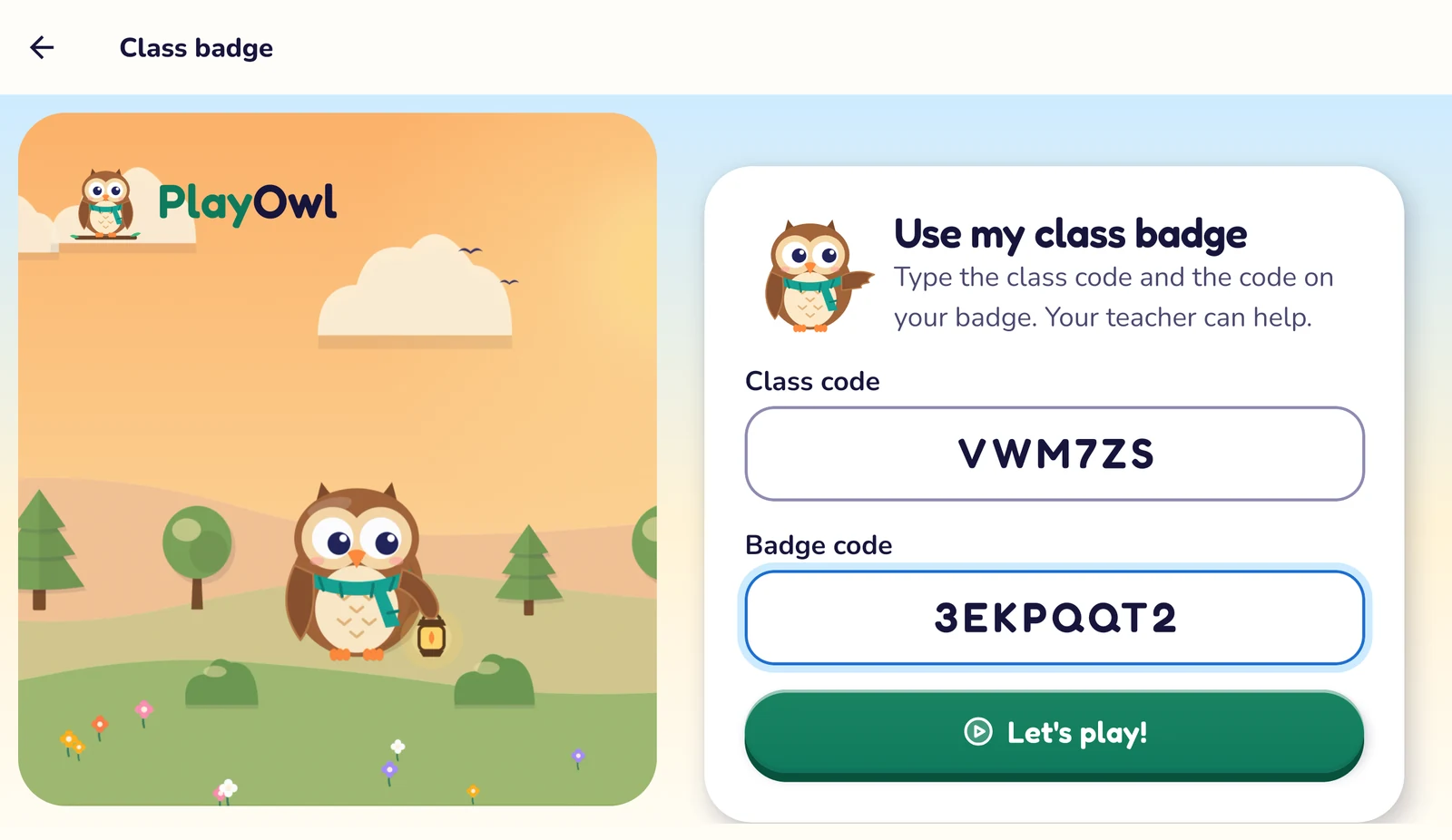
Class badge sign-in in the PlayOwl app on a shared Android tablet: "Use my class badge", with the class code and a student's badge code typed into large boxes and a Let's play! button, beside Olly in a meadow.

How it works

Your school, in four steps

  1. Set up your schoolA free dashboard with a setup checklist.
  2. Add teachers & studentsInvite staff; import students from a CSV file.
  3. Set school-wide rulesScreen time and Olly's help, once.
  4. Choose seatsPriced per student, on the website.

Two views, one school

You set it up once. Every class benefits.

Real screens from PlayOwl. Teachers get their own class tools: see what teachers get.

What you do

School administrators, signed in

  • Your school on one dashboard

    Classes, staff and a setup checklist in one place.

    The Riverbend Elementary (demo) school dashboard on the web: a New class button and a Getting started checklist, 3 of 6 done (staff invited, classes created, learners added), with verifying the school, choosing paths and setting up licenses still to do.
  • Invite staff with a role

    Teacher, school admin, curriculum manager or billing manager.

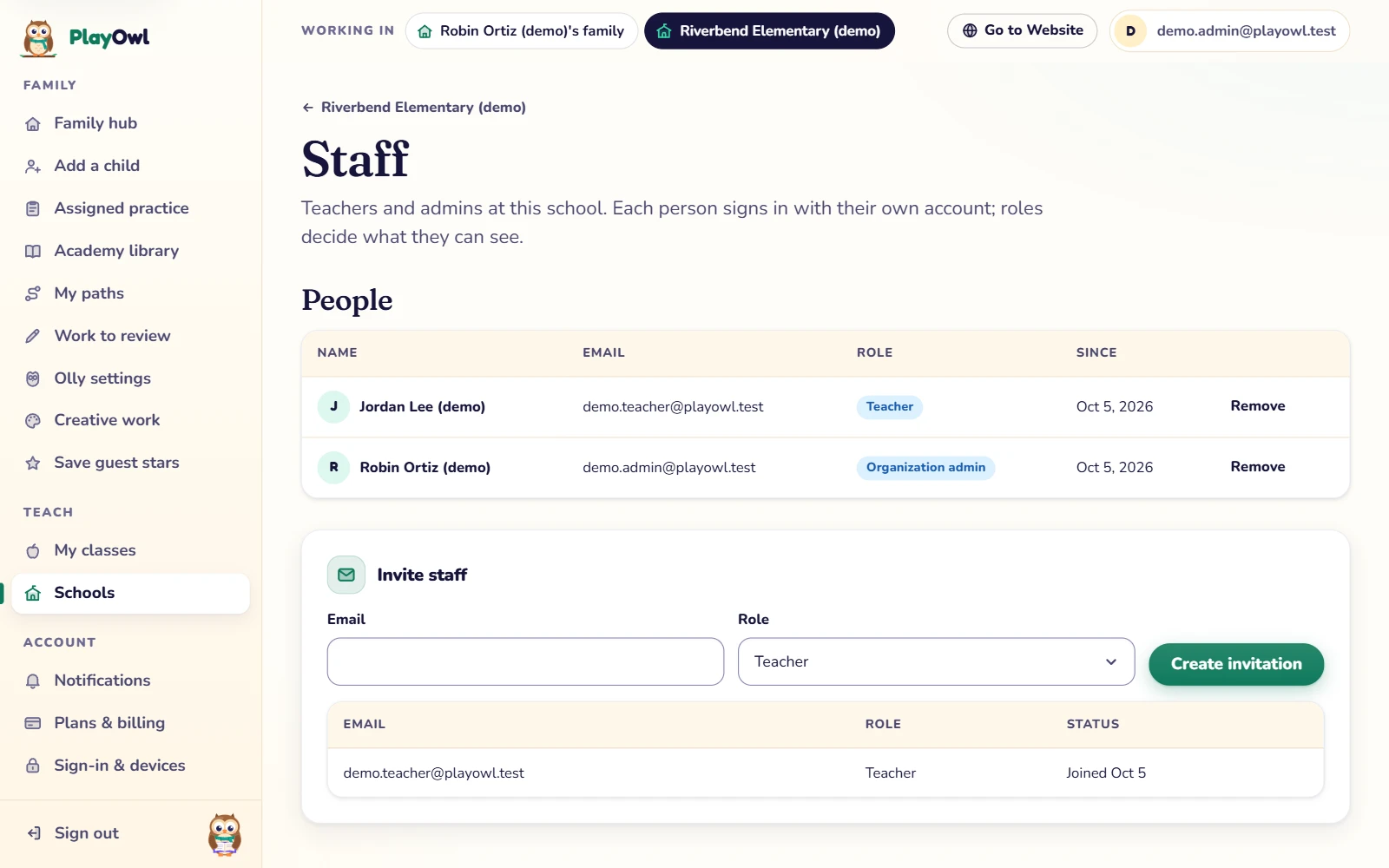
    The Staff page of Riverbend Elementary (demo) on the web: Jordan Lee (demo) as a teacher and Robin Ortiz (demo) as the school admin, each with a Remove button, and an Invite staff form with an email field and a role menu.
  • Import students from a spreadsheet

    Only a first name, a grade and your school's own ID are stored.

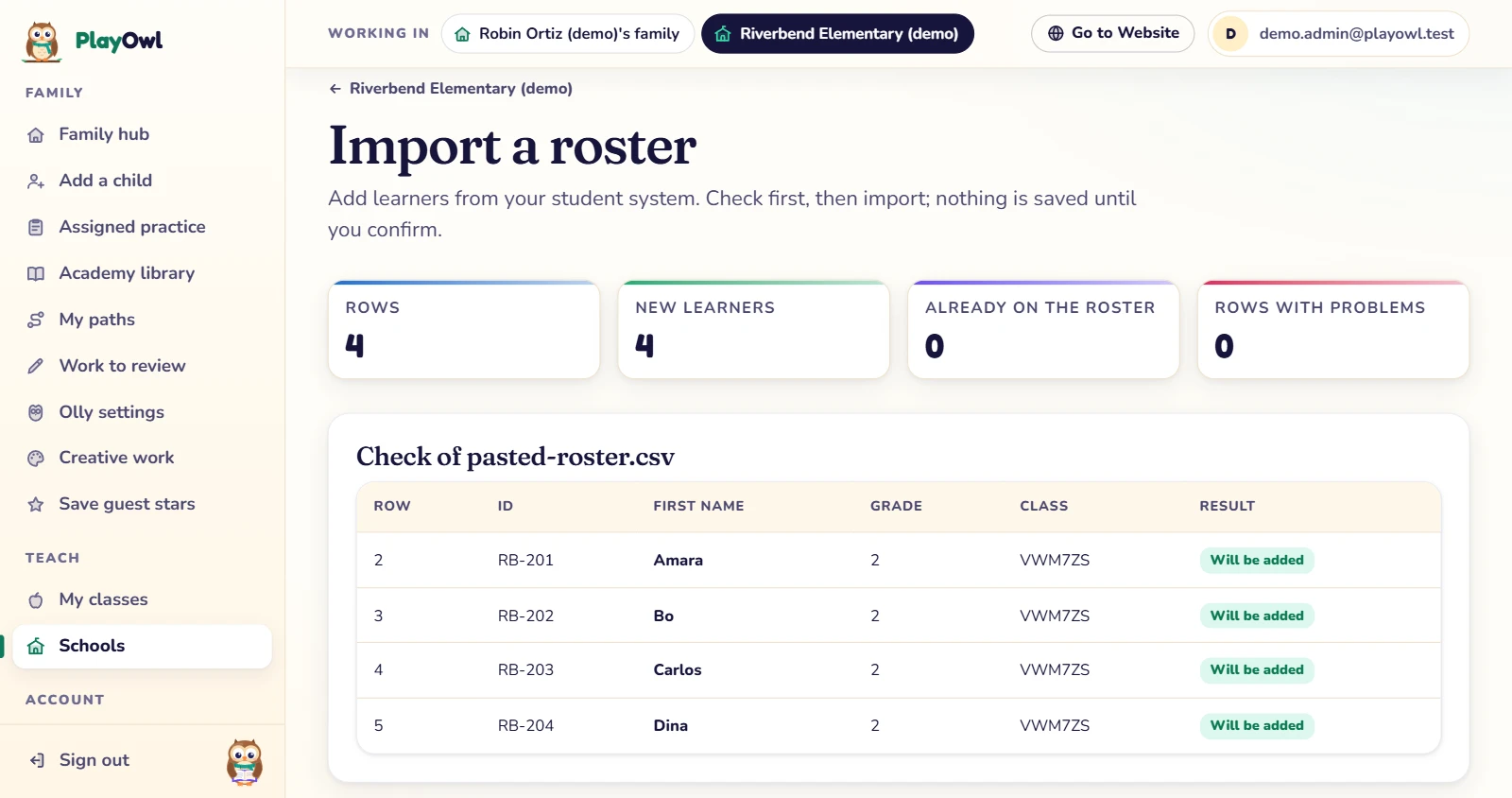
    Import a roster on the web, after "Check the file": 4 rows, 4 new learners, none already on the roster and no problems; a table of school IDs, first names, grade 2 and the class code, each row marked "Will be added". Nothing is saved until the import is confirmed.
  • Set school-wide rules once

    Screen time and Olly's help for every class. Every change is recorded.

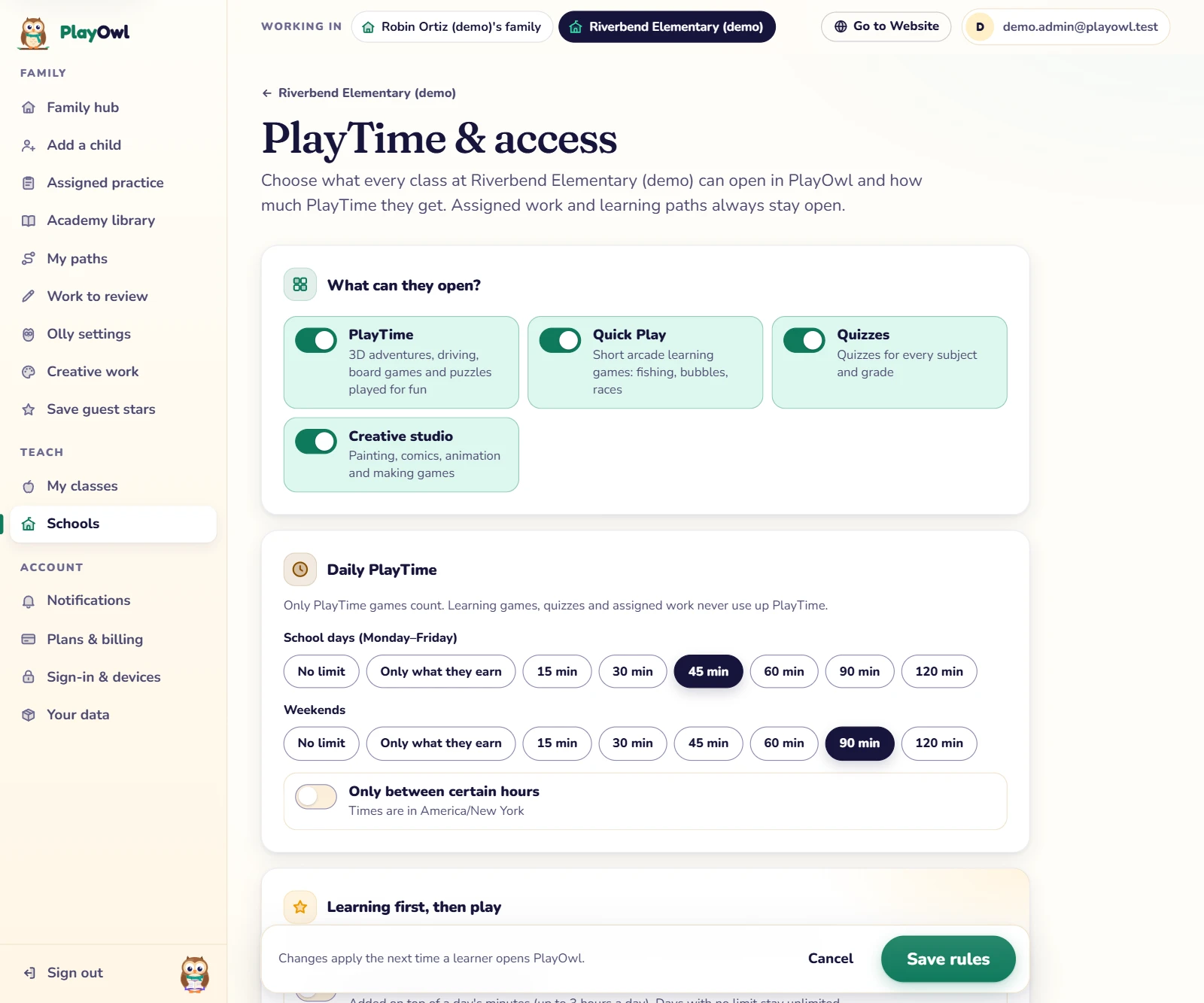
    PlayTime & access for every class at Riverbend Elementary (demo) on the web: switches for PlayTime, Quick Play, Quizzes and Creative studio, daily PlayTime of 45 minutes on school days and 90 at weekends, an Only between certain hours switch, and a Save rules bar.
  • See seats bought and in use

    Licenses and seats on your dashboard; add more on Plans & billing.

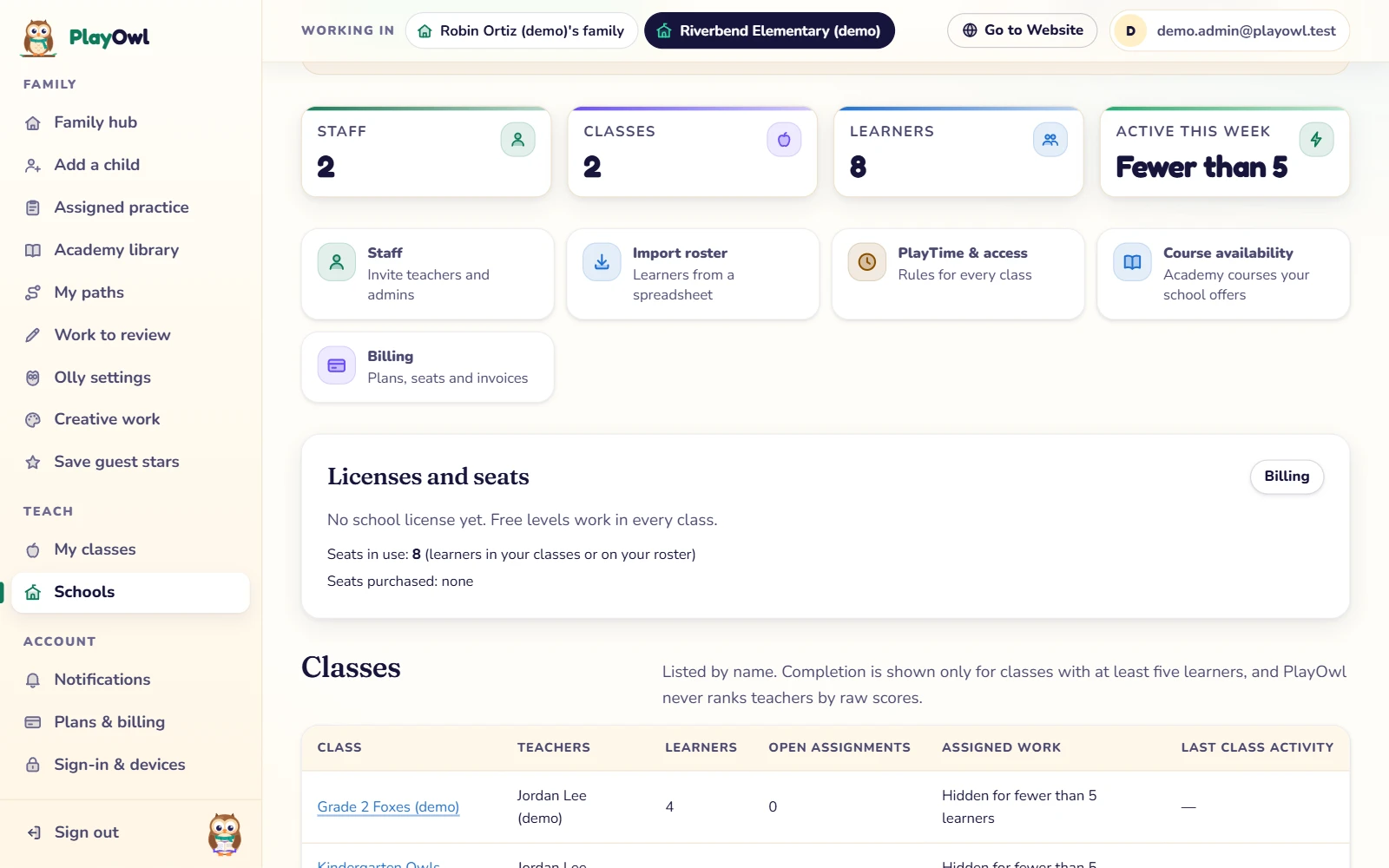
    A school dashboard on the web: 2 staff, 2 classes, 8 learners and fewer than 5 active this week, links to Staff, Import roster, PlayTime & access, Course availability and Billing, and the Licenses and seats panel: no license yet, 8 seats in use, none purchased.

What your students see

Students, with a class badge

  • Shared devices, no accounts

    Students type their class and badge codes and start.

    Web

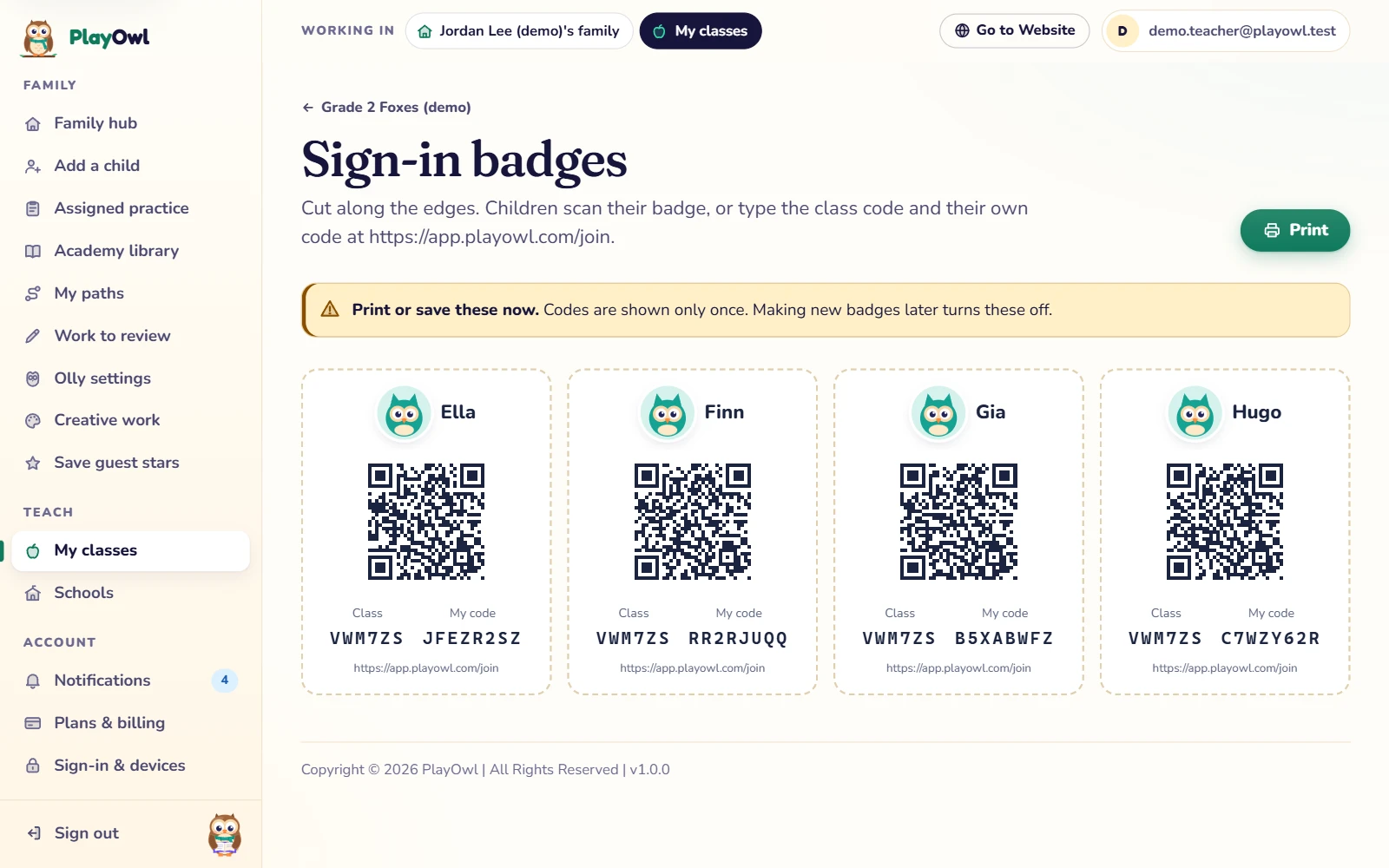
    Printable sign-in badges for Grade 2 Foxes (demo) on the web: cards for Ella, Finn, Gia and Hugo, each with a QR code, the class code and their own code to type on any shared device, and a Print button.

    Mobile app

    Class badge sign-in in the PlayOwl app on a shared Android tablet: "Use my class badge", with the class code and a student's badge code typed into large boxes and a Let's play! button, beside Olly in a meadow.
  • Class work comes first

    What their teacher assigned sits at the top of their home screen.

    Web

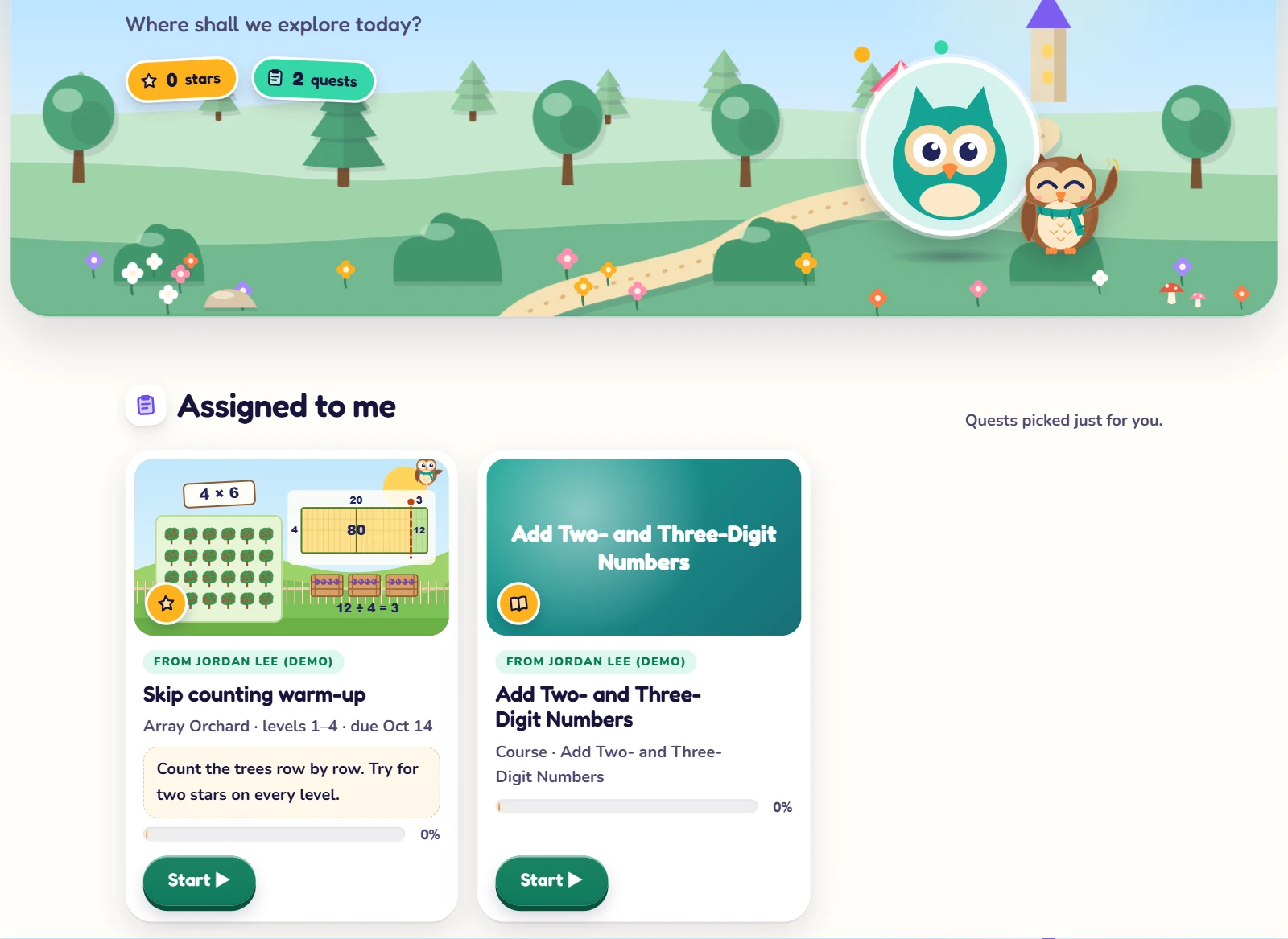
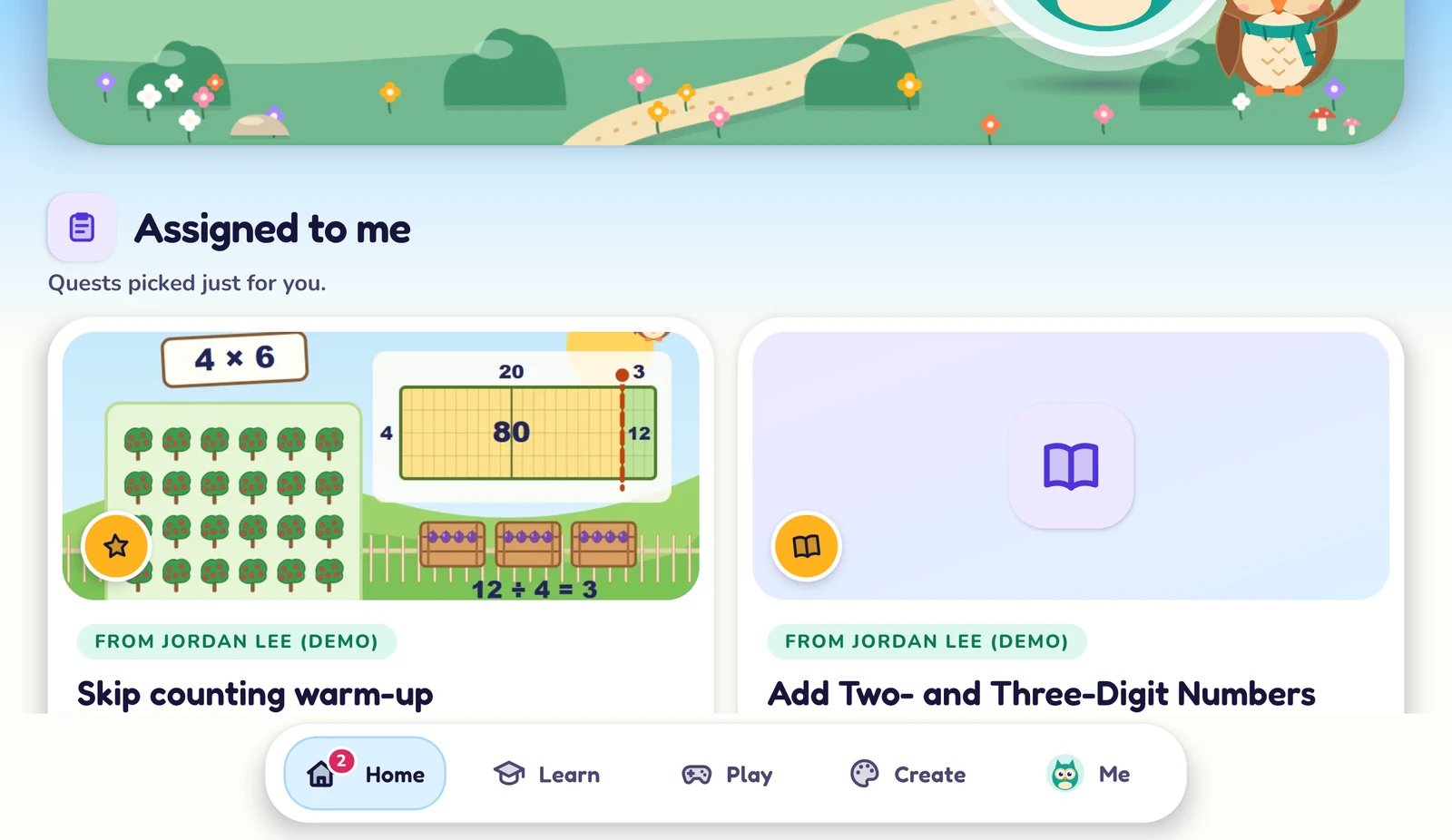
    A school student's home screen on the web after signing in with a class badge: 2 quests, and under Assigned to me the class game Skip counting warm-up (Array Orchard, levels 1 to 4, with a due date and the teacher's note) and the course Add Two- and Three-Digit Numbers, each with a Start button.

    Mobile app

    A student's home in the PlayOwl app on an Android tablet after a class badge sign-in: Assigned to me shows the game Skip counting warm-up and the course Add Two- and Three-Digit Numbers, both from Jordan Lee (demo), above a Home, Learn, Play, Create and Me tab bar.
  • Games with the help you allow

    Stars for every level, and only the help your school turns on.

    Web

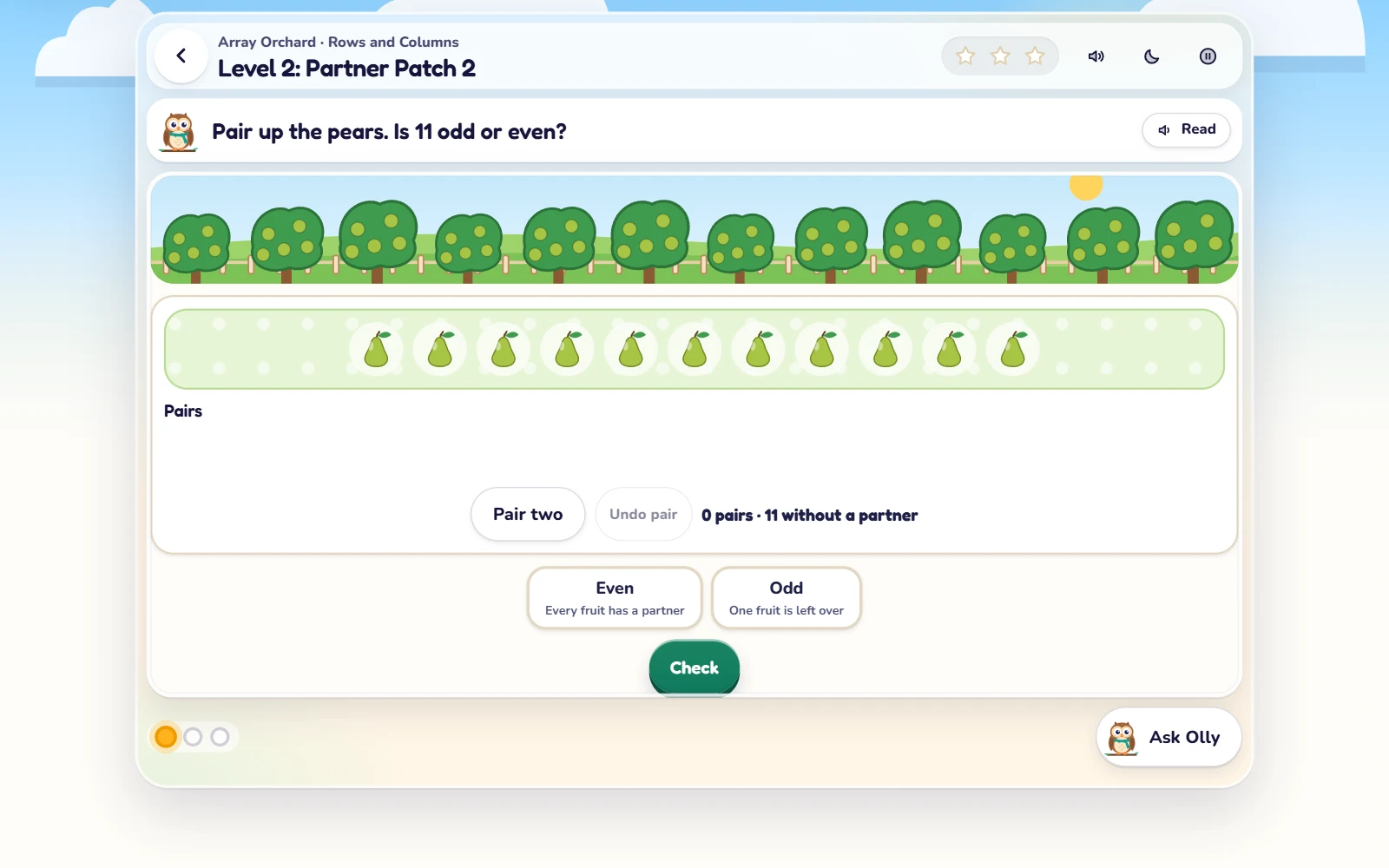
    Array Orchard on the web, Level 2: Partner Patch 2, from the class assignment. The task says "Pair up the pears. Is 11 odd or even?" with eleven pears to pair, Pair two, Even, Odd and Check buttons, a Read button and Ask Olly.

    Windows app

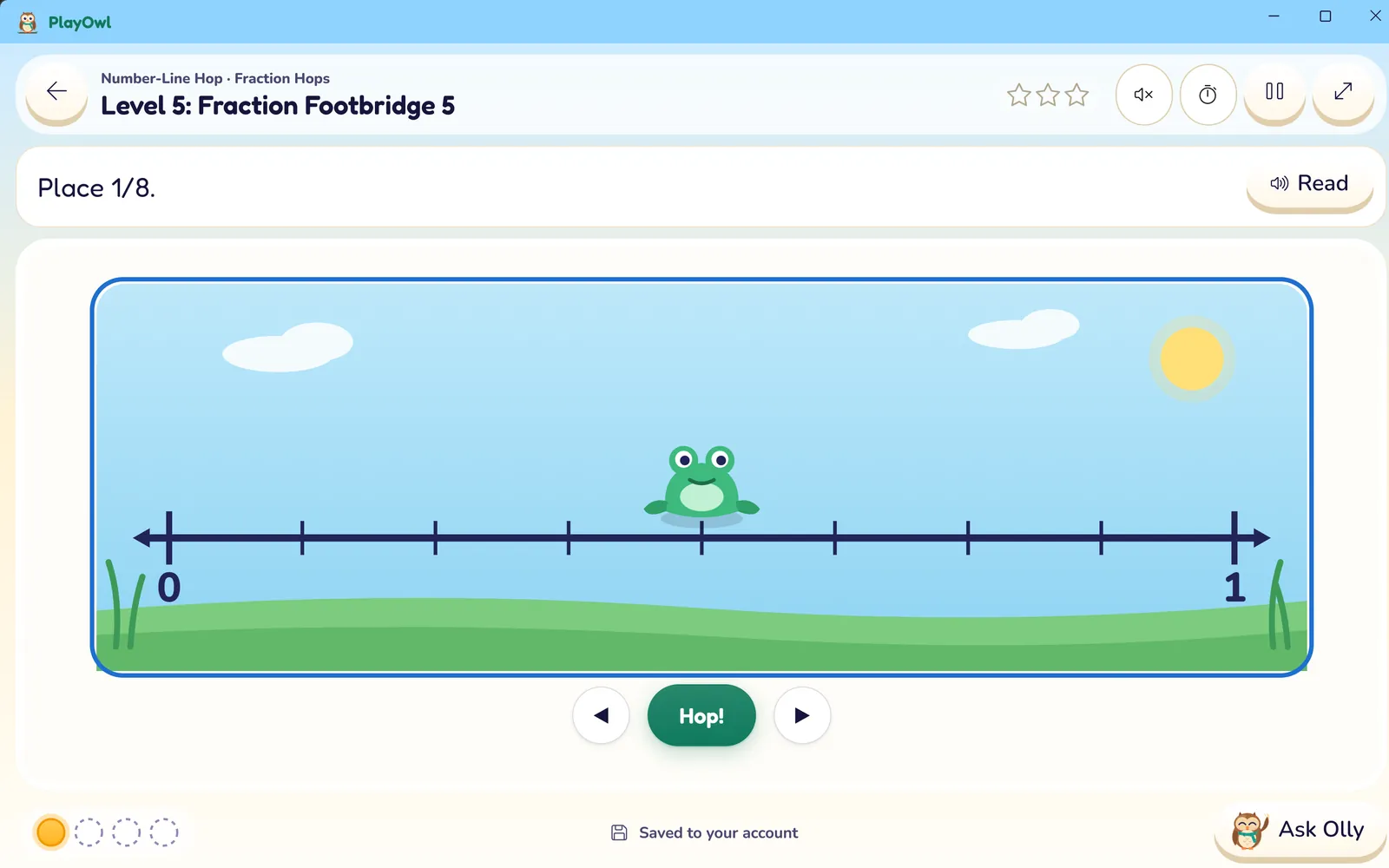
    PlayOwl for Windows playing Number-Line Hop, Level 5: Fraction Footbridge. The task says "Place 1/8" and a frog sits on a number line from 0 to 1 split into eighths, with Hop and arrow buttons, Read, Ask Olly and "Saved to your account".

    Mobile app

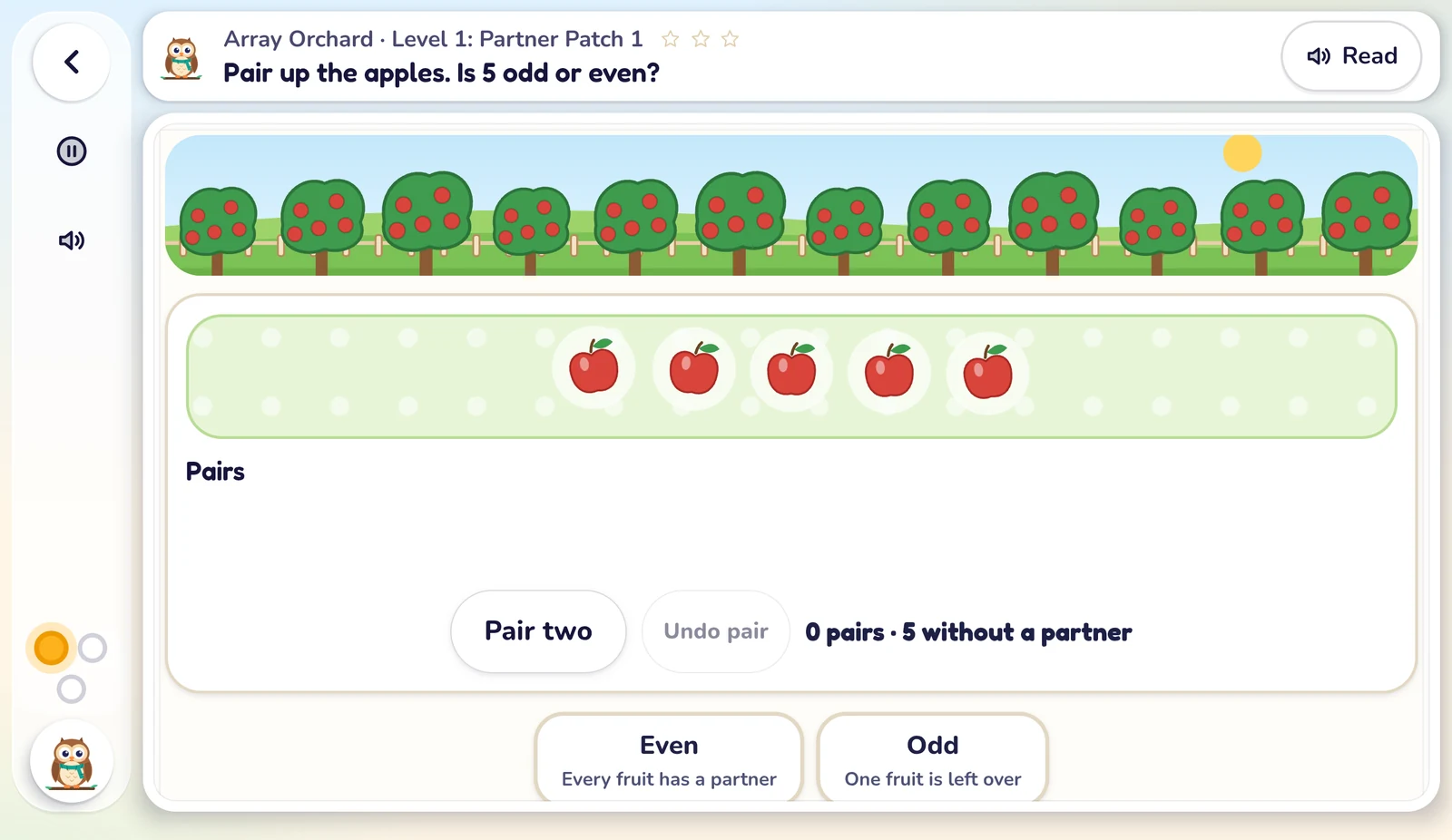
    Array Orchard in the PlayOwl app on an Android tablet, Level 1: Partner Patch 1. The task says "Pair up the apples. Is 5 odd or even?" with five apples, Pair two, Even and Odd buttons, a Read button, and pause, sound and Olly buttons down the side.
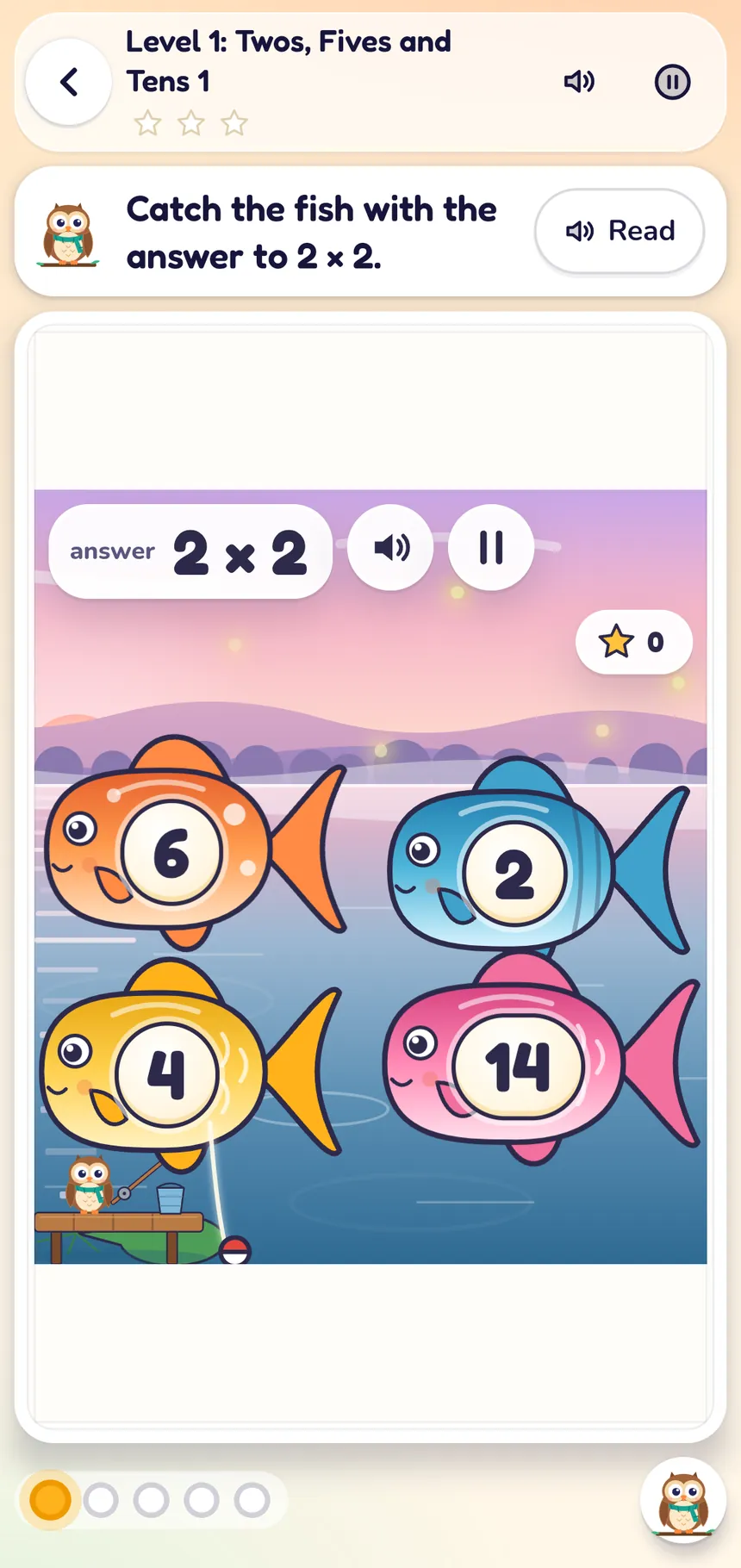
    PlayOwl on an Android phone playing Glimmer Pond, Level 1: Twos, Fives and Tens. The task says "Catch the fish with the answer to 2 × 2" and Olly fishes from a dock at a twilight pond with fish numbered 6, 2, 4 and 14.

Web, Windows and mobile

Run it on the web. Play on any device.

Administration lives on the website; students play in a browser or the apps.

  • Works there
  • Not there
  • Free On every account
  • Plan adds more Free to start; a plan opens every level and course
What works on the website, in the Windows app and in the Android and iOS app
What you can do WebAny browser WindowsPC app MobileAndroid & iOS
School dashboard, staff and roster Free Yes No: On the web No: On the web
School-wide screen-time rules Free Yes Yes: Admins Yes: Admins
School-wide settings for Olly's help Free Yes Yes Yes
Teachers create classes and assign work Plan adds more Yes No: On the web No: On the web
Live class view Free Yes No: On the web No: On the web
Students join with a class code Free Yes: Code or QR Yes Yes: Typed code
Students play and learn Plan adds more Yes Yes Yes
Keeps working if the internet drops Free No: Short drops only Yes: Syncs later Yes: Syncs later

What it costs

Set up free. Seats open every level.

Free forever

Free
  • School dashboard, staff roles and roster
  • Classes, live class view and reports for every teacher
  • School-wide screen-time and Olly rules
  • All printables, free
  • The first 10 levels of every game (5 in 3D adventures)
  • The first five courses of every subject path

$0, no payment details

With a plan

School or Organization
  • Every level and course in every class at the school
  • Seats bought and in use, on your dashboard
  • Unlimited printable generator, for your staff
  • Organization: every class in your district or group, with approved paths shared with your teachers

School: $8.99 per student per month, or $89.99 a year (at least 20 students) Organization: $7.99 per student per month, or $79.99 a year (at least 50 students) Compare plans

Priced per student seat and bought on the PlayOwl website, never inside the apps.

Questions

Schools often ask

Do students need email addresses?

No. A roster stores only a first name, a grade and your school's own ID. Students sign in with a printed class badge.

How is student data handled?

School work stays in the school's scope, and a teacher never sees a child's private home play. No advertising, no selling data and no public student profiles. Formal legal compliance reviews (for example FERPA) are a separate process completed before production launch.

How many seats do we need?

One for each student who uses PlayOwl. School starts at 20 students, and Organization starts at 50 students. You can see seats bought and in use on your dashboard.

Can we try it before we buy?

Yes. Setting up the school, staff, roster and classes is free, with the free levels and courses. Contact us to talk about a trial.

Does it work on shared classroom devices?

Yes, in any modern browser or in the Windows, Android and iOS apps. No grown-up sign-in is needed: students use their class badge, and the session ends with the school day.

Talk to us about your school

We reply within about 2 business days.