Skip to content
PlayOwl

For teachers & tutors

Practice students enjoy. Help where it's needed.

Create a free class, assign games and courses, and see who's stuck, live. No school contract needed.

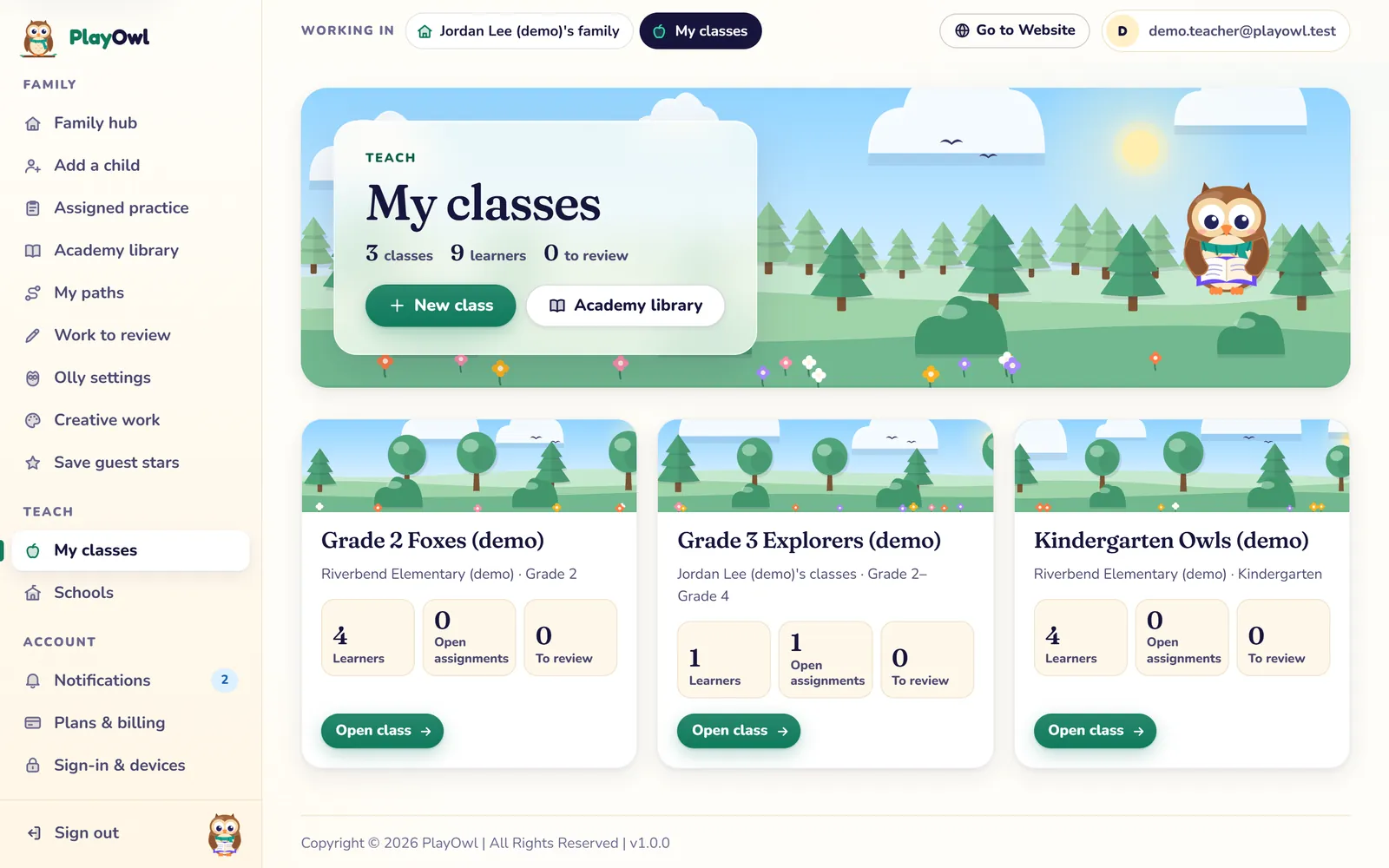
My classes on the web for a teacher: 3 classes and 9 learners, New class and Academy library buttons, and cards for Grade 2 Foxes, Grade 3 Explorers and Kindergarten Owls showing learners, open assignments and work to review.
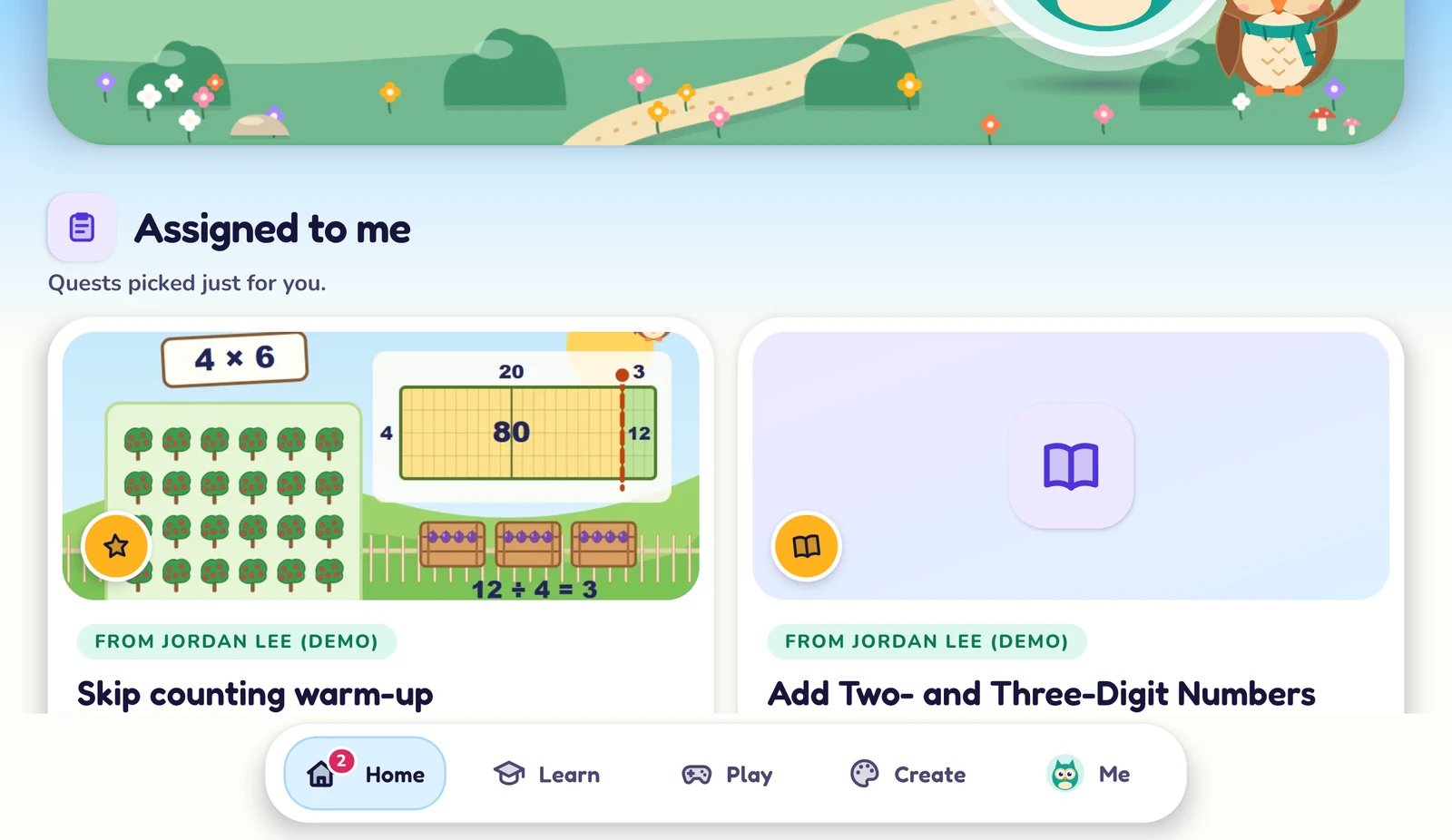
A student's home in the PlayOwl app on an Android tablet after a class badge sign-in: Assigned to me shows the game Skip counting warm-up and the course Add Two- and Three-Digit Numbers, both from Jordan Lee (demo), above a Home, Learn, Play, Create and Me tab bar.

How it works

Your class, in four steps

  1. Create a classGive it a name and its grades.
  2. Students join with a codePrinted badges with a QR code. No email.
  3. Assign practiceGames, courses or a check, with a due date.
  4. See who needs helpLive class view and class reports.

Two views, one class

You plan the practice. They play it.

Real screens from PlayOwl. Switch between web, Windows and mobile where you see the tabs.

What you do

Teachers and tutors, signed in

  • All your classes in one place

    Class codes, students and printable sign-in badges.

    My classes on the web for a teacher: 3 classes and 9 learners, New class and Academy library buttons, and cards for Grade 2 Foxes, Grade 3 Explorers and Kindergarten Owls showing learners, open assignments and work to review.
  • Assign practice in a few clicks

    Games, courses or a check, with a due date and the help allowed.

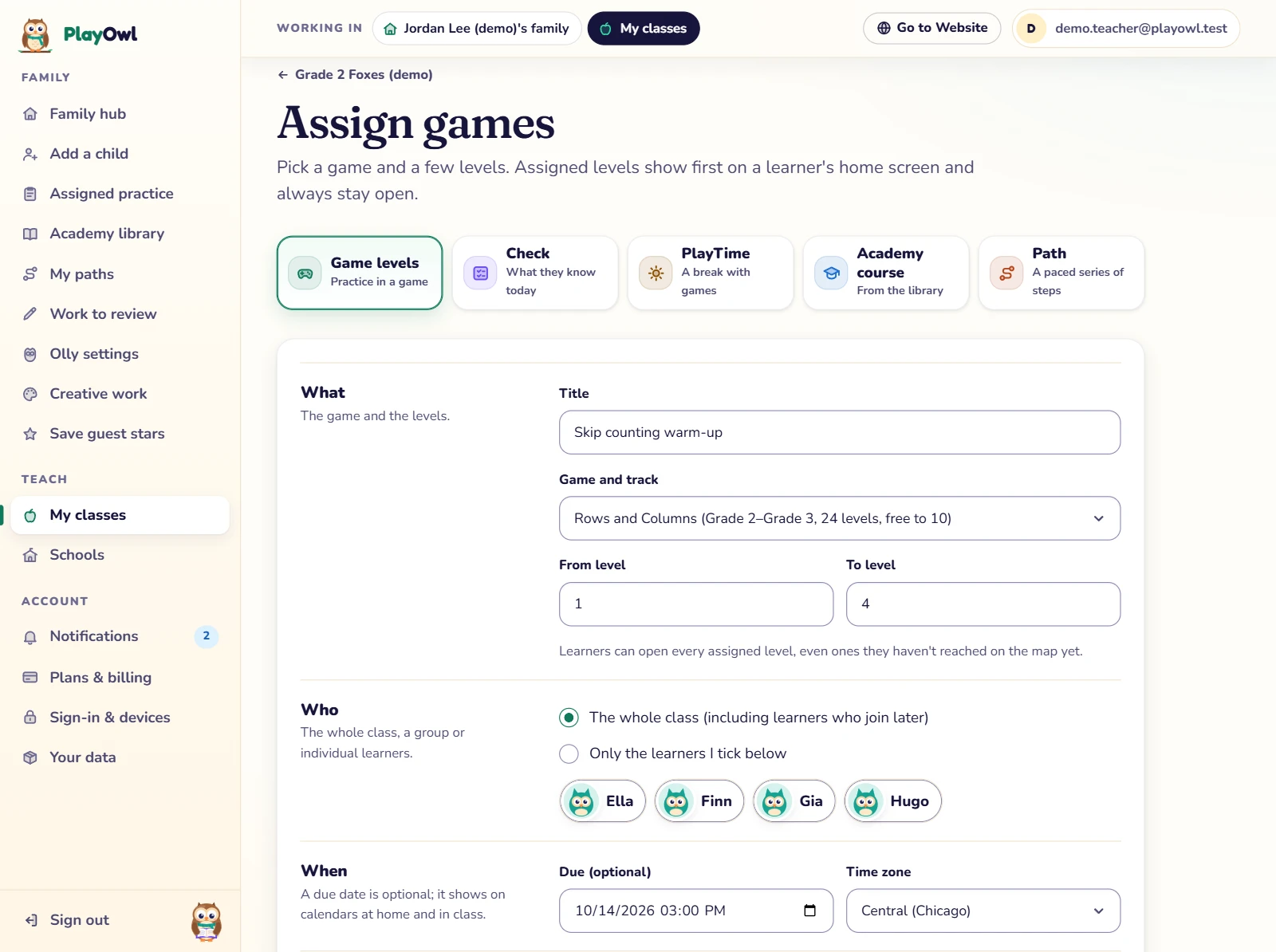
    Assign games for Grade 2 Foxes (demo) on the web: Game levels chosen over Check, PlayTime, Academy course and Path; the title "Skip counting warm-up", the game Rows and Columns, levels 1 to 4, the whole class (Ella, Finn, Gia and Hugo) and a due date filled in.
  • See who needs help, live

    Who's playing, and who's asking for help, right now.

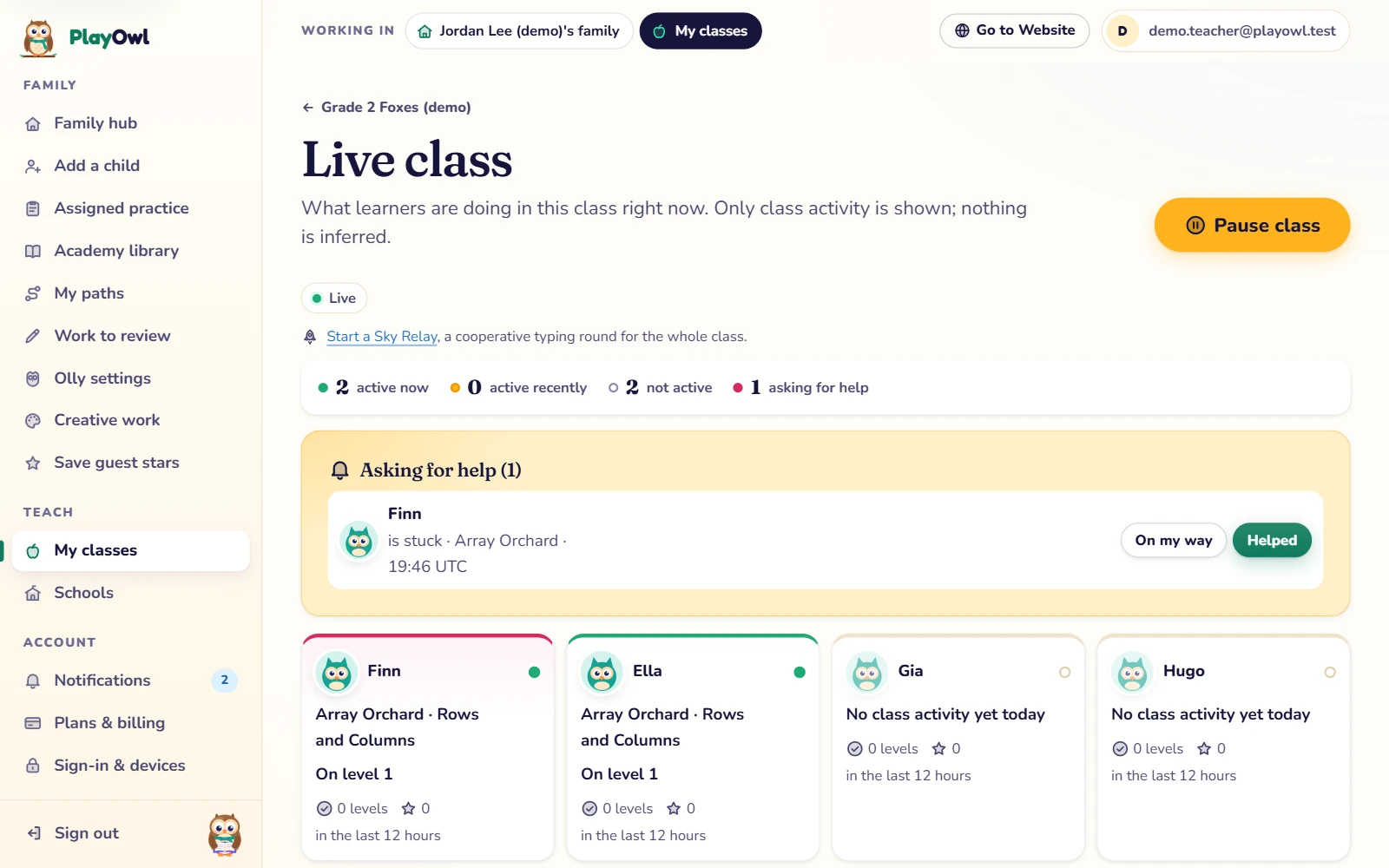
    The live class view for Grade 2 Foxes (demo) on the web: 2 learners active now, 2 not active and 1 asking for help; Finn is stuck in Array Orchard, with On my way and Helped buttons; cards show Finn and Ella on level 1 and Gia and Hugo with no class activity yet today; a Pause class button.
  • See what each student understands

    Skills and quiz results, shared with students when you decide.

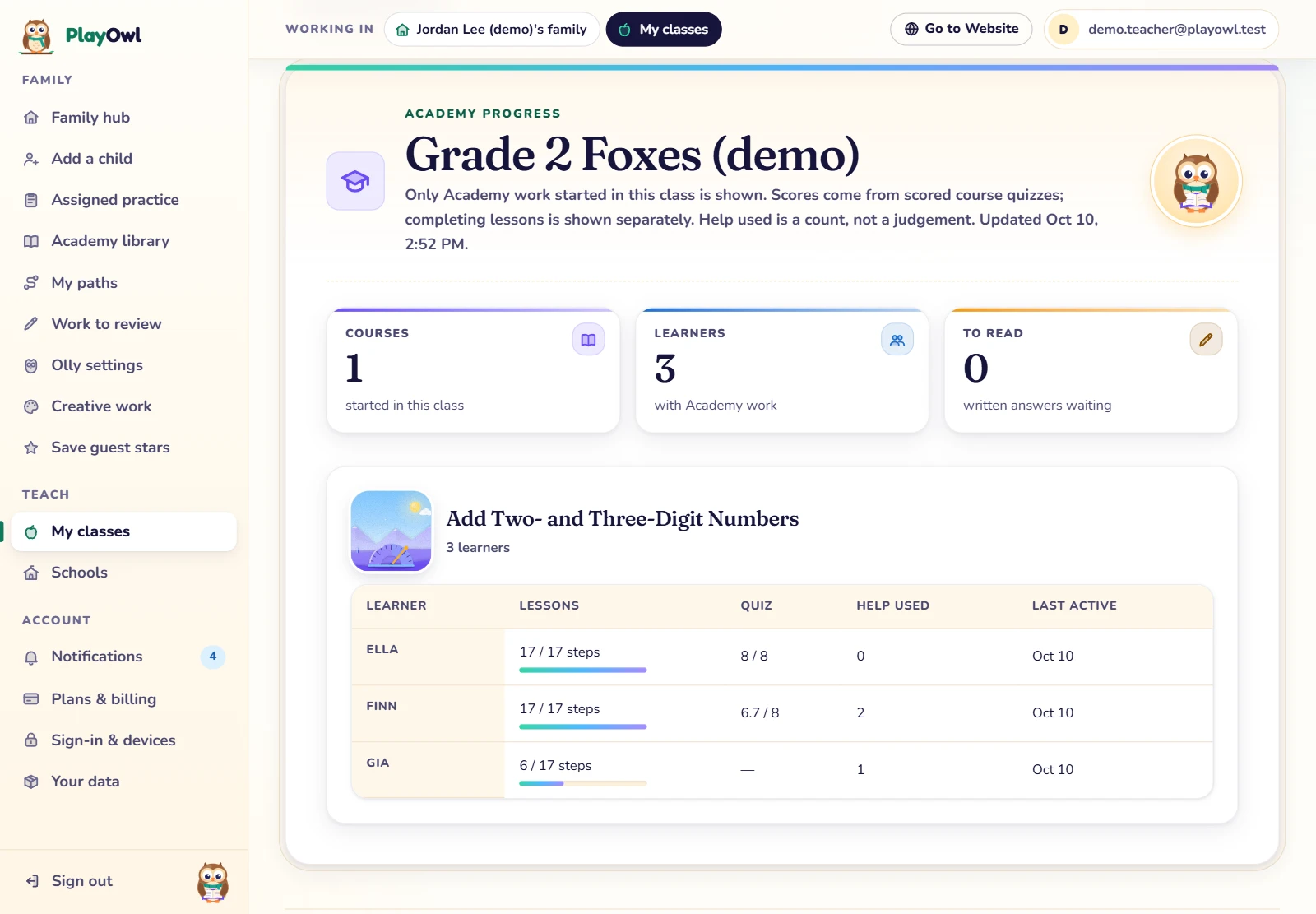
    The Academy progress report for Grade 2 Foxes (demo) on the web: 1 course started and 3 learners with Academy work. For Add Two- and Three-Digit Numbers, Ella finished 17 of 17 steps with 8 of 8 on the quiz and no help, Finn 17 of 17 with 6.7 of 8 and help used twice, and Gia 6 of 17 steps so far.
  • Ready-made courses with teacher guides

    Preview any course and its guide before you assign it.

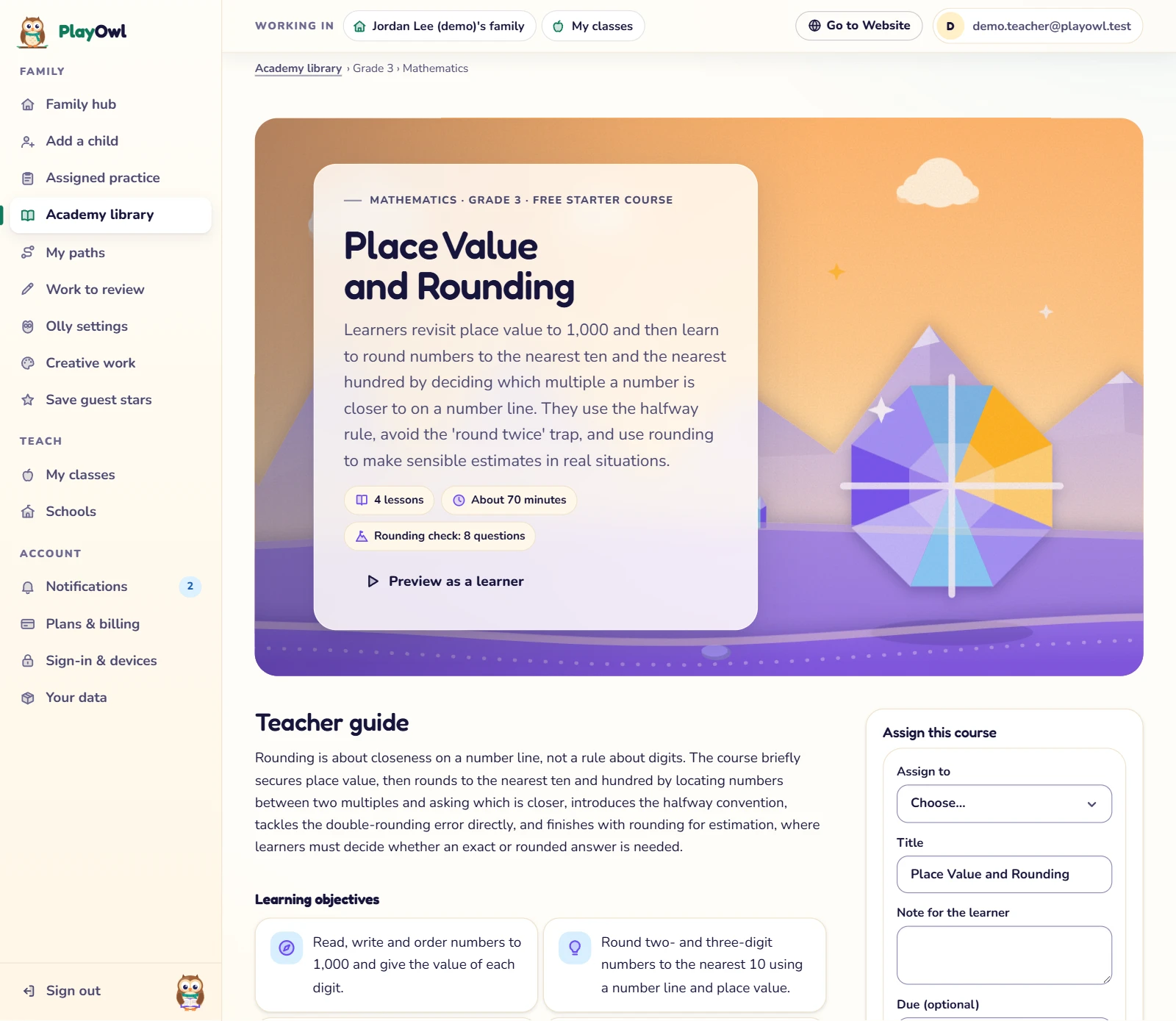
    An Academy course page for teachers on the web, Place Value and Rounding (Grade 3 mathematics, 4 lessons, about 70 minutes, an 8-question check): a Preview as a learner button, the teacher guide with learning objectives, and an Assign this course panel with class, due date, quiz results and help settings.

What your students see

Students, no email needed

  • They join with a class code

    Type the codes from their badge, or scan its QR code in a browser.

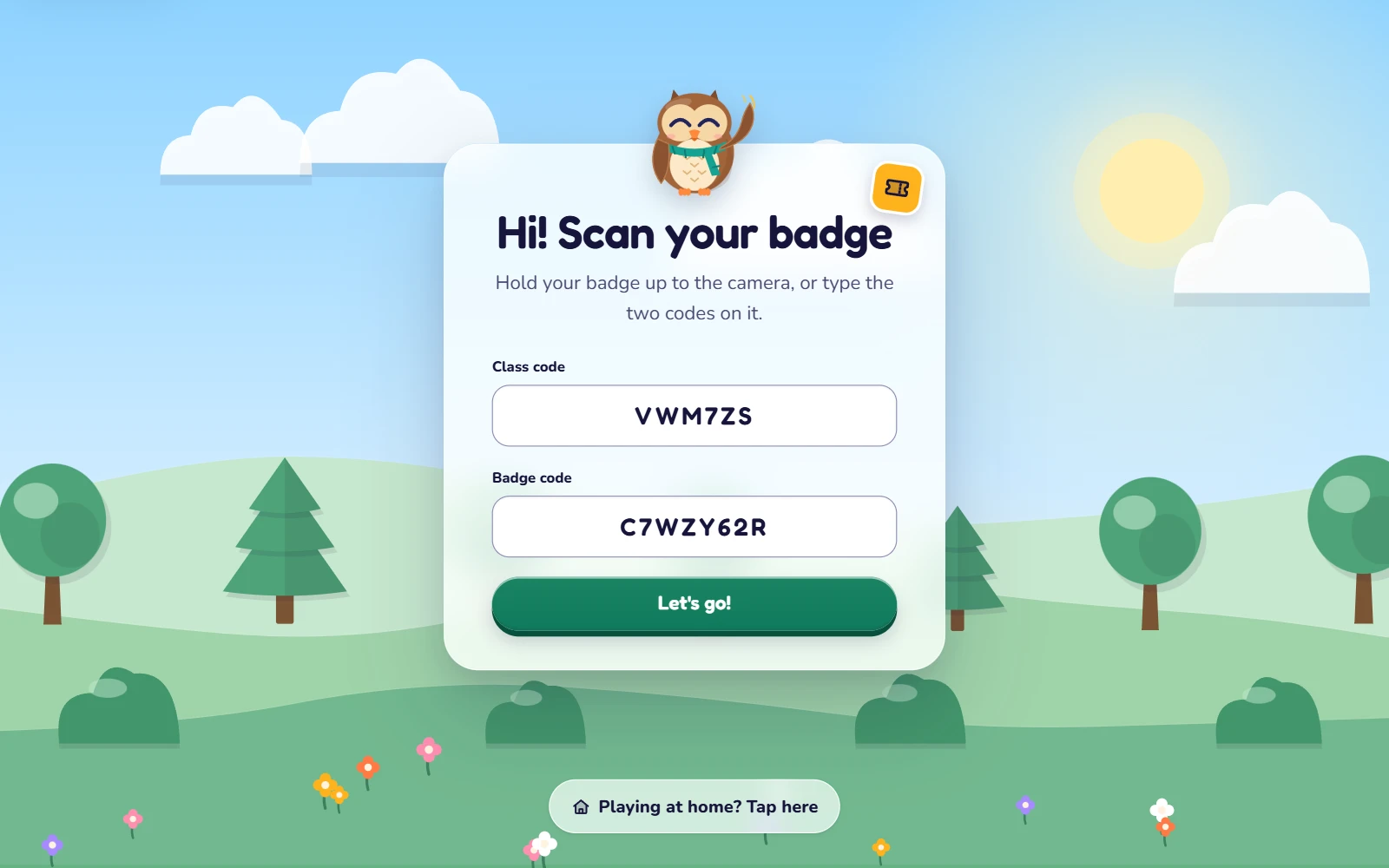
    The class badge sign-in page on the web: Olly over a meadow says "Hi! Scan your badge", with the class code and a badge code typed in, a Let's go! button and a "Playing at home? Tap here" link.
  • Your work comes first

    What you assigned sits at the top of their home screen.

    Web

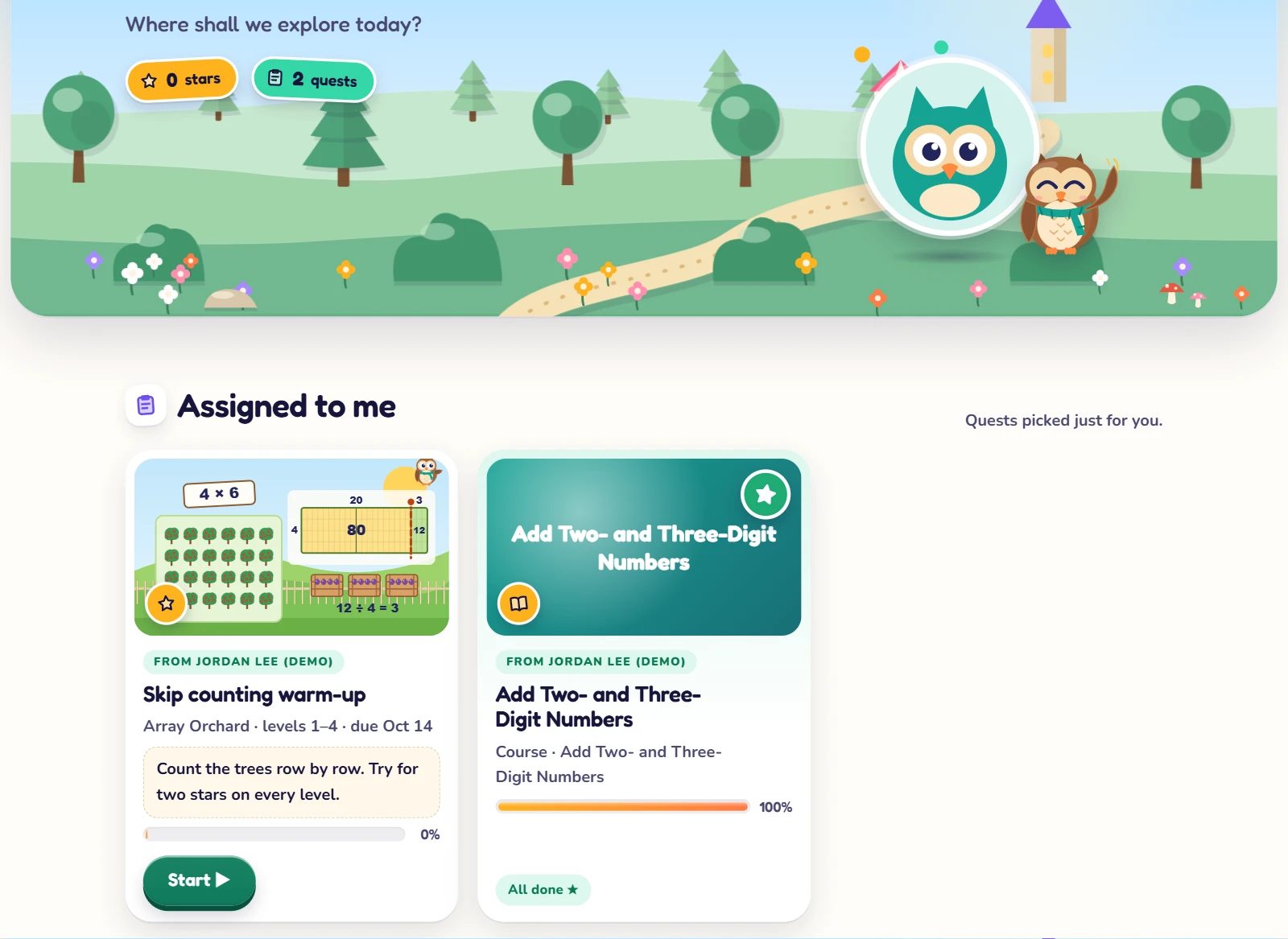
    A student's home screen on the web after signing in with a class badge: 2 quests, and under Assigned to me two pieces of work from Jordan Lee (demo): the game Skip counting warm-up (Array Orchard, levels 1 to 4, with a due date, the teacher's note and a Start button) and the course Add Two- and Three-Digit Numbers, all done.

    Mobile app

    A student's home in the PlayOwl app on an Android tablet after a class badge sign-in: Assigned to me shows the game Skip counting warm-up and the course Add Two- and Three-Digit Numbers, both from Jordan Lee (demo), above a Home, Learn, Play, Create and Me tab bar.
  • Games with the help you allow

    Stars for every level, and only the hints you turn on.

    Web

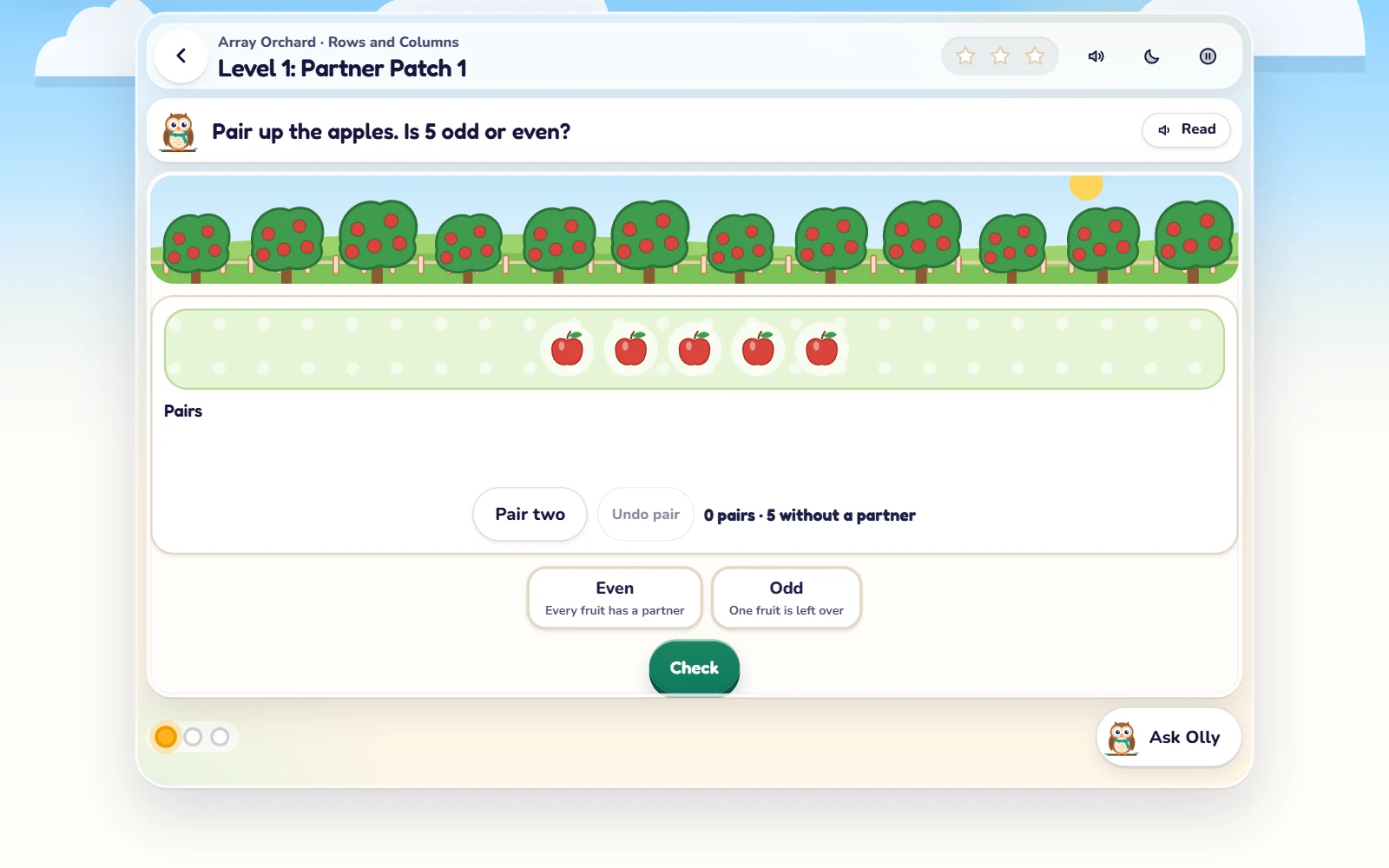
    Array Orchard on the web, Level 1: Partner Patch 1, assigned by the teacher. The task says "Pair up the apples. Is 5 odd or even?" with five apples to pair, Pair two, Even, Odd and Check buttons, a Read button and Ask Olly.

    Windows app

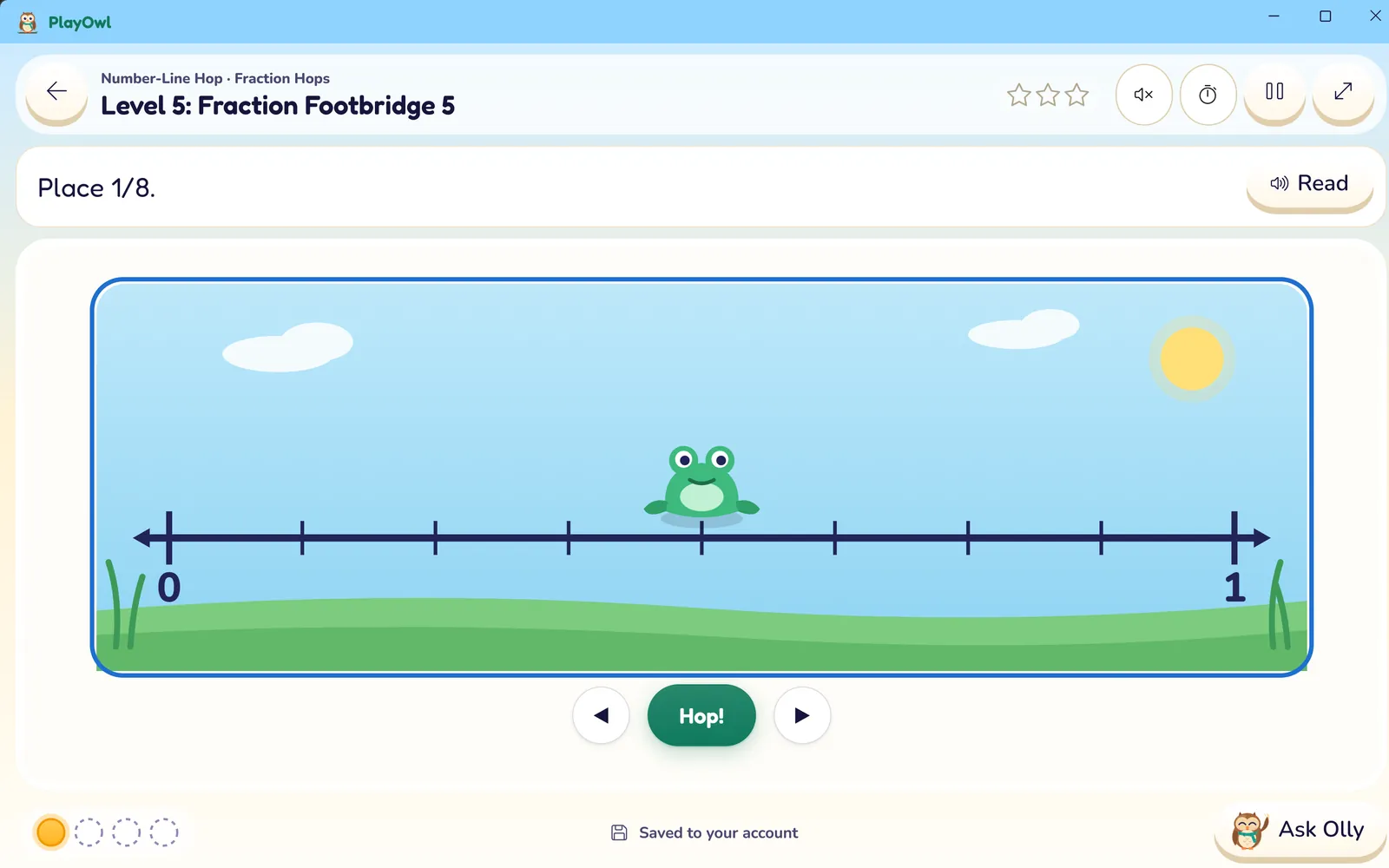
    PlayOwl for Windows playing Number-Line Hop, Level 5: Fraction Footbridge. The task says "Place 1/8" and a frog sits on a number line from 0 to 1 split into eighths, with Hop and arrow buttons, Read, Ask Olly and "Saved to your account".

    Mobile app

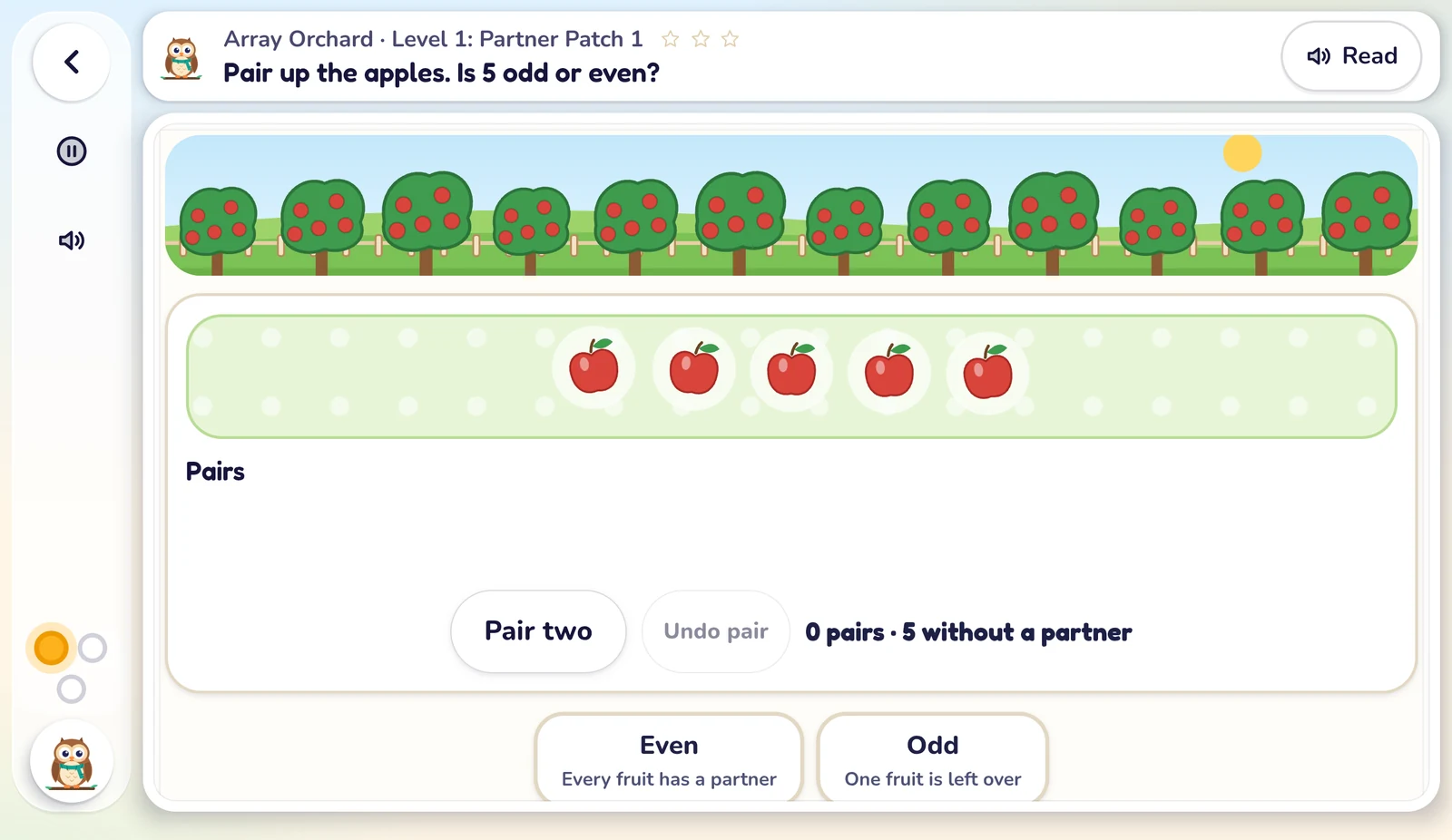
    Array Orchard in the PlayOwl app on an Android tablet, Level 1: Partner Patch 1. The task says "Pair up the apples. Is 5 odd or even?" with five apples, Pair two, Even and Odd buttons, a Read button, and pause, sound and Olly buttons down the side.
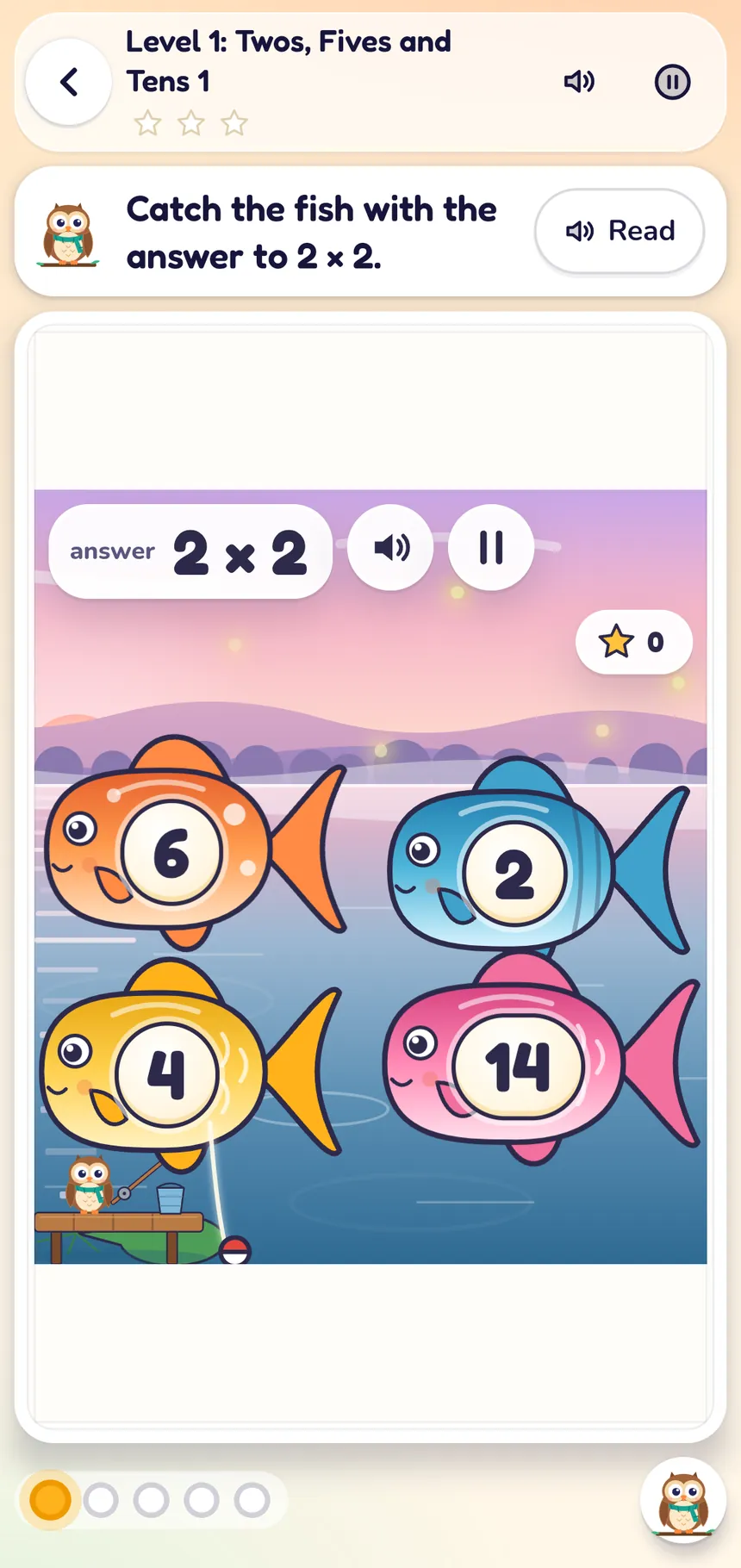
    PlayOwl on an Android phone playing Glimmer Pond, Level 1: Twos, Fives and Tens. The task says "Catch the fish with the answer to 2 × 2" and Olly fishes from a dock at a twilight pond with fish numbered 6, 2, 4 and 14.

Web, Windows and mobile

Plan on the web. Play on any device.

Class tools live on the website; students play in a browser or the apps.

  • Works there
  • Not there
  • Free On every account
  • Plan adds more Free to start; a plan opens every level and course
What works on the website, in the Windows app and in the Android and iOS app
What you can do WebAny browser WindowsPC app MobileAndroid & iOS
Create classes and print badges Free Yes No: Shows class codes No: Shows class codes
Assign games, courses and checks Plan adds more Yes No: On the web No: View only
Live class view Free Yes No: On the web No: On the web
Class progress reports Free Yes Yes: Course progress Yes: Course progress
Class screen-time rules Free Yes Yes Yes
Students join with a class code Free Yes: Code or QR Yes Yes: Typed code
Students play and learn Plan adds more Yes Yes Yes
Keeps working if the internet drops Free No: Short drops only Yes: Syncs later Yes: Syncs later

What it costs

Class tools are free. A plan opens every level.

Free forever

Free
  • Classes, class codes and sign-in badges
  • Assignments, groups and live class view
  • Class reports and screen-time rules
  • All printables, free
  • The first 10 levels of every game (5 in 3D adventures)
  • The first five courses of every subject path

$0, no payment details

With a plan

Independent Teacher
  • Every level and course in your students' class work
  • Unlimited printable generator, for you
  • Priced per student you teach

Independent Teacher: $9.99 per student per month, or $99.99 a year Compare plans

Teaching at a school? School plans cover every class.

Questions

Teachers often ask

Does my school need to sign up?

No. Teachers and tutors can make a free account and create a class straight away, without a school contract.

Do students need email addresses?

No. Each student gets a printed badge with the class code, their own badge code and a QR code. Lost one? Make a new badge in a click.

Does it work on classroom tablets and Chromebooks?

Yes, in any modern browser or in the Windows, Android and iOS apps. No grown-up sign-in is needed on a shared device, and a student's session ends with the school day.

Can I control how much Olly helps?

Yes. Choose what Olly may do in your class: point the way, read directions, offer hints, or nothing at all. Quizzes can switch help off completely.

What does a plan add?

The first 10 levels of every game (5 in 3D adventures) are free. The first five courses of every subject path are free. A plan opens every level and every course in your students' class work. Class tools stay free either way.

Your first class is a few minutes away

Free for every teacher and tutor.