Skip to content
PlayOwl

For parents

Learning they love. Screen time you control.

Games, courses and printables from preschool to Grade 12, made by parents. You set the limits; your kids just tap their picture and play.

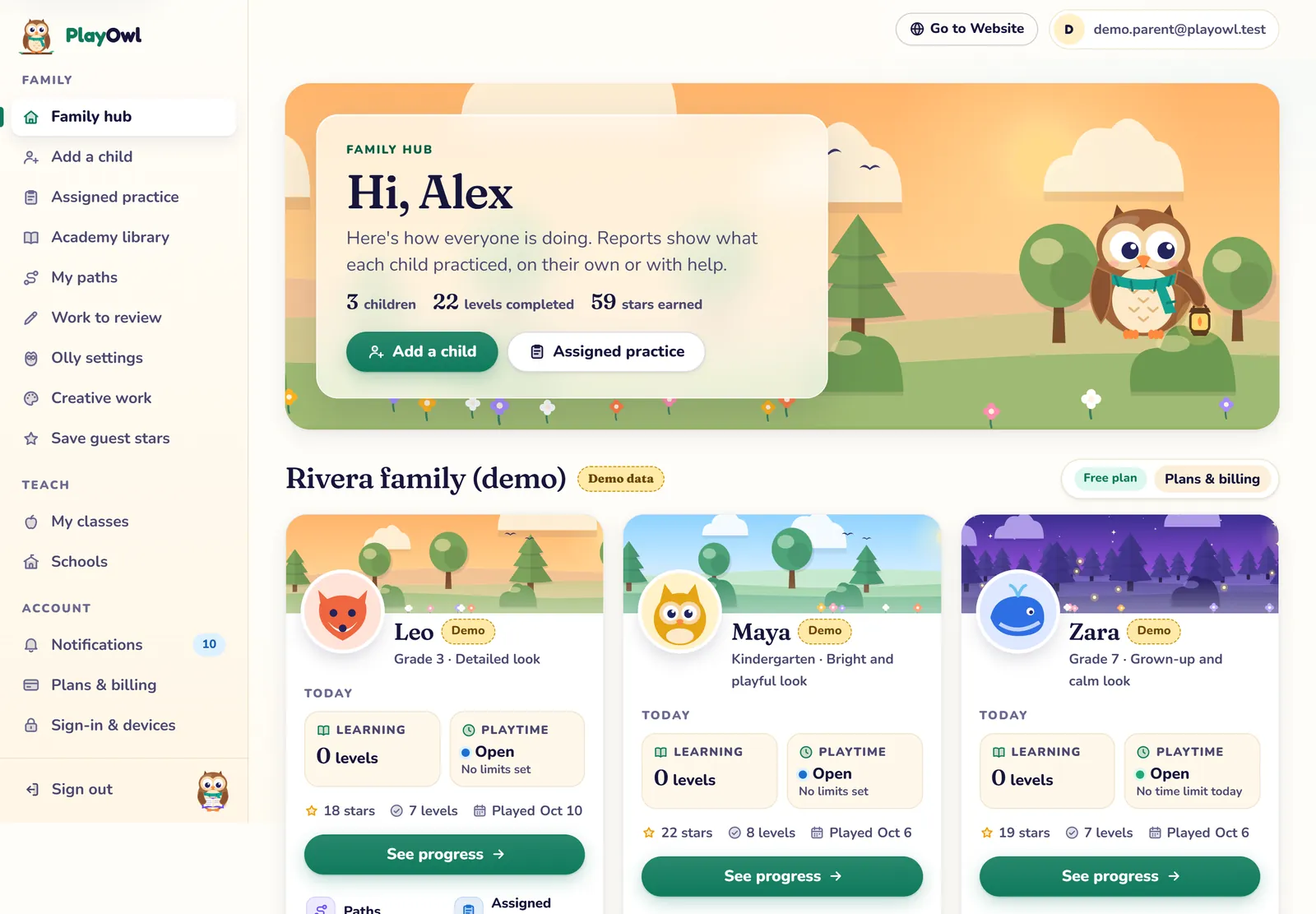
The PlayOwl family hub on the web: "Hi, Alex" with 3 children, 22 levels completed and 59 stars earned, Add a child and Assigned practice buttons, and cards for Leo, Maya and Zara showing today's learning and PlayTime.
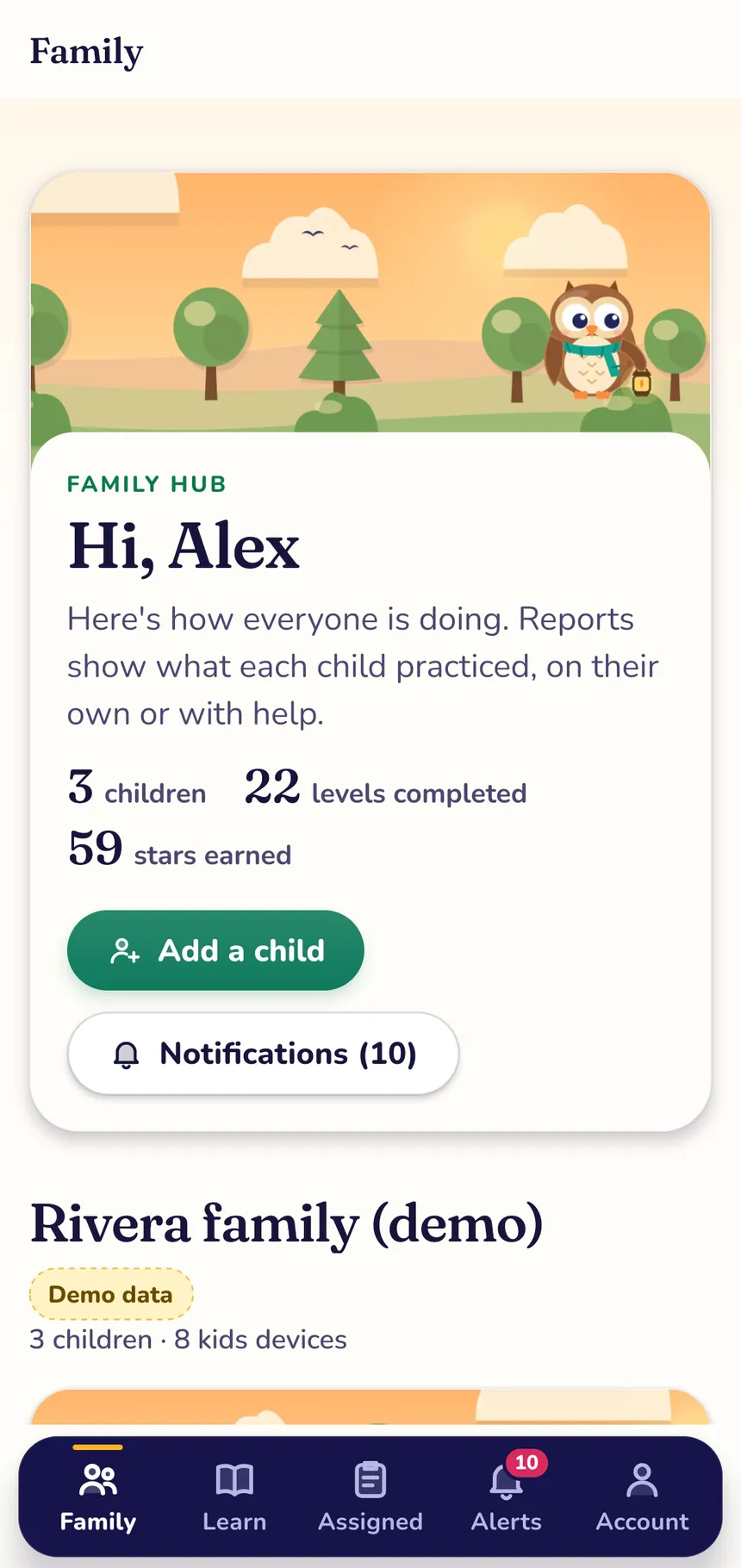
PlayOwl on an Android phone showing the grown-up Family hub: "Hi, Alex" with 3 children, 22 levels completed and 59 stars earned, Add a child and Notifications buttons, the Rivera family (demo) section, and a Family, Learn, Assigned, Alerts and Account tab bar.

How it works

Ready in four steps

  1. Sign up freeA grown-up account. No card needed.
  2. Add your kidsA name, grade and avatar. No email.
  3. Set up their deviceA tablet, phone, PC or this website.
  4. Kids play, you see progressStars for them, reports for you.

Two views, one account

You stay in charge. They have fun.

Real screens from PlayOwl. Switch between web, Windows and mobile where you see the tabs.

What you do

Grown-ups, signed in

  • Your whole family in one place

    Every child's stars, levels and reports, one tap away.

    Web

    The PlayOwl family hub on the web: "Hi, Alex" with 3 children, 22 levels completed and 59 stars earned, Add a child and Assigned practice buttons, and cards for Leo, Maya and Zara showing today's learning and PlayTime.

    Windows app

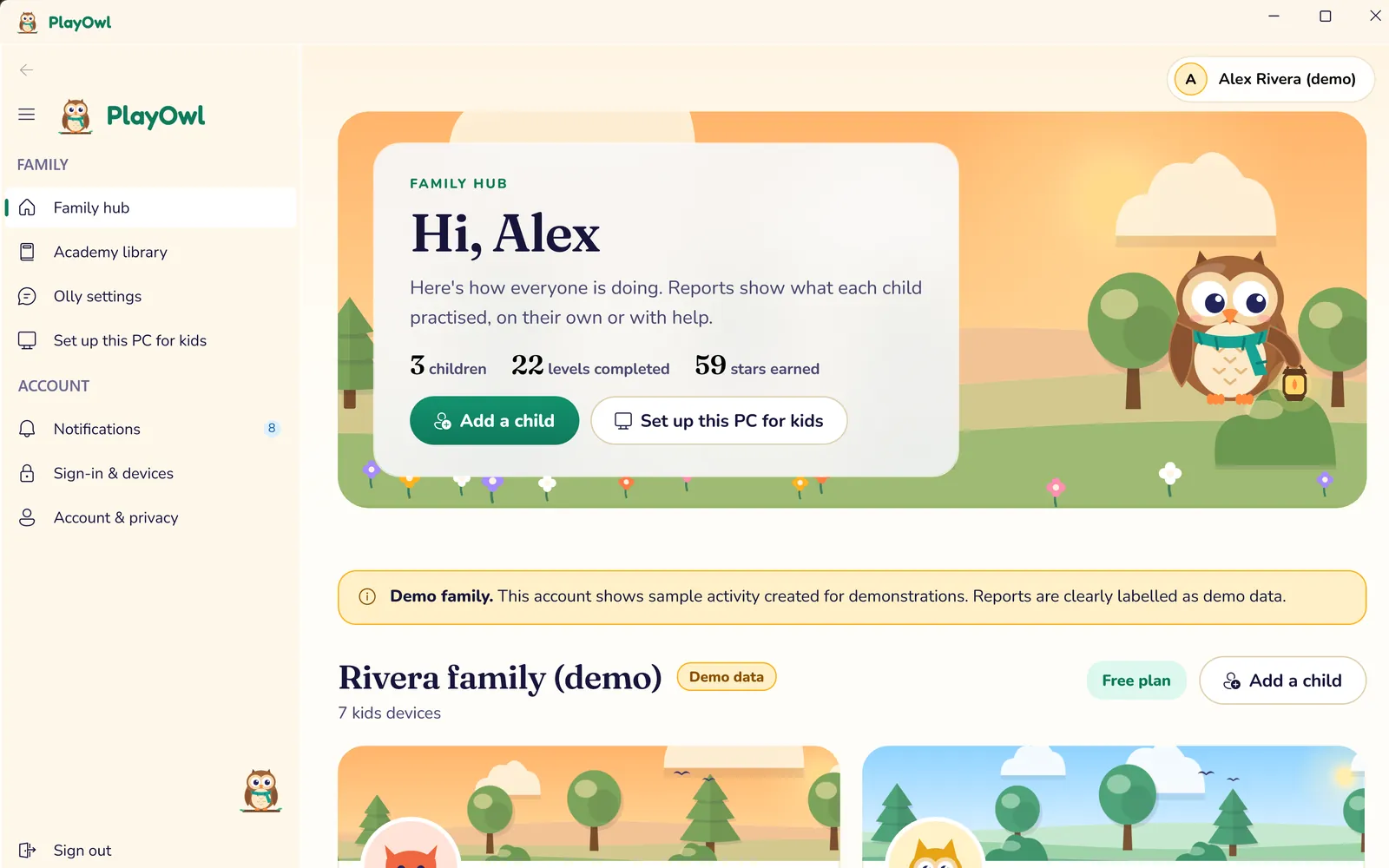
    PlayOwl for Windows Family hub for a grown-up: "Hi, Alex" with 3 children, 22 levels completed and 59 stars earned, buttons to add a child and set up this PC for kids, a sidebar of family and account pages, and the Rivera family (demo) section.

    Mobile app

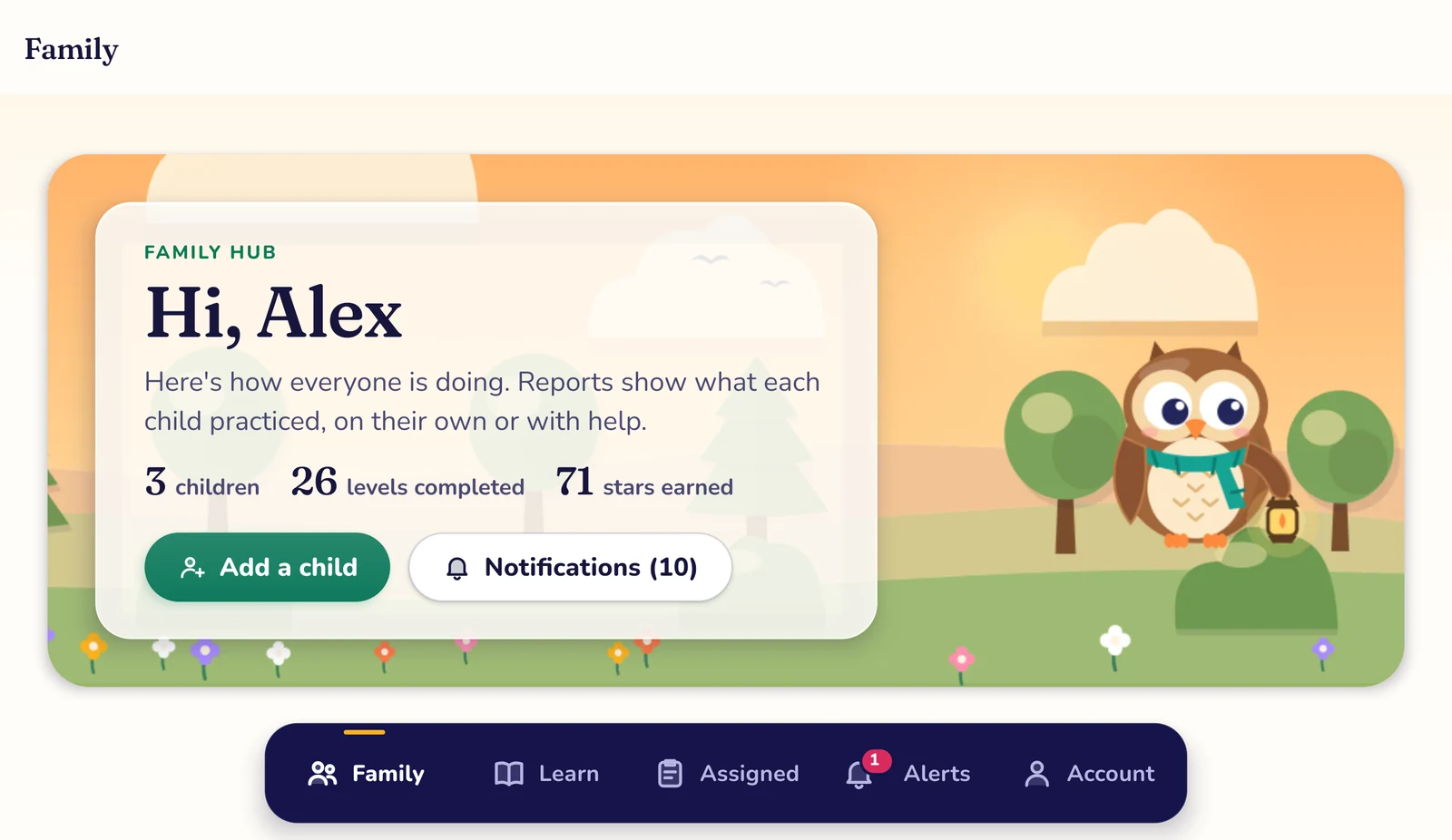
    The PlayOwl app on an Android tablet: the grown-up Family hub, "Hi, Alex" with 3 children, 26 levels completed and 71 stars earned, Add a child and Notifications buttons, and a Family, Learn, Assigned, Alerts and Account tab bar.
    PlayOwl on an Android phone showing the grown-up Family hub: "Hi, Alex" with 3 children, 22 levels completed and 59 stars earned, Add a child and Notifications buttons, the Rivera family (demo) section, and a Family, Learn, Assigned, Alerts and Account tab bar.
  • See what each child practised

    Skills practised, done on their own or with a hint.

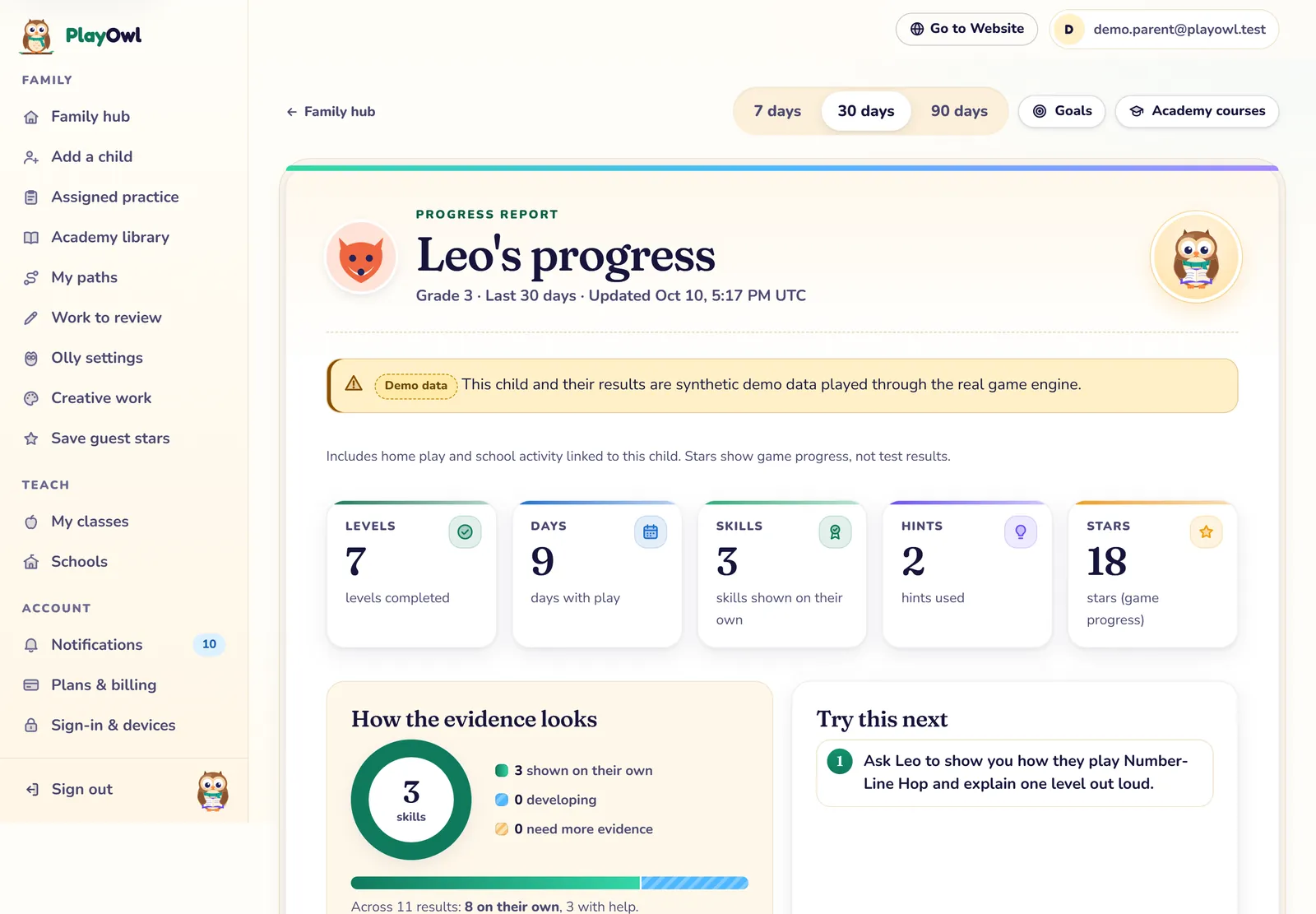
    Leo's progress report on the web for the last 30 days: 7 levels, 9 days with play, 3 skills shown on their own, 2 hints used and 18 stars, with a chart of how the evidence looks and a "Try this next" tip.
  • Set a daily screen-time limit

    PlayTime minutes for school days and weekends, and the hours play is allowed.

    Web

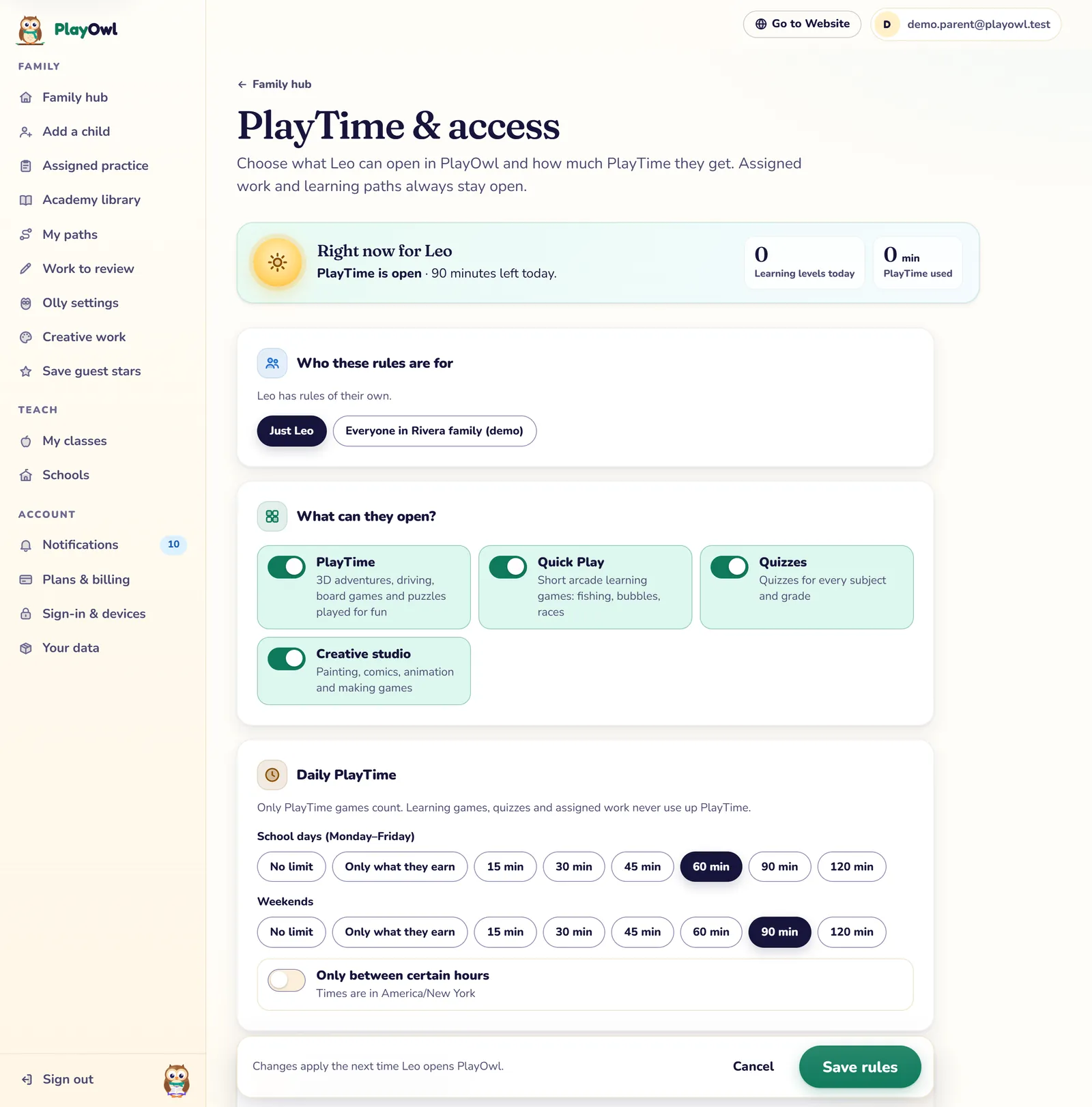
    PlayTime & access for Leo on the web: PlayTime is open with 90 minutes left today, switches for PlayTime, Quick Play, Quizzes and Creative studio, and daily limits of 60 minutes on school days and 90 on weekends.

    Mobile app

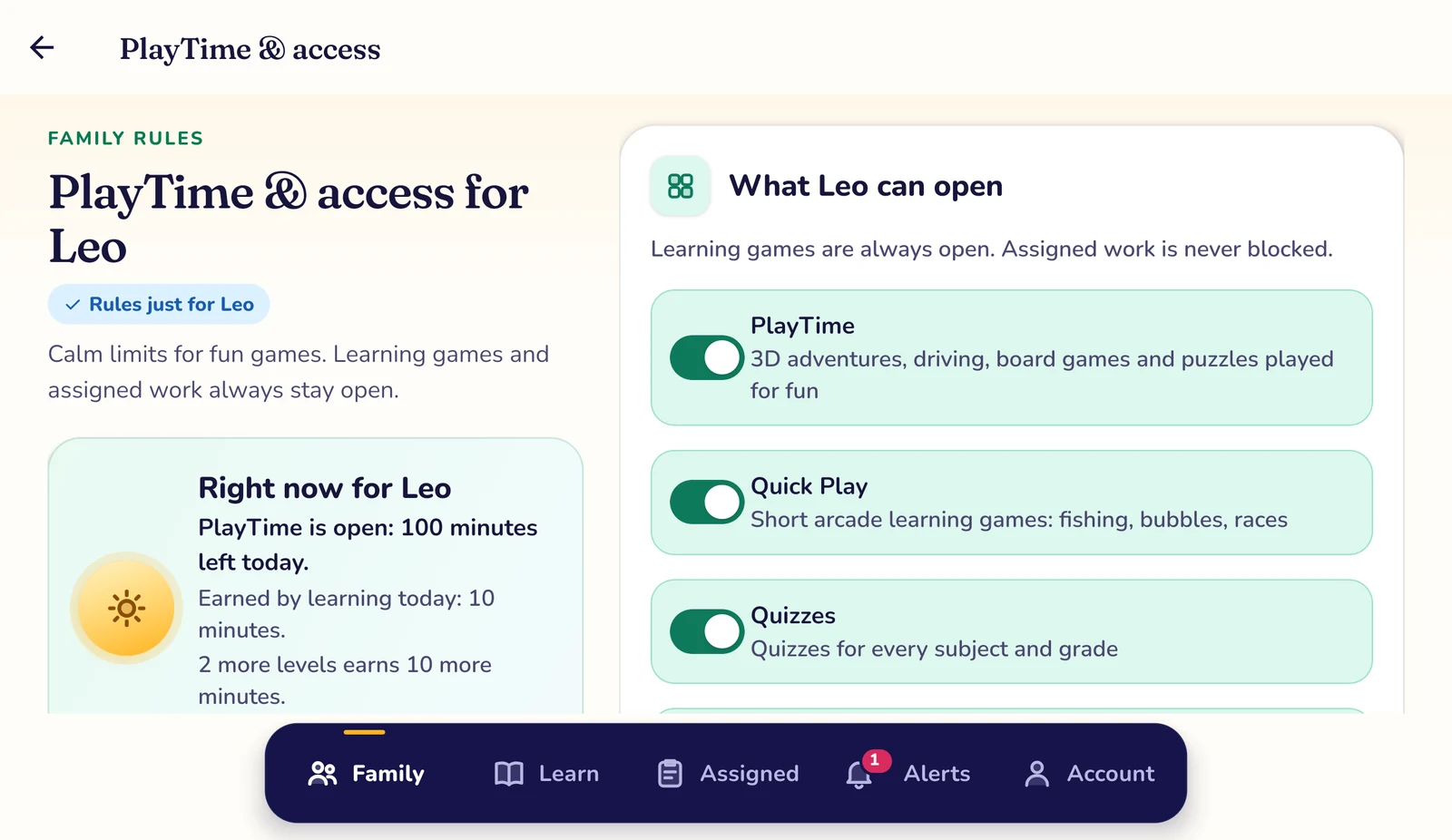
    PlayTime & access for Leo in the PlayOwl app on an Android tablet: rules just for Leo, "Right now for Leo: PlayTime is open, 100 minutes left today", minutes earned by learning, and switches for PlayTime, Quick Play and Quizzes.
  • Choose the devices they use

    Set up a tablet, PC or browser for your kids, and remove it any time.

    Web

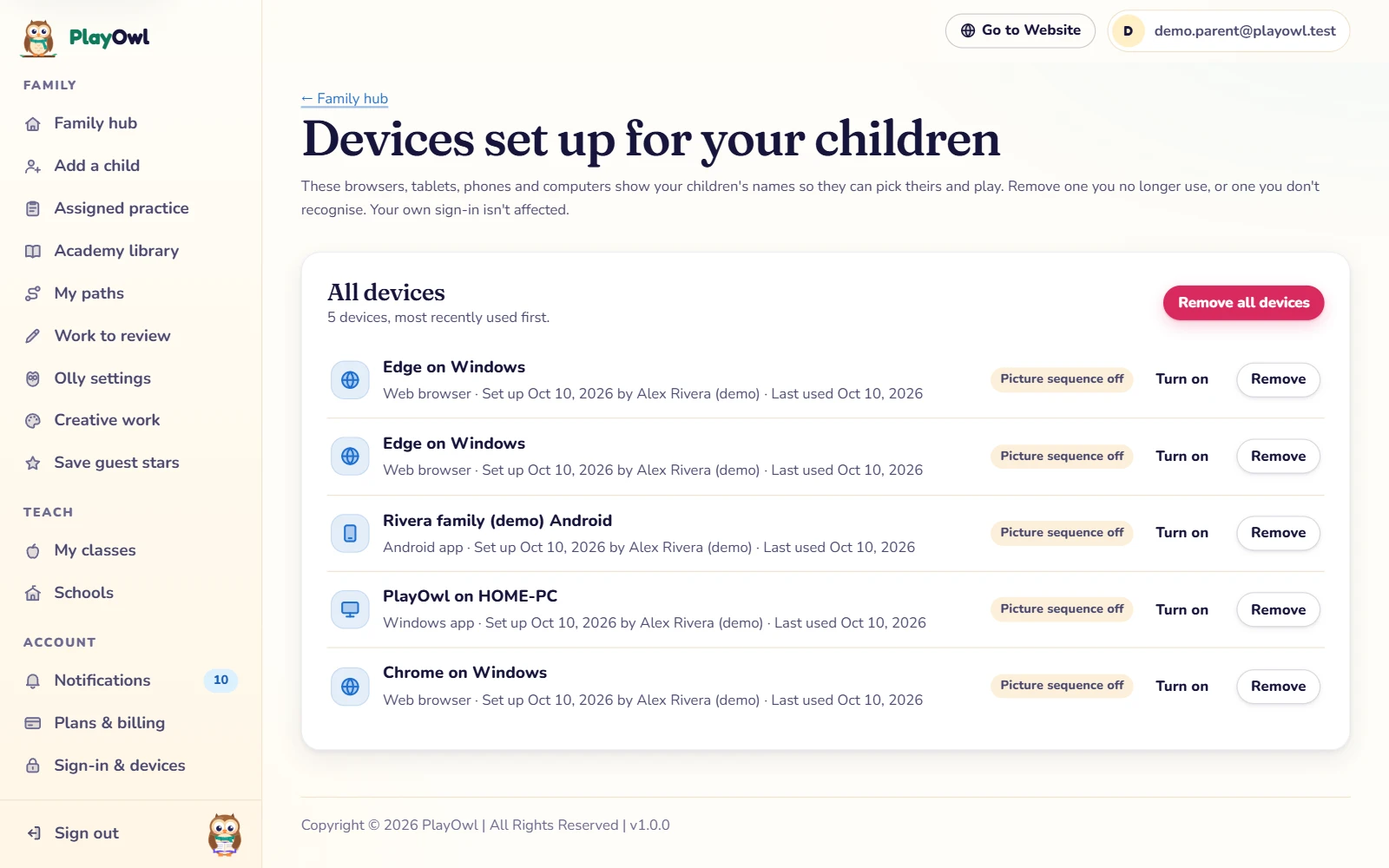
    Devices set up for your children on the web: five devices, most recently used first, including Edge and Chrome browsers, the Rivera family Android app and PlayOwl on a Windows PC, each with a Remove button, plus a Remove all devices button.

    Mobile app

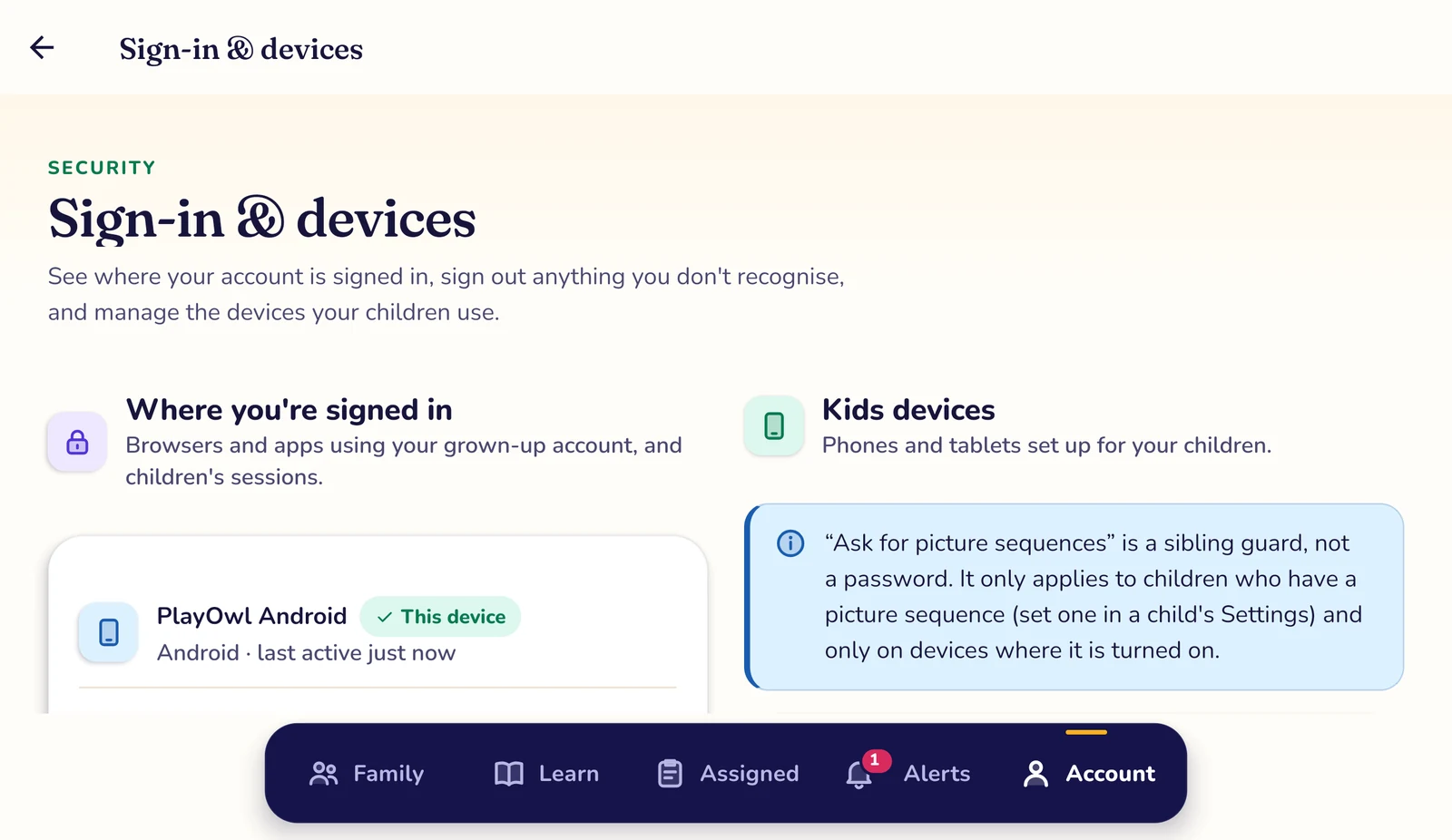
    Sign-in & devices in the PlayOwl app on an Android tablet: where the grown-up account is signed in (this Android device, active just now) and the Kids devices section, with a note that picture sequences are a sibling guard, not a password.
  • Decide how much Olly helps

    Hints and read-aloud for your family, plus calm or quiet mode for each child.

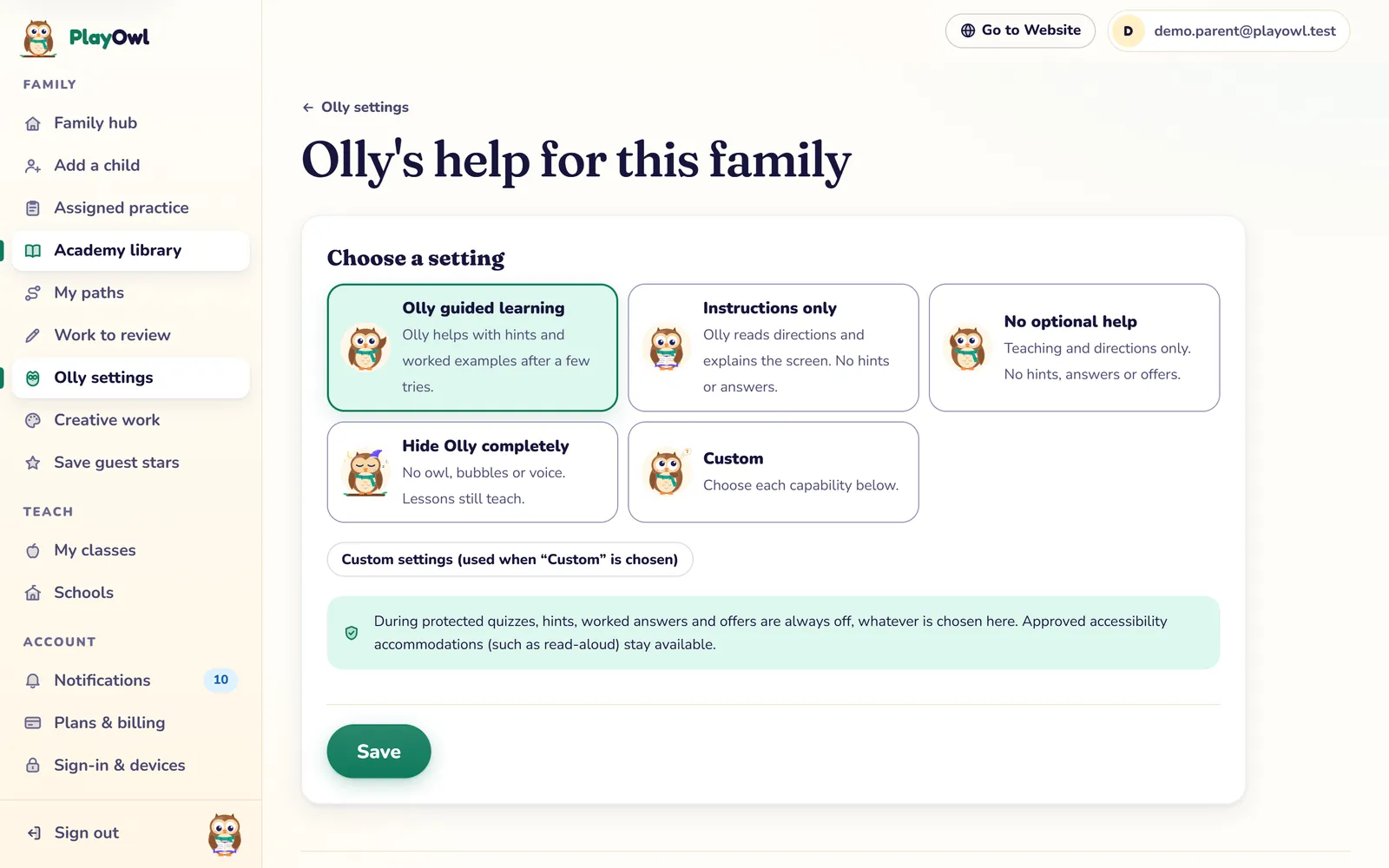
    Olly's help for this family on the web: choices for Olly guided learning, Instructions only, No optional help, Hide Olly completely and Custom, with a note that hints are always off during protected quizzes.

What your child sees

Kids, no email or password

  • They tap their picture to start

    Siblings can add a secret three-picture sequence.

    Web

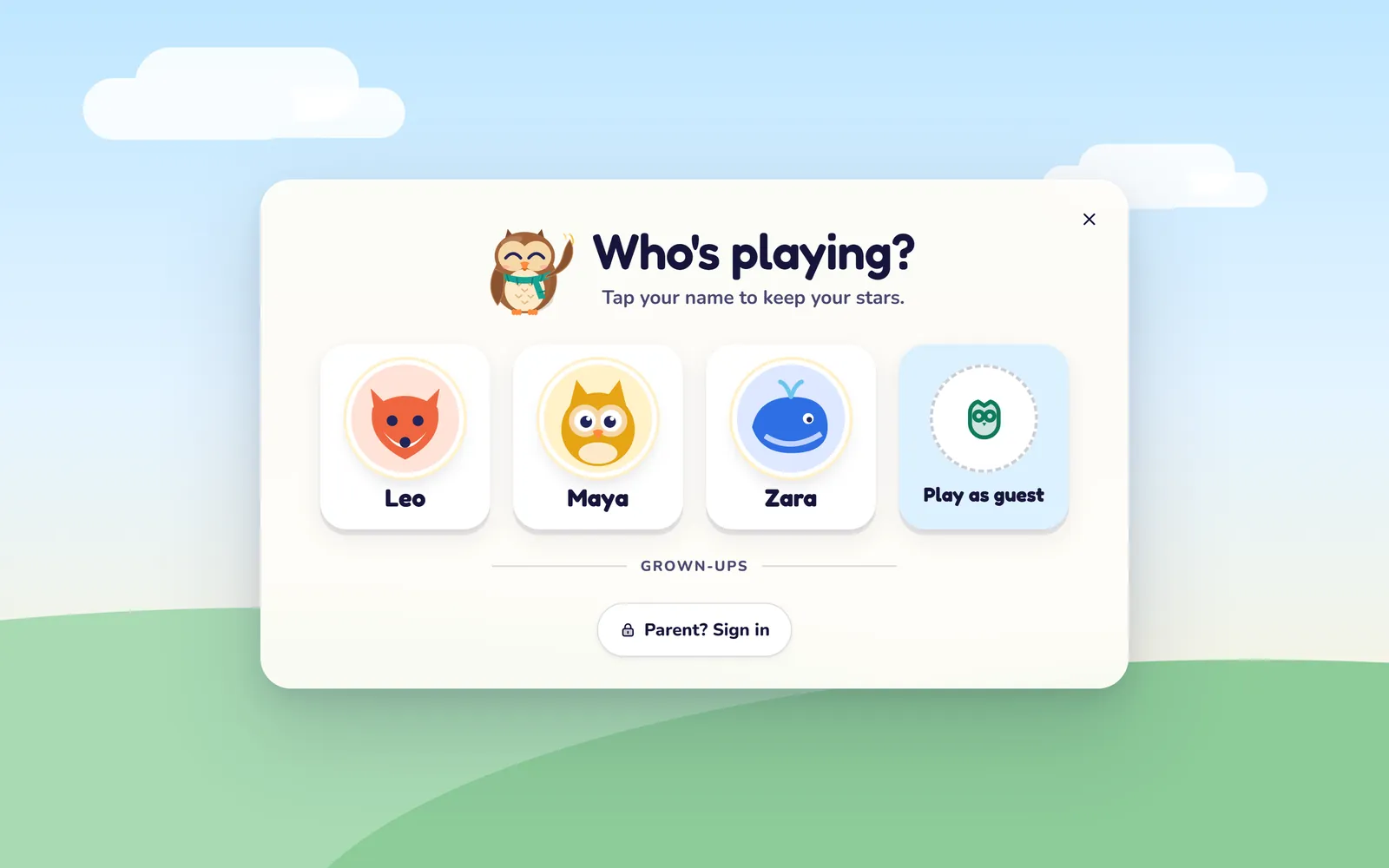
    The "Who's playing?" picker on the PlayOwl website: Olly waves above picture buttons for Leo (fox), Maya (owl) and Zara (whale), a Play as guest button and a "Parent? Sign in" button.

    Windows app

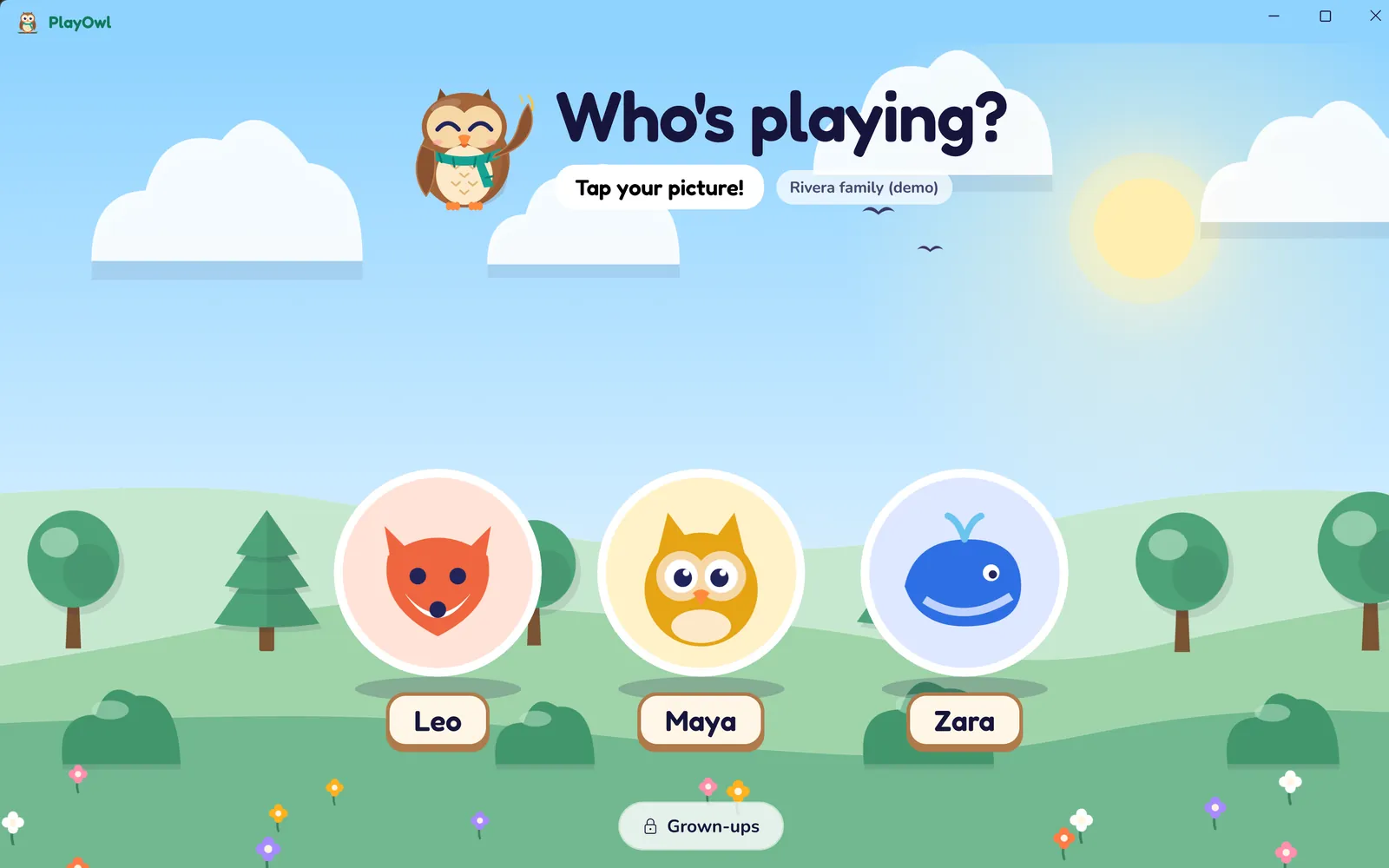
    PlayOwl for Windows on a PC set up for kids: the "Who's playing?" screen with Olly waving and three picture buttons, Leo (fox), Maya (owl) and Zara (whale), plus a locked Grown-ups button.

    Mobile app

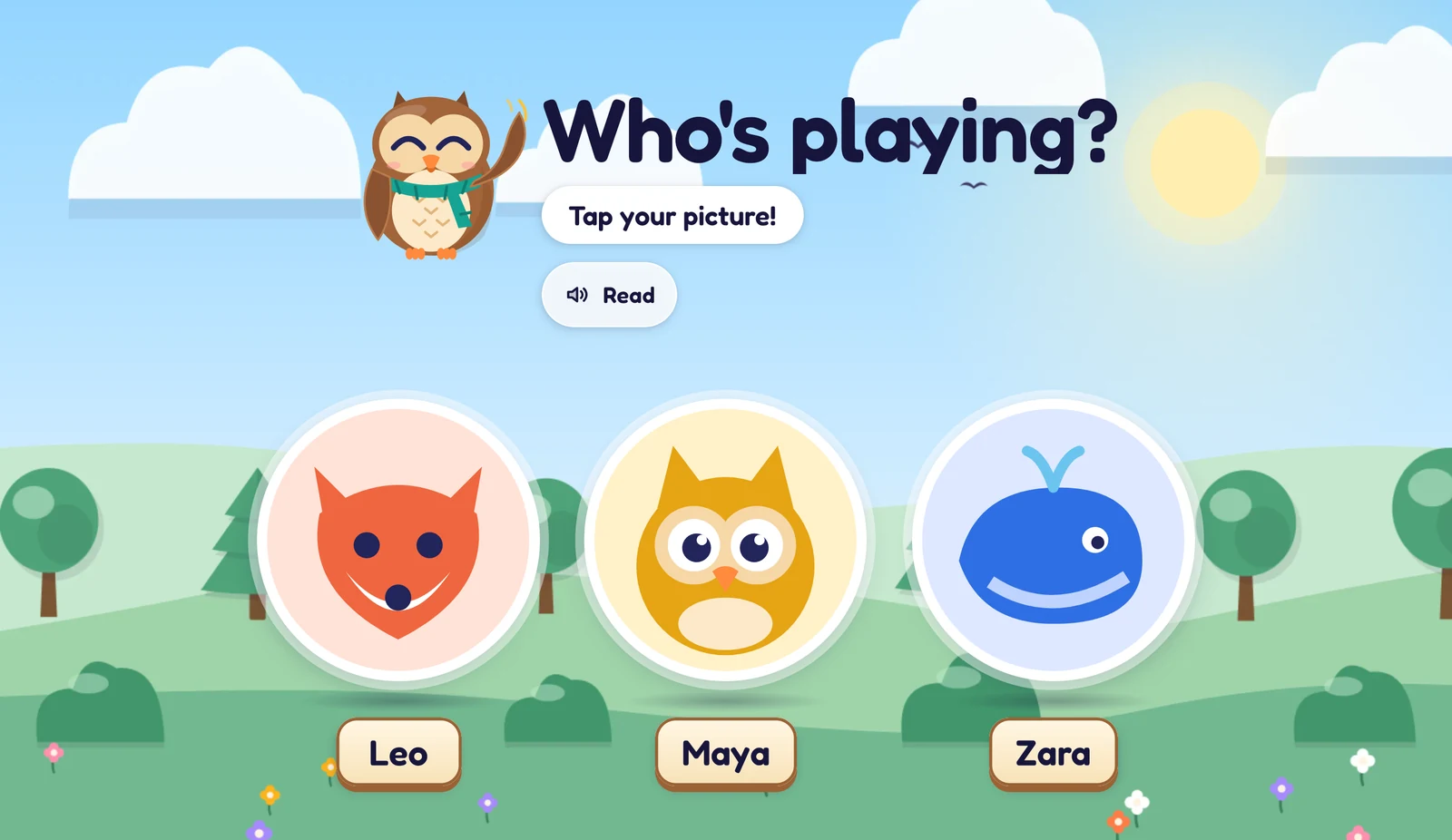
    The PlayOwl app on an Android tablet set up for a family: "Who's playing? Tap your picture!" with Olly, a Read button and big picture buttons for Leo (fox), Maya (owl) and Zara (whale).
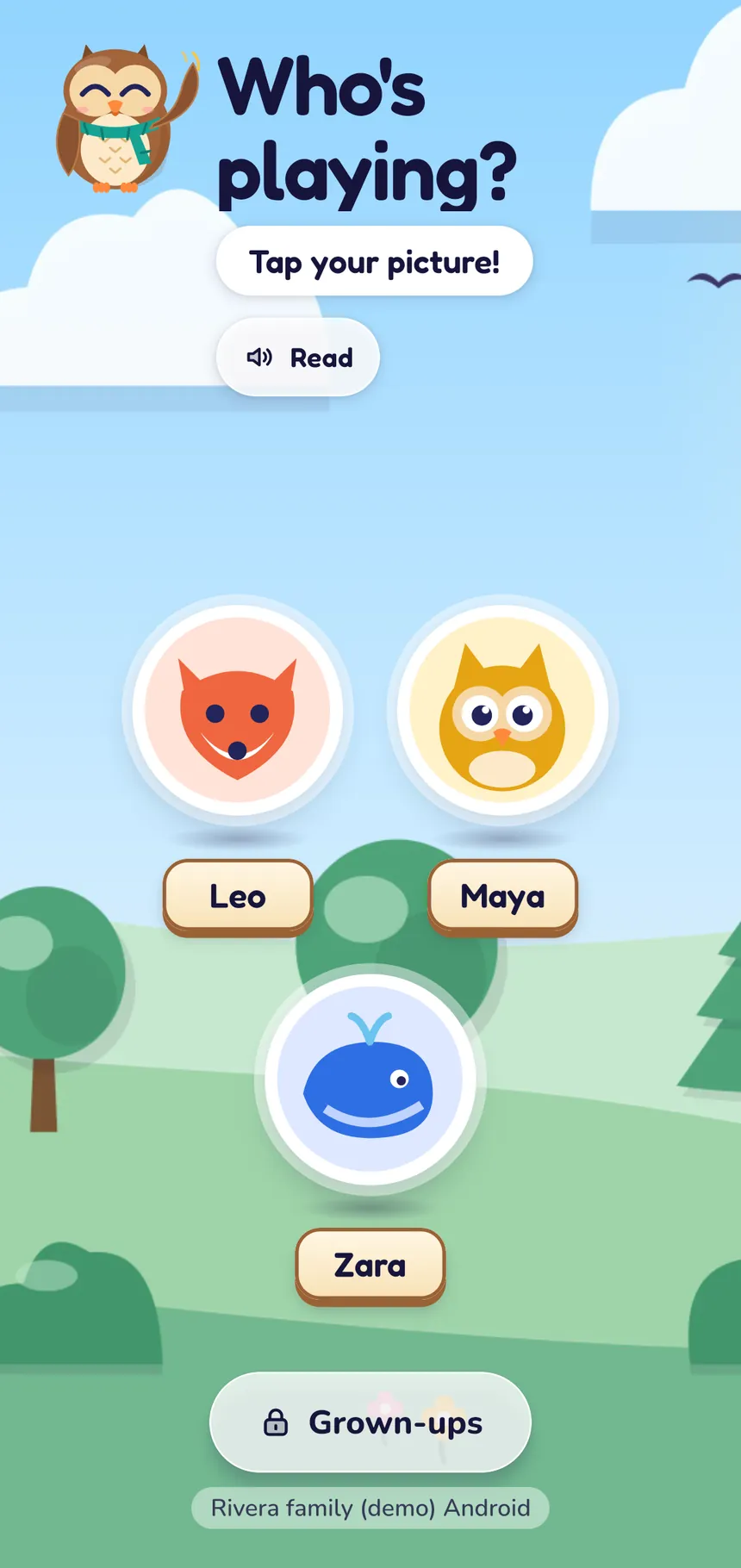
    PlayOwl on an Android phone set up for kids: the "Who's playing? Tap your picture!" screen with a Read button and picture buttons for Leo (fox), Maya (owl) and Zara (whale), plus a locked Grown-ups button.
  • A home screen of their own

    Their stars, work you assigned and Olly's ideas.

    Web

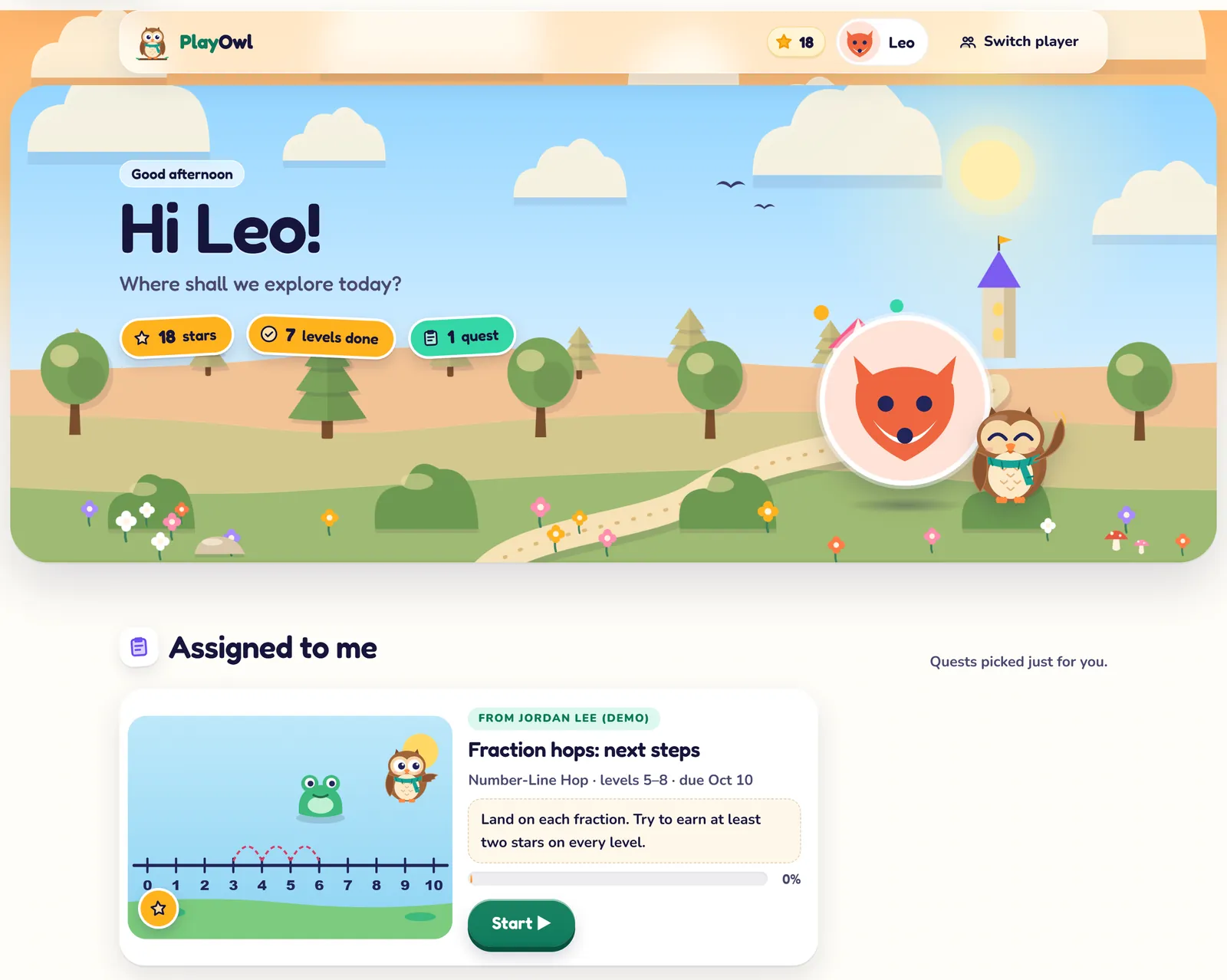
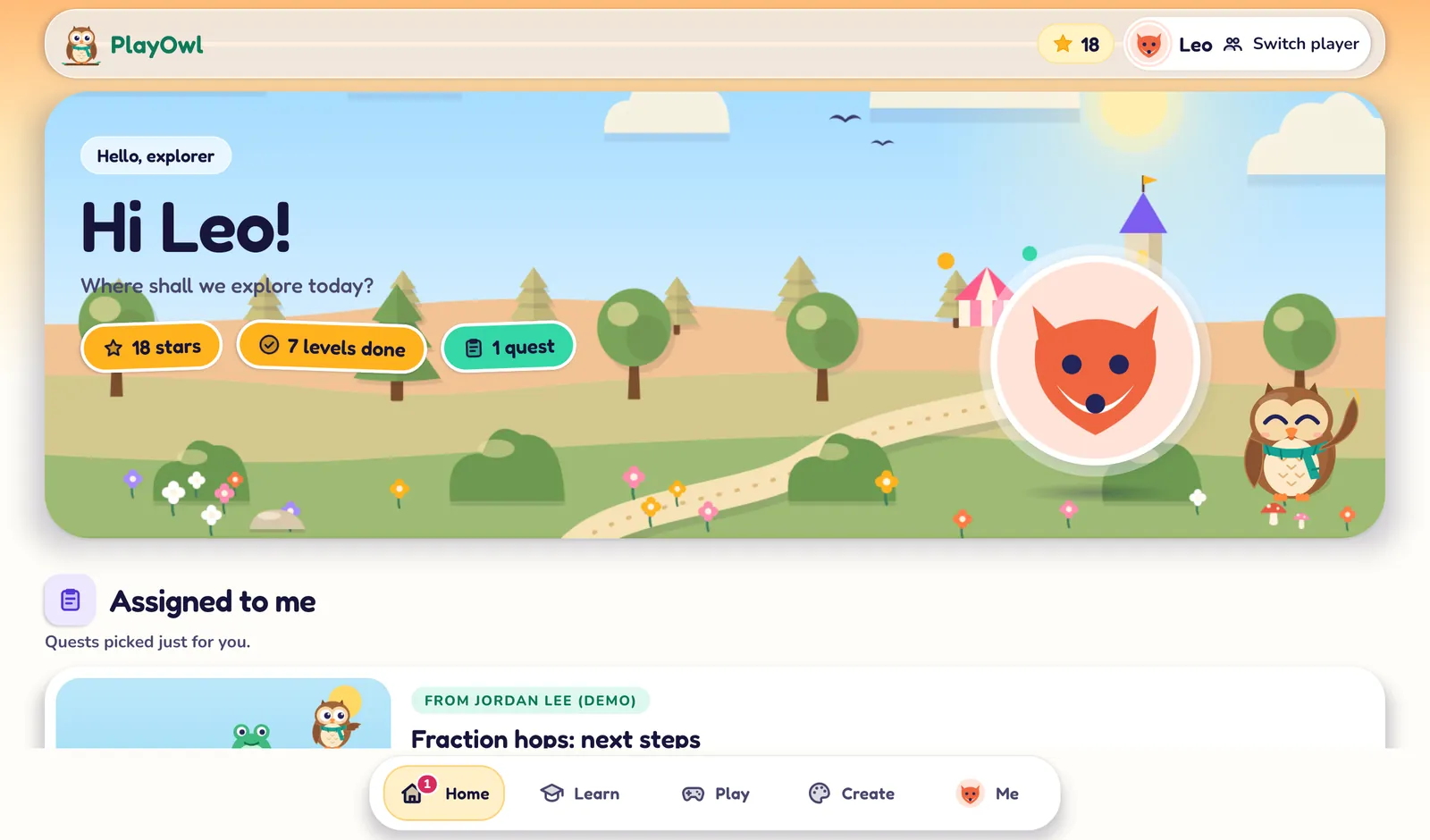
    Leo's home screen on the web: "Hi Leo! Where shall we explore today?" with 18 stars, 7 levels done and 1 quest, his fox avatar and Olly in a meadow, and below it an assignment from Jordan Lee (demo), "Fraction hops: next steps", with a Start button.

    Windows app

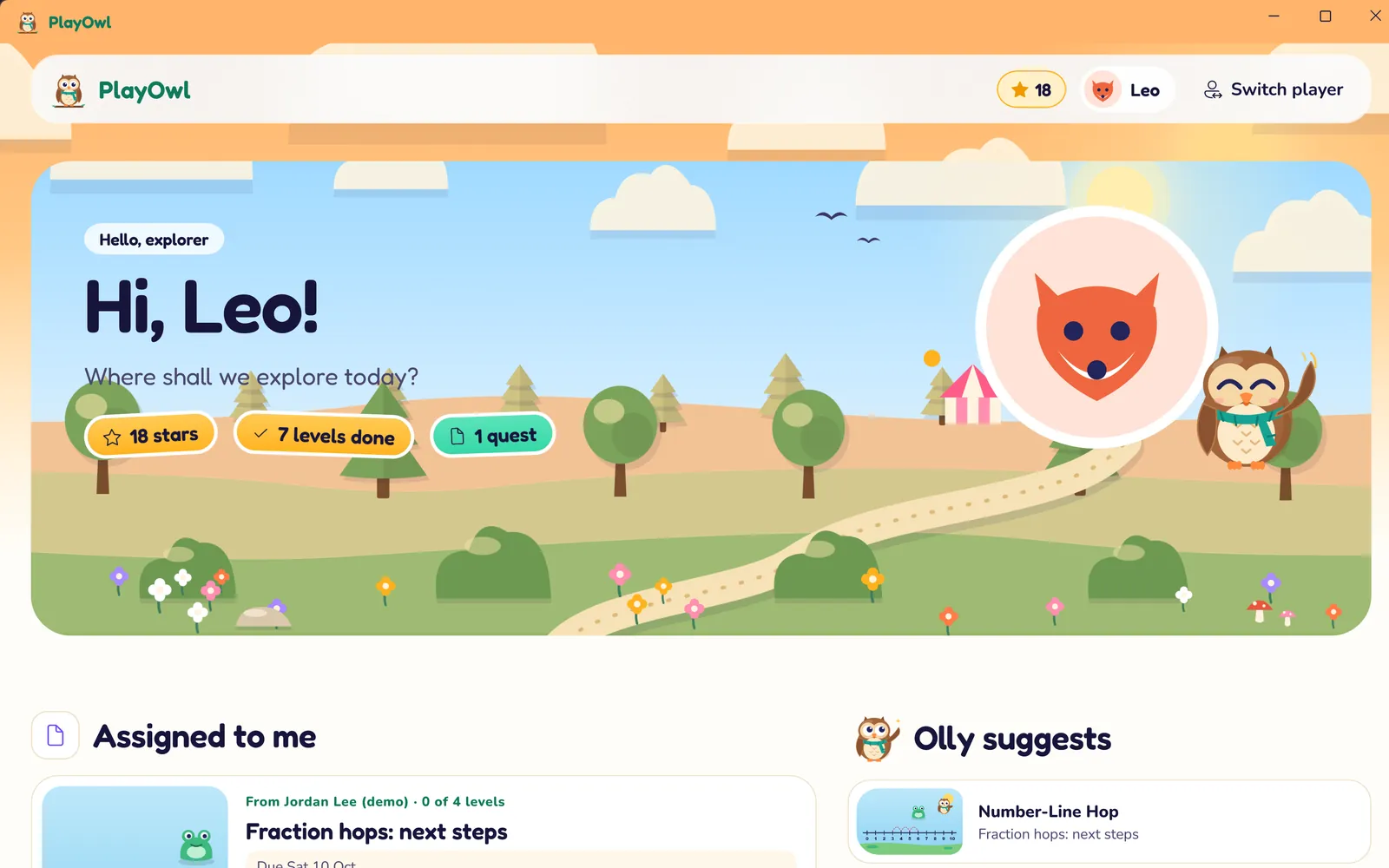
    PlayOwl for Windows showing Leo's home screen: "Hi, Leo! Where shall we explore today?" over a meadow scene with Olly, badges for 18 stars, 7 levels done and 1 quest, and below it Assigned to me and Olly suggests.

    Mobile app

    PlayOwl on an Android tablet in landscape showing Leo's home: a wide meadow banner reading "Hi Leo! Where shall we explore today?" with stars, levels and quest badges, his fox avatar and Olly, Assigned to me below, and a centred tab bar.
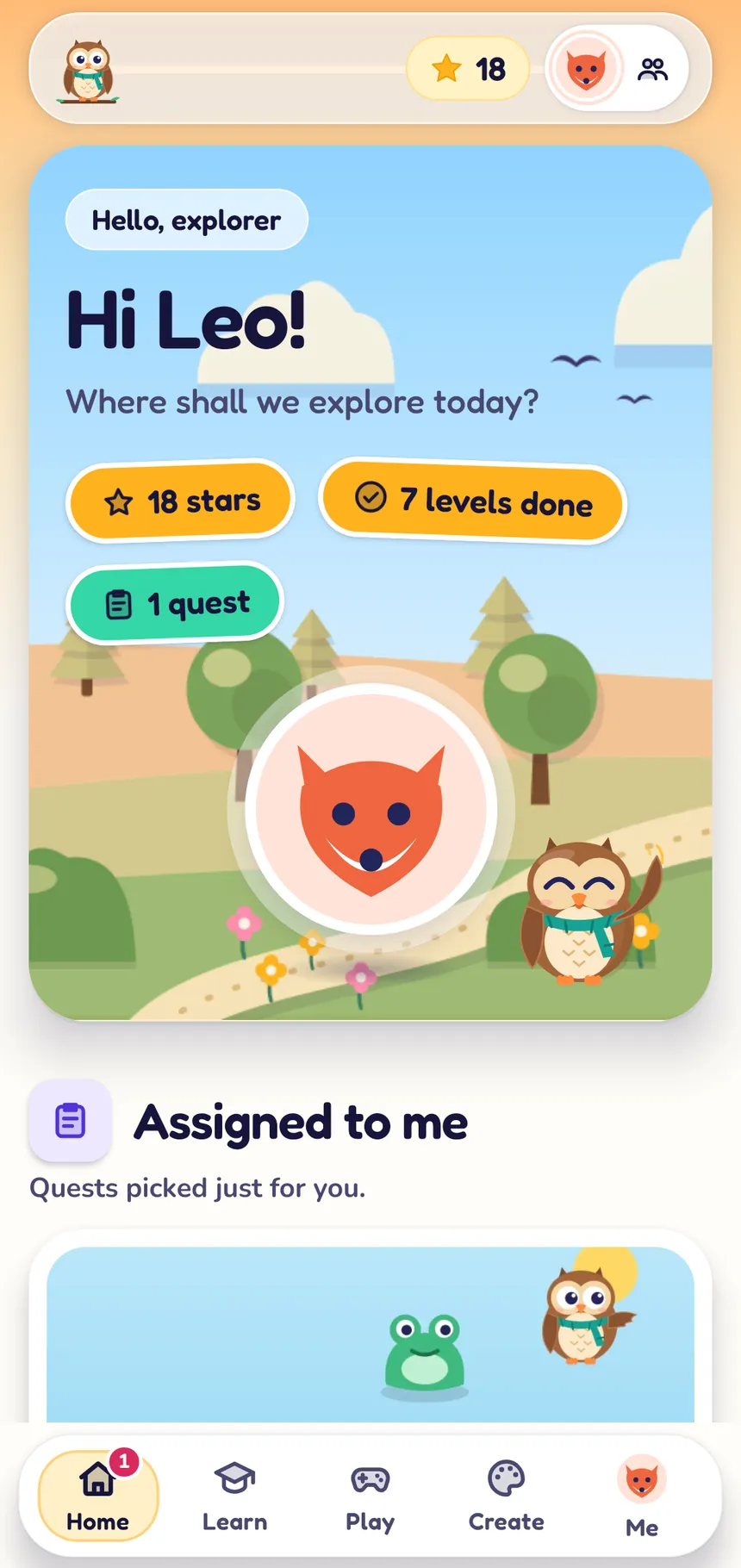
    PlayOwl on an Android phone showing Leo's home: "Hi Leo! Where shall we explore today?" with 18 stars, 7 levels done and 1 quest badges, his fox avatar and Olly in a meadow, Assigned to me below, and a Home, Learn, Play, Create and Me tab bar.
  • Learning games they ask to play

    Up to three stars a level, with Read and Ask Olly buttons.

    Web

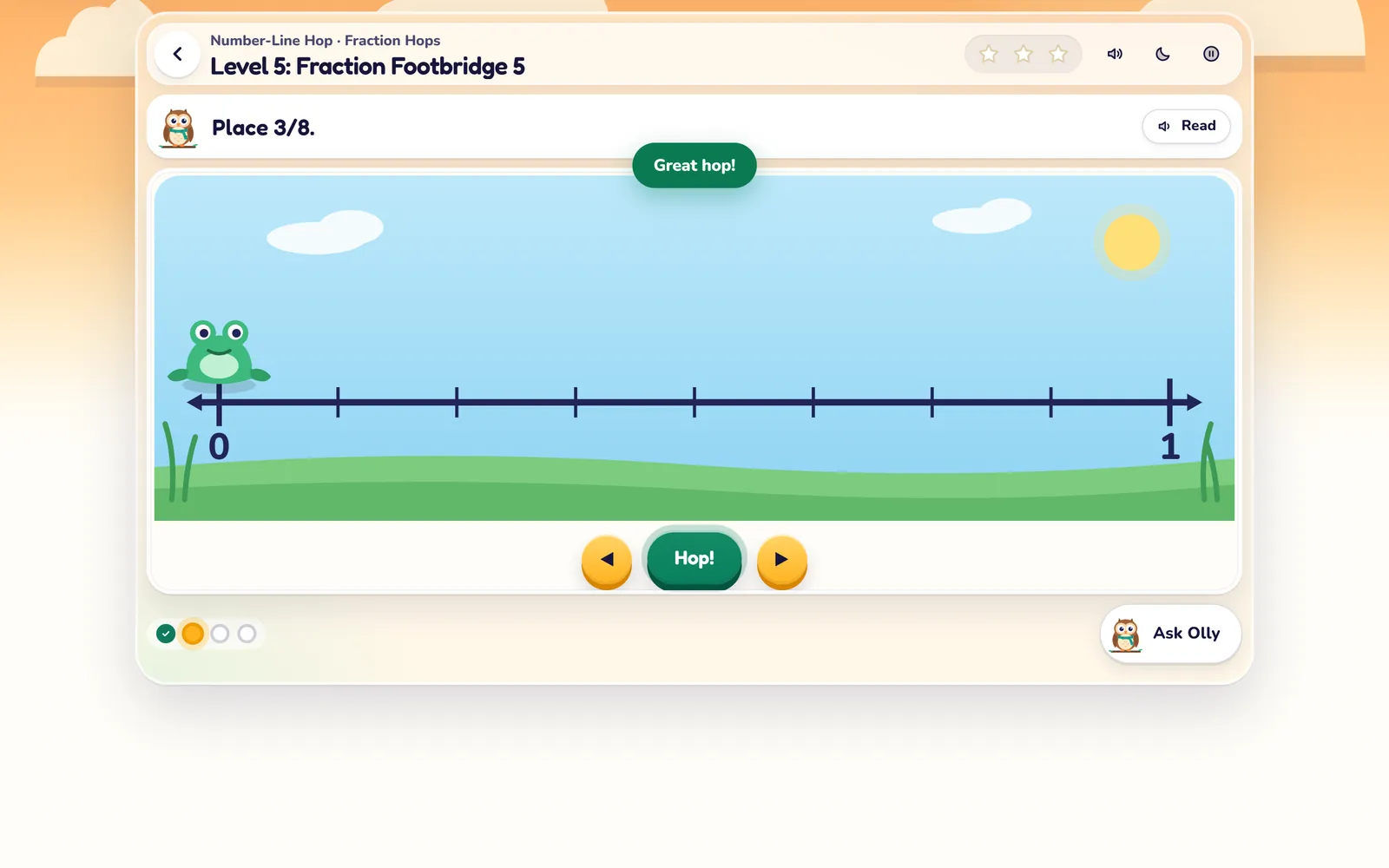
    Number-Line Hop on the web, Level 5: Fraction Footbridge. The task says "Place 3/8" and a frog waits at 0 on a number line split into eighths, with Hop and arrow buttons, a Read button and Ask Olly.

    Windows app

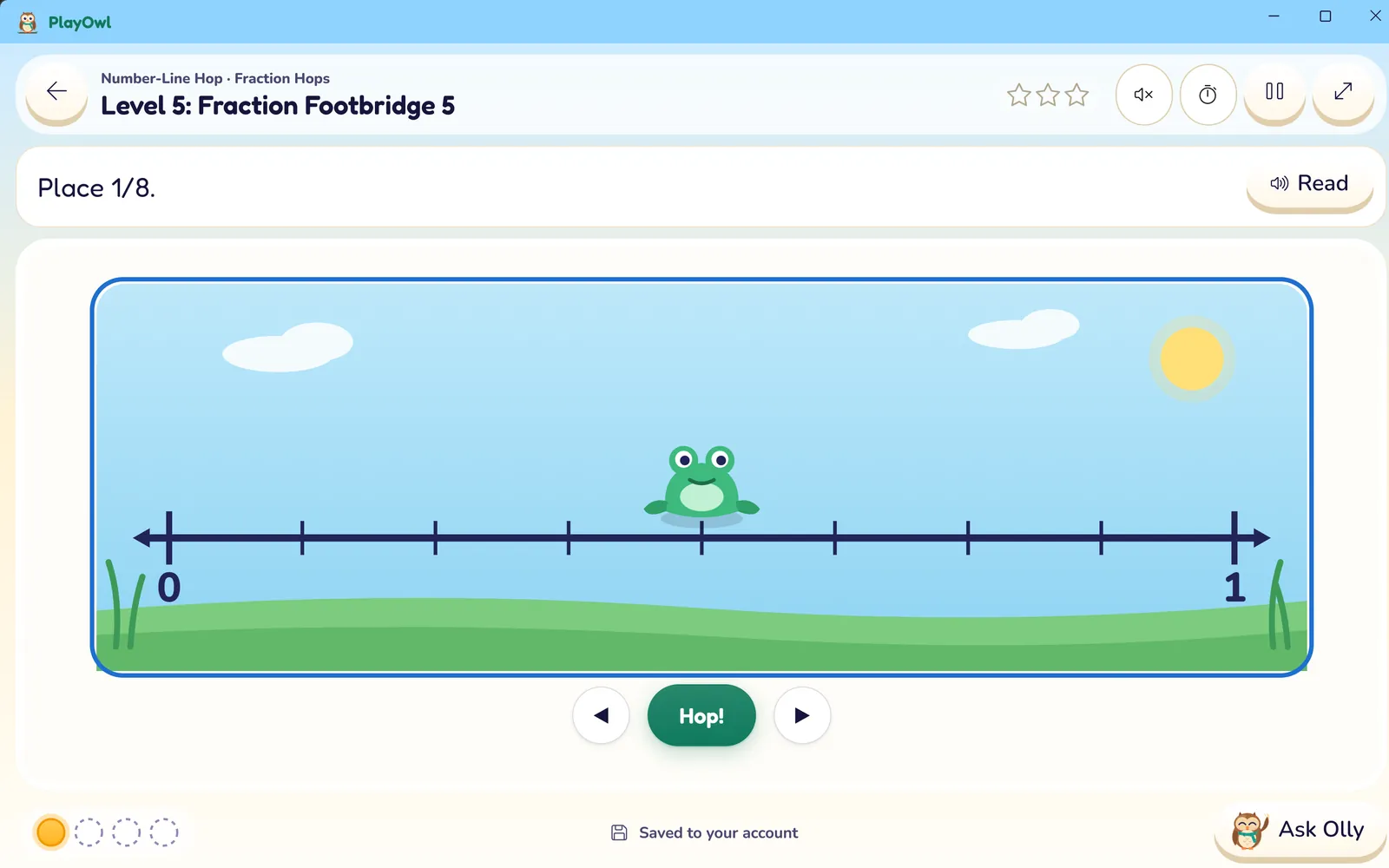
    PlayOwl for Windows playing Number-Line Hop, Level 5: Fraction Footbridge. The task says "Place 1/8" and a frog sits on a number line from 0 to 1 split into eighths, with Hop and arrow buttons, Read, Ask Olly and "Saved to your account".

    Mobile app

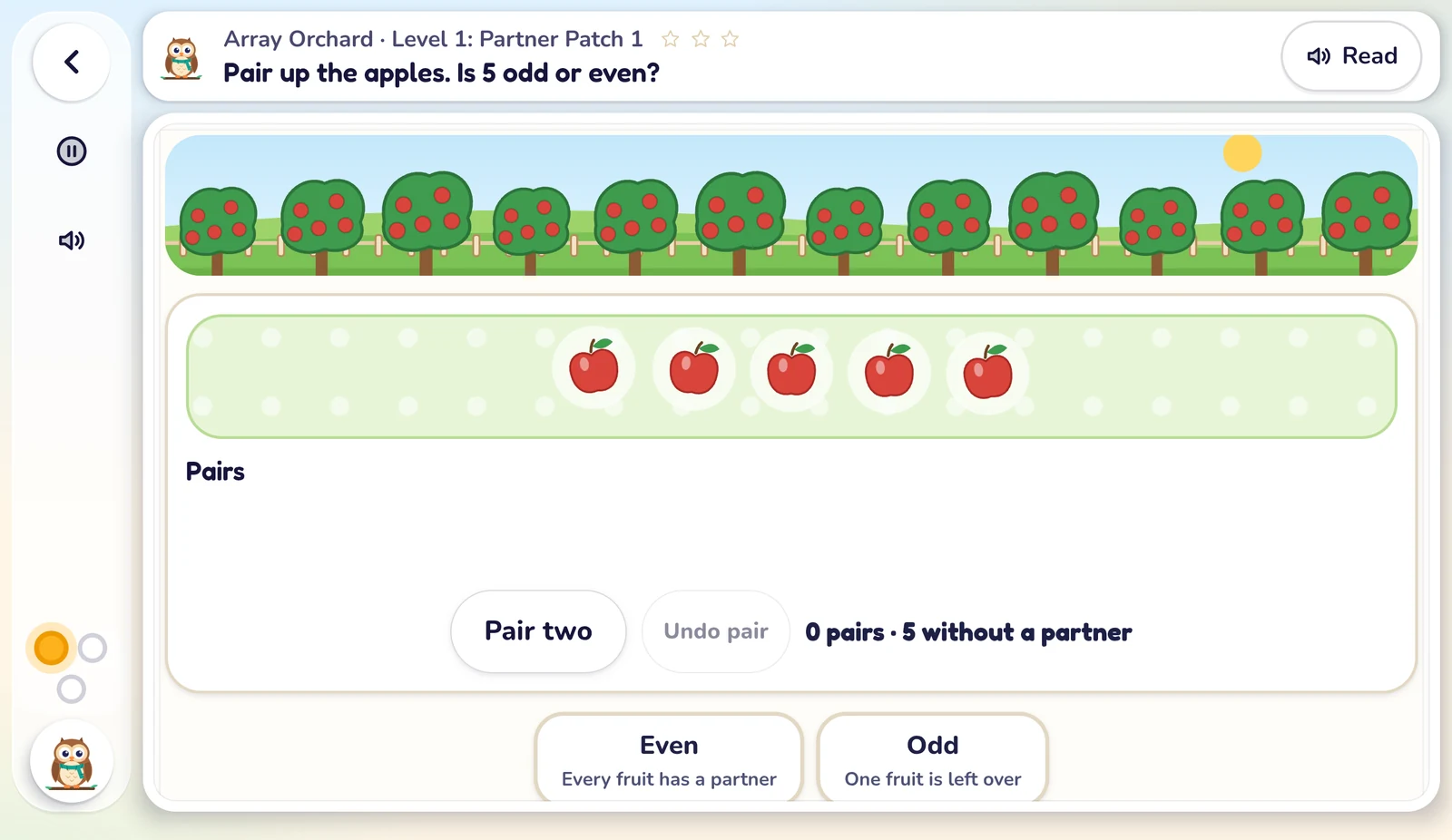
    Array Orchard in the PlayOwl app on an Android tablet, Level 1: Partner Patch 1. The task says "Pair up the apples. Is 5 odd or even?" with five apples, Pair two, Even and Odd buttons, a Read button, and pause, sound and Olly buttons down the side.
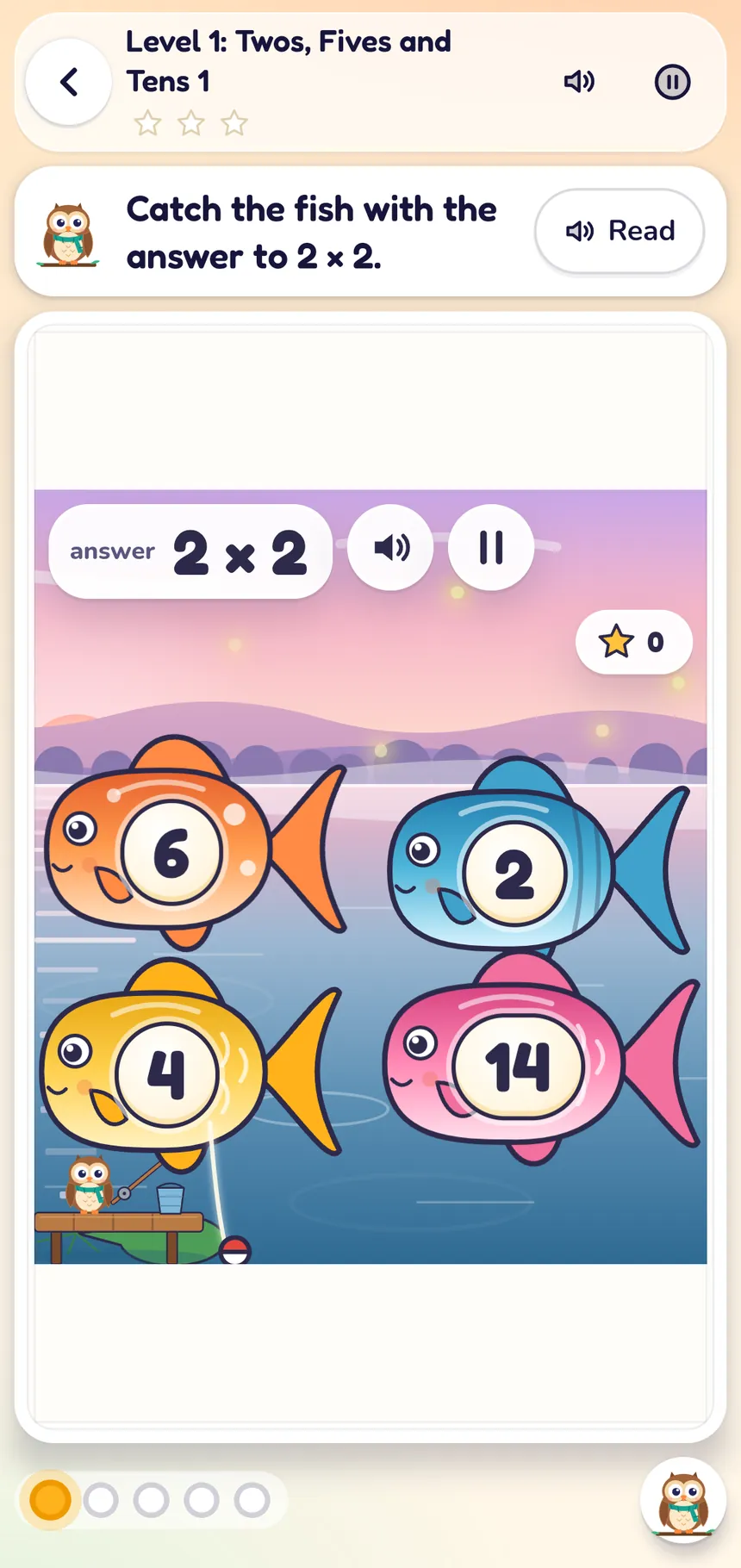
    PlayOwl on an Android phone playing Glimmer Pond, Level 1: Twos, Fives and Tens. The task says "Catch the fish with the answer to 2 × 2" and Olly fishes from a dock at a twilight pond with fish numbered 6, 2, 4 and 14.
  • Short lessons and quizzes

    Courses from preschool to Grade 12, one small step at a time.

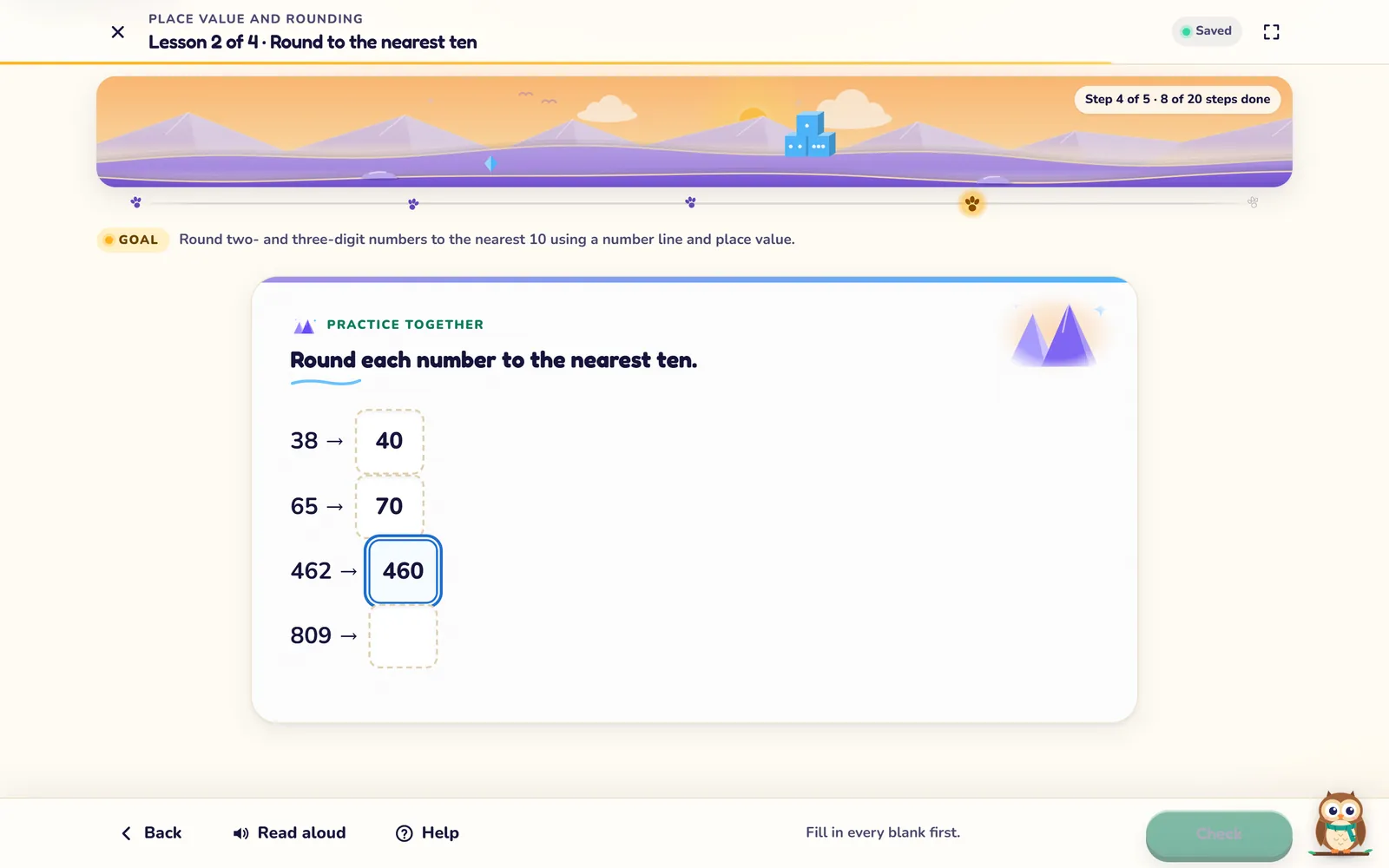
    An Academy lesson on the web, "Round to the nearest ten" (Lesson 2 of 4): a practice step where 38 becomes 40, 65 becomes 70 and 462 becomes 460, with Back, Read aloud, Help and Check buttons.

Web, Windows and mobile

Works on the devices you have

One account on every device. Each child's stars follow them.

  • Works there
  • Not there
  • Free On every account
  • Plan adds more Free to start; a plan opens every level and course
What works on the website, in the Windows app and in the Android and iOS app
What you can do WebAny browser WindowsPC app MobileAndroid & iOS
Kids play games and courses Plan adds more Yes Yes Yes
Kids tap their picture to start Free Yes: Kids' browser Yes Yes
See each child's progress Free Yes Yes Yes
Set screen-time limits Free Yes Yes Yes
Add kids and manage devices Free Yes Yes Yes
Assign work to one child Free Yes No: On the web No: View only
Keeps working if the internet drops Free No: Short drops only Yes: Syncs later Yes: Syncs later
Make art and print worksheets Plan adds more Yes No: On the web No: On the web

What it costs

Free to start. A plan opens everything.

Free forever

Free
  • The first 10 levels of every game (5 in 3D adventures)
  • The first five courses of every subject path
  • Screen-time limits, reports and privacy controls
  • All printables, free, and the creative studios
  • The apps and a kids' browser, no ads

$0, no payment details

With a plan

Family Premium
  • Every level of every game, 2D and 3D
  • Every course of every Academy path
  • Unlimited printable generator
  • For each child you add a place for

Family Premium: $7.99 per child per month, or $79.99 a year Compare plans

Bought on the PlayOwl website, never inside the apps.

Questions

Parents often ask

Do my kids need an email address?

No. Each child needs only a first name or nickname, a grade and an avatar. Children sign in by tapping their picture on a device you set up.

How does the screen-time limit work?

Under PlayTime & access you set daily minutes for school days and weekends, the hours when play is allowed, and games that need your OK. Play is never cut off mid-game: a calm banner shows for the last two minutes.

Can brothers and sisters share one tablet?

Yes. Each child taps their own picture, and you can give each one three pictures to tap in order, so nobody plays as someone else by accident.

What can we do without paying?

The first 10 levels of every game (5 in 3D adventures) are free. The first five courses of every subject path are free. Screen-time limits, reports, the apps and every privacy control are free on every account.

Can my child buy something in the app?

No. Nothing is sold inside the apps. Plans are chosen by a grown-up on the PlayOwl website, under Plans & billing.

Is it safe?

No ads, no stranger messaging and no public profiles. You can download or delete your family's data at any time. Safety & privacy

Ready when you are

Set up your family in a few minutes, free.