How does a screen reader describe a webpage?
A screen reader turns a web page into speech. It reads the hidden labels on headings, links, buttons and pictures.
The big idea: A screen reader does not look at the screen. It reads the labels in the page's code: heading, link, button, image. Good labels let people find their way by ear.
It's like a helper reading a newspaper to you over the phone: they read the headlines first, so you can say which story you want to hear.
The interactive parts didn't load. The explanations below still work; try reloading the page.
How a page becomes speech
- Sam is blind and loves the Pond Club website. Sam cannot see the screen, so a program called a screen reader turns the page into speech. But how does it know what to say, and in what order?
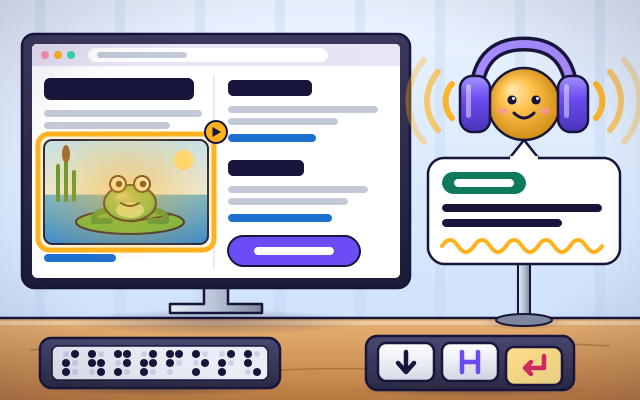
- Behind the picture you see, every page is built from labeled pieces. The code says: this is a heading, this is a paragraph, this is an image, this is a link, this is a button. The screen reader reads those hidden labels.
- The screen reader moves through the pieces in order, like a finger following the page. For each one it says what kind of thing it is and then reads it: Heading, Pond Club. Sam presses a key to hear the next piece.
- Listening to every piece would take a long time. So Sam presses one key to jump from heading to heading, like running a finger down the titles in a book. Another key jumps from link to link.
- A screen reader cannot see what is in a picture. The person who made the page writes a short description, called alt text. Then Sam hears: image, a green frog sitting on a lily pad. With no description, Sam hears only: image.
- With clear headings, link names and picture descriptions, Sam finds the frog songs in seconds. A braille display can show the same words as raised dots. Pages built this way are easier for everyone to use.
Look closely at a screen reader at work
This is the Pond Club page and the tools Sam uses to hear it. Tap each part.
- Heading. A title for a part of the page. Screen reader users jump from heading to heading to find what they want, like using a table of contents.
- Link. Words that take you to another page. The screen reader says the word link and then the link's name, so the name has to make sense by itself.
- Image description. Hidden words, called alt text, that say what a picture shows. The screen reader reads them out, because it cannot see the picture.
- Button. A control that does something, like joining the club. The screen reader says button and its name, and Sam presses Enter to use it.
- Reading position. The frame shows which piece the screen reader is on. Sam cannot see it, but it helps sighted friends follow along.
- Voice. A speech synthesizer turns the text into spoken words. Sam can change the voice and make it talk faster or slower.
- Keyboard. Sam uses keys instead of a mouse: one for the next item, one for the next heading, one for the next link, and Enter to press a button.
- Braille display. A row of tiny pins that pop up to make braille letters. Sam can read the same words by touch, quietly.
Read by ear
Press Next item to hear the page piece by piece. Then try jumping by heading and by link. Count the key presses.
Experiment: Sam wants to get to the Ducks part of the page. Which way takes fewer key presses?
- Press Back to the top. Press Next item until you hear Ducks. Count the presses.
- Go back to the top. Now press Next heading until you hear Ducks.
- Compare the two counts.
What we found: From the top, Ducks is 8 presses away item by item, but only 3 presses away by heading. Headings let Sam skim a page by ear.
Turn on JavaScript to try it yourself.
Find the link by ear
The screen is off, just as Sam uses it. Find the link called Feed the ducks and press Enter. Use as few key presses as you can.
How a page becomes speech
A screen reader is a program that reads a computer or phone screen out loud. People who are blind or have low vision use it to browse the web, write messages, do homework and play games. It comes built into most phones, tablets and computers, so you may already have one.
A screen reader does not look at the screen the way your eyes do. Behind every web page is code, and good code labels each piece: this is a heading, this is a paragraph, this is a link, this is a button, this is an image. The screen reader reads those labels. That is how it can say 'Heading, Pond Club' or 'Link, Frog songs', and how it knows which key should jump where.
Because of those labels, a person can move around a page by ear. One key reads the next item. Another jumps to the next heading, which is like skimming the titles. Another jumps from link to link. Pictures are different: a computer voice cannot tell what a photo shows, so the person who made the page writes a short description called alt text. If they forget, the listener just hears 'image'.
So whether a page works for Sam depends on the people who build it. Clear headings, links whose names make sense, and described pictures make the page easy to hear. They also help everyone else: search engines, people using voice control, and anyone whose pictures will not load. Our newspaper comparison is not perfect, because a screen reader also lets you press buttons, fill in forms and type, not just listen.
Key words
- Screen reader
- A program that reads what is on a screen out loud, or sends it to a braille display.
- Heading
- A title for a part of a page, marked in the code so that people can jump to it.
- Alt text
- A short written description of a picture, read out in place of the picture.
- Role
- What a piece of a page is: a heading, a link, a button, an image.
- Accessible name
- What a piece of a page is called when it is announced, such as 'Frog songs' for a link.
- Braille display
- A device with rows of small pins that rise to form braille letters for reading by touch.
- Text to speech
- Software that turns written words into a spoken voice.
Check your thinking
-
How does a screen reader know what to say?
Show the answer
It reads the labels and text in the page's code. The code labels each piece as a heading, link, button or image, and the screen reader reads those labels and the text.
-
Why does a picture on a web page need alt text?
Show the answer
The screen reader cannot see the picture, so it reads the description instead. A picture is only colored dots to a computer voice. The description tells the listener what the picture shows.
-
What does one special key do for Sam?
Show the answer
It jumps to the next big title. One key hops from title to title, so Sam can find things fast.
-
Sam wants the part of the page about ducks. What is the quickest way to get there?
Show the answer
Jump from heading to heading. The heading key skips everything between the titles, so 'Ducks' is only a few presses away.
-
Which link name helps a screen reader user most?
Show the answer
Feed the ducks. Links are often heard one after another. 'Feed the ducks' says where it goes. 'Click here' could be anything.
-
A page looks perfect on screen. Can you tell from its looks alone that it works well with a screen reader?
Show the answer
No. What matters is the structure and names in the code, which you cannot see. Two pages can look identical while one has real headings, named links and alt text and the other has none. Only testing or reading the code shows the difference.
You're a Computers & communication expert!
You watched, looked inside, tried it, solved the challenge and went deeper. Pick another question below, or switch the age at the top to see this topic another way.
More about computers & communication
 #338
Computers & communication
How does speech recognition turn sound into words?
Follow a simplified journey from sound patterns to written text.
#338
Computers & communication
How does speech recognition turn sound into words?
Follow a simplified journey from sound patterns to written text.
 #339
Computers & communication
How does a translation app change languages?
Translate sample sentences and explore how context affects meaning.
#339
Computers & communication
How does a translation app change languages?
Translate sample sentences and explore how context affects meaning.
 #340
Computers & communication
How does image recognition identify objects?
Label pictures, test a simple classifier, and investigate its mistakes.
#340
Computers & communication
How does image recognition identify objects?
Label pictures, test a simple classifier, and investigate its mistakes.
 #341
Computers & communication
How does a chatbot create replies?
Explore a simplified word-prediction model and compare outputs for different questions.
#341
Computers & communication
How does a chatbot create replies?
Explore a simplified word-prediction model and compare outputs for different questions.
Keep exploring
Games to play next
- Pixel StudioMake pixel art square by square, with mirror tools and a frame strip.
- Robot RoutesSnap together arrow, repeat and dance blocks to guide Bolt the robot home.
- Bug DetectiveA robot program almost works. Run it, spot the buggy block, and fix it.
Guide for grown-ups
- How to start homeschooling: a step-by-step guide for familiesA guide for parents · 7 min read
Coding games by grade
Computer skills worksheets by grade
- Preschool Computer Skills Worksheets
- Pre-K Computer Skills Worksheets
- Kindergarten Computer Skills Worksheets
- 1st Grade Computer Skills Worksheets
- 2nd Grade Computer Skills Worksheets
- 3rd Grade Computer Skills Worksheets
- 4th Grade Computer Skills Worksheets
- 5th Grade Computer Skills Worksheets
- 6th Grade Computer Skills Worksheets
- 7th Grade Computer Skills Worksheets
- 8th Grade Computer Skills Worksheets